

Proxy servers may be useful in business environments to restrict websites, analyze Internet traffic or for caching purposes. There are several proxy servers available on the market but we won’t talk about them.
Instead, we’re going to see how to force proxy settings via Group Policy (GPO) on Windows Server 2012 // R2. The Policy will only affect Internet Explorer, but we’ve already seen how to restrict applications and the same applies to browsers.
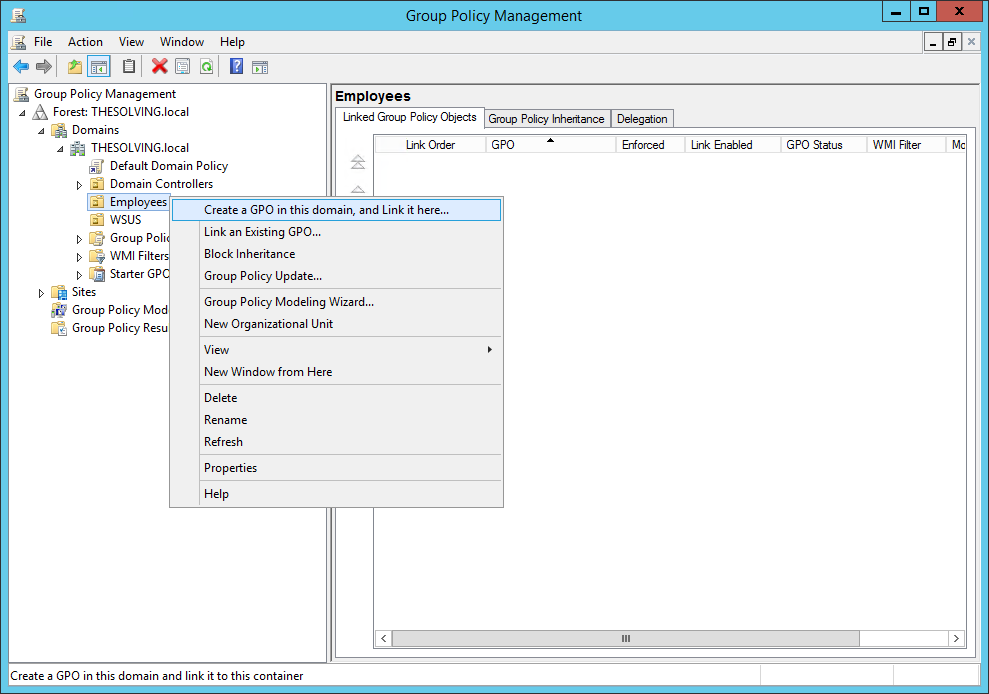
Open the Group Policy Management panel and create a new Group Policy Object:
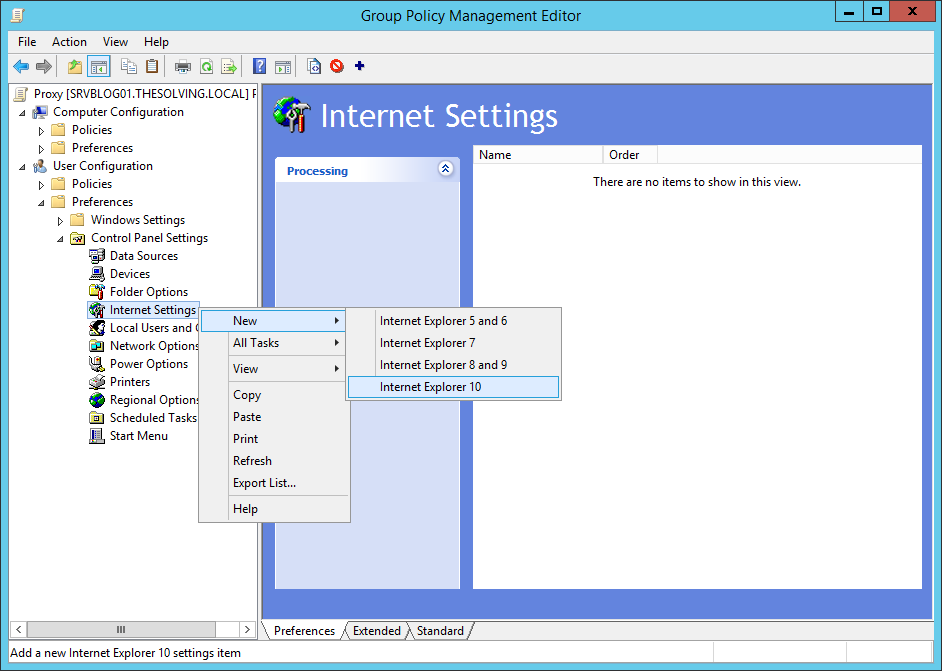
From the Group Policy Management Editor open the path User Configuration/Control Panel Settings/Internet Settings. Right-click on Internet Settings and select New. Microsoft let you choose the version of IE affected by the policy. You can force the Proxy settings on all the IE versions with a single policy:
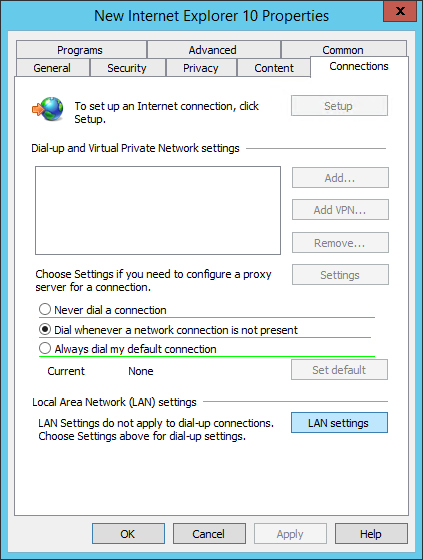
Open the Connections tab and click LAN settings:
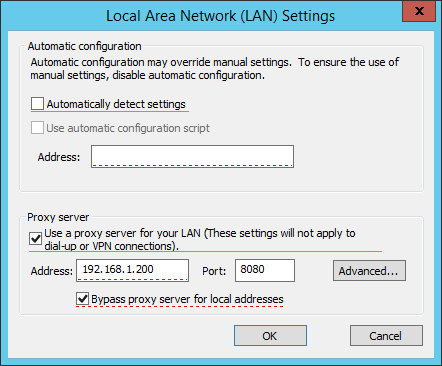
It’s time to specify the proxy IP address, then click Ok. The configuration is finished:
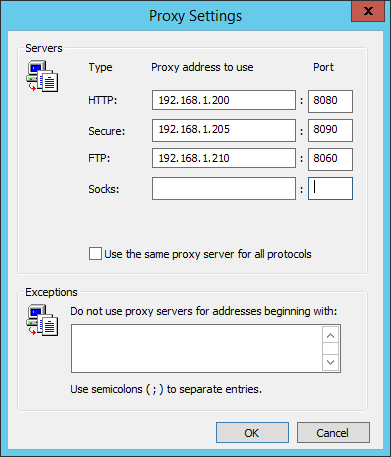
You can also specify different proxy servers for different protocols:
Read related articles
Configuring and using Windows Deployment Services (WDS)
A 2026 guide to WDS: installation, PXE boot, boot/install images, and the limitations introduced with Windows 11 and Server 2025.
How to install and configure Windows Server Update Services (WSUS)
How to install and configure WSUS in 2026: client groups, approval rules, database maintenance, and the critical CVE to patch.
Sysprep in 2026: practical guide for sysadmins and MSPs
What Sysprep is, when to use it, and how to properly generalize a Windows image before distribution or cloning.