

 Italiano
 Español
We’ve already seen how you can install IIS (Internet Information Services) on Windows 8.1 for testing purposes. Now, we’ll see how you can install IIS on a server machine, to host your website for production purposes.
There’s no much differences between the two procedures. The installation is quick and easy.
Step one: Install the Web Server (IIS) role
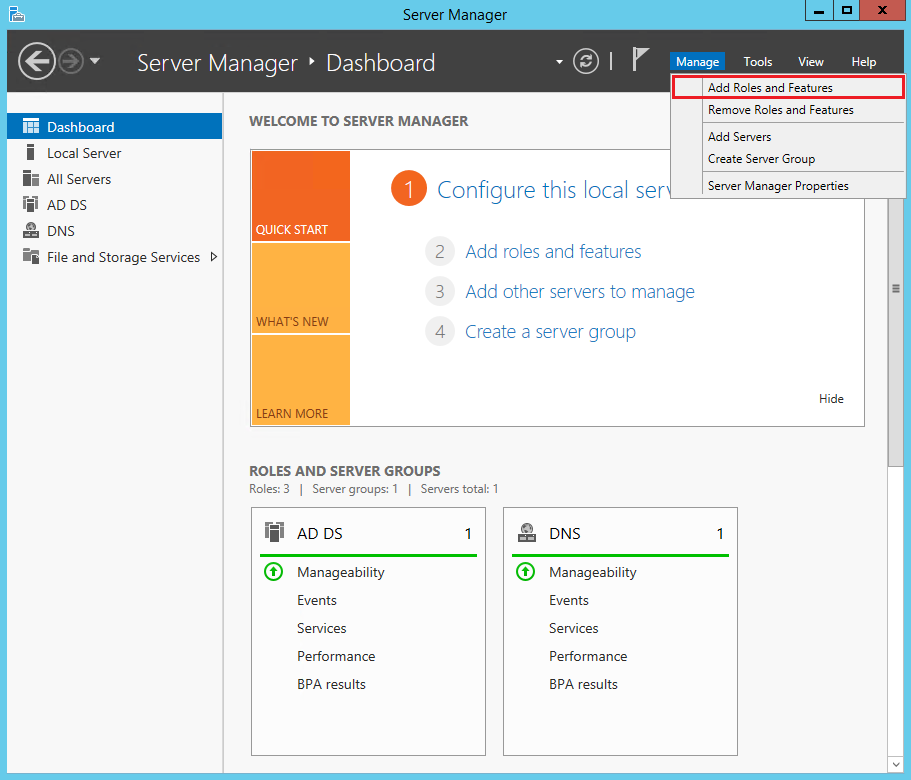
Open the Server Manager and click Add Roles and Features:
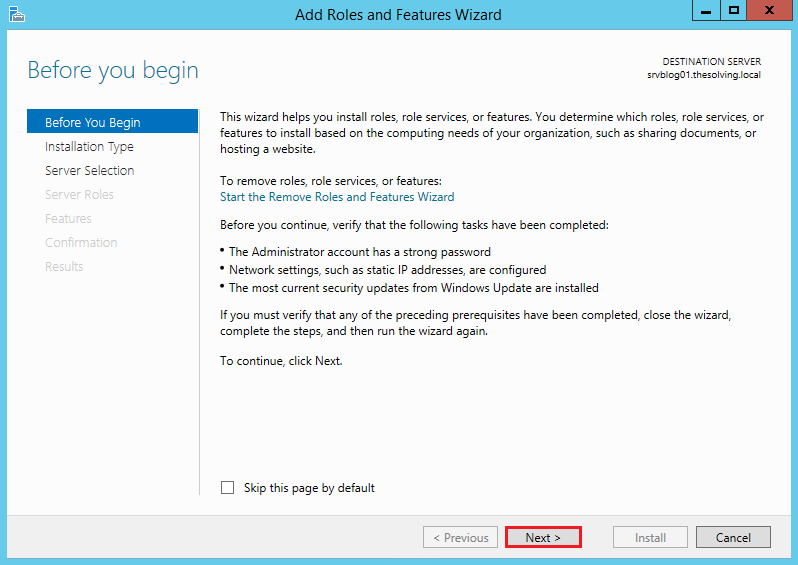
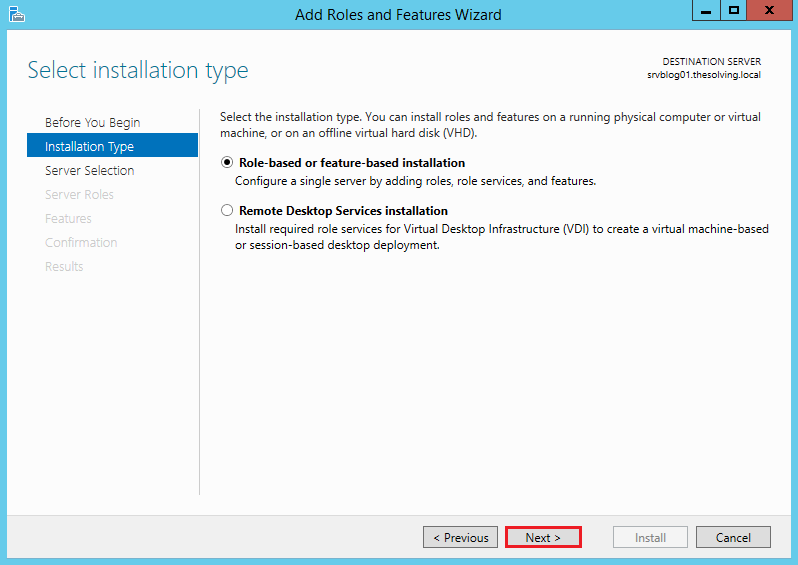
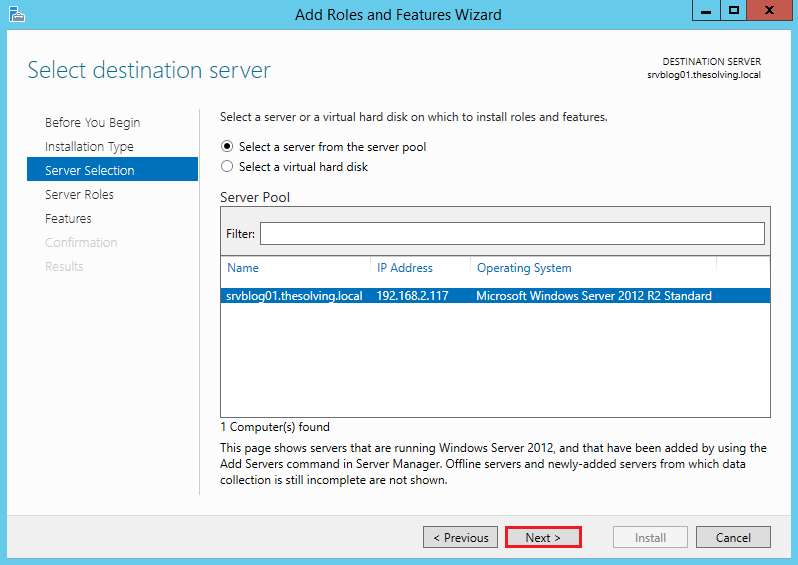
Go on until you reach the Server Roles tab:
Select Web Server (IIS):
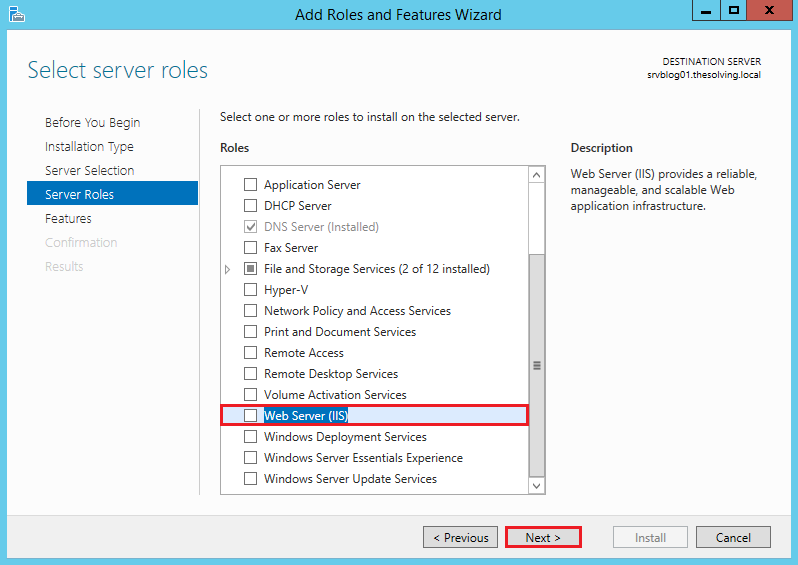
Click Add Features:
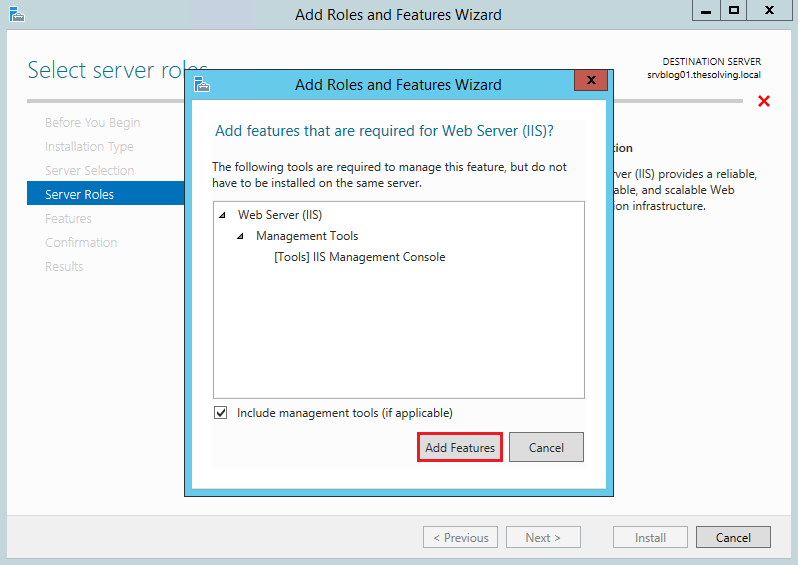
Ignore the Features tab and go on:
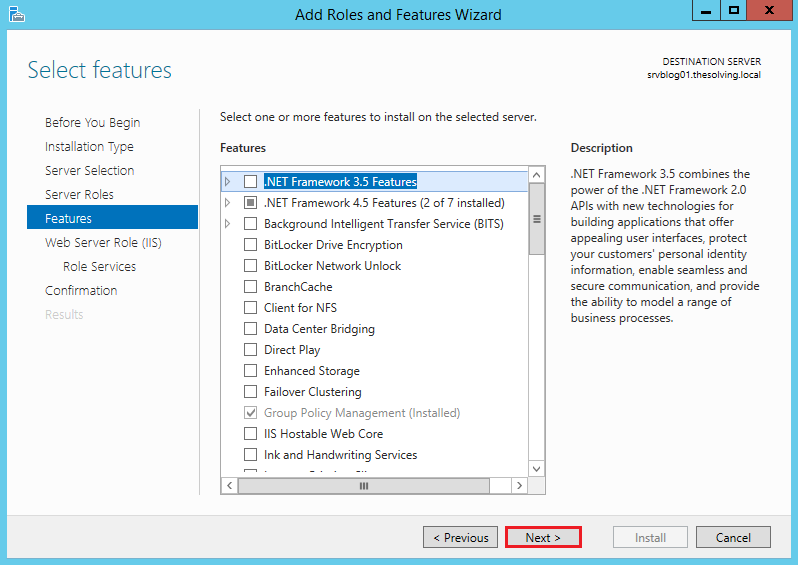
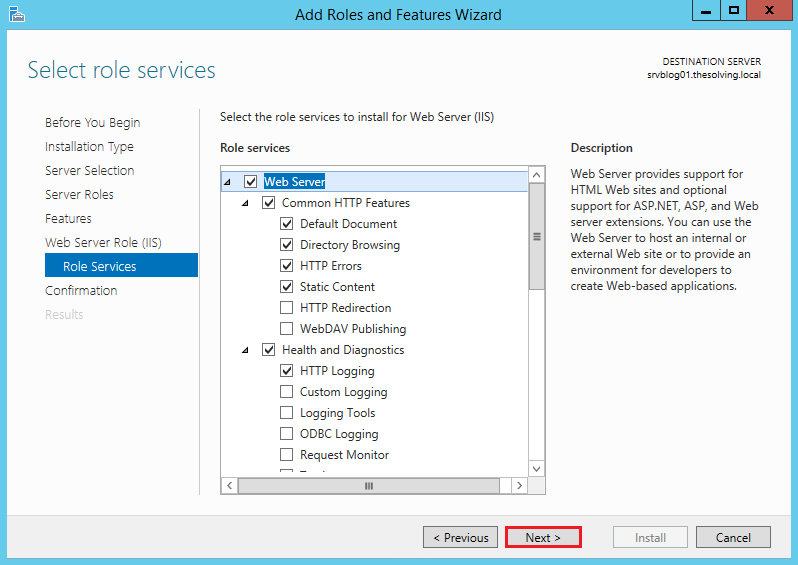
Click Next:
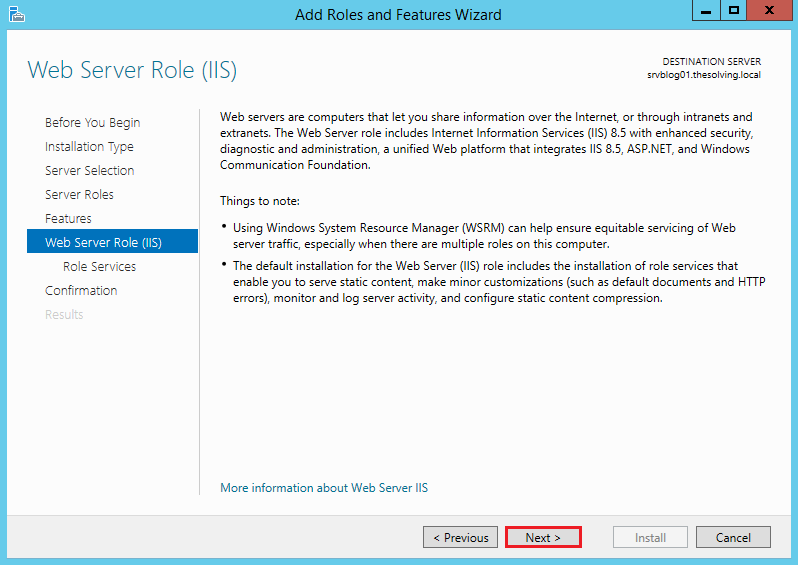
The default configuration will be fine. Click Next:
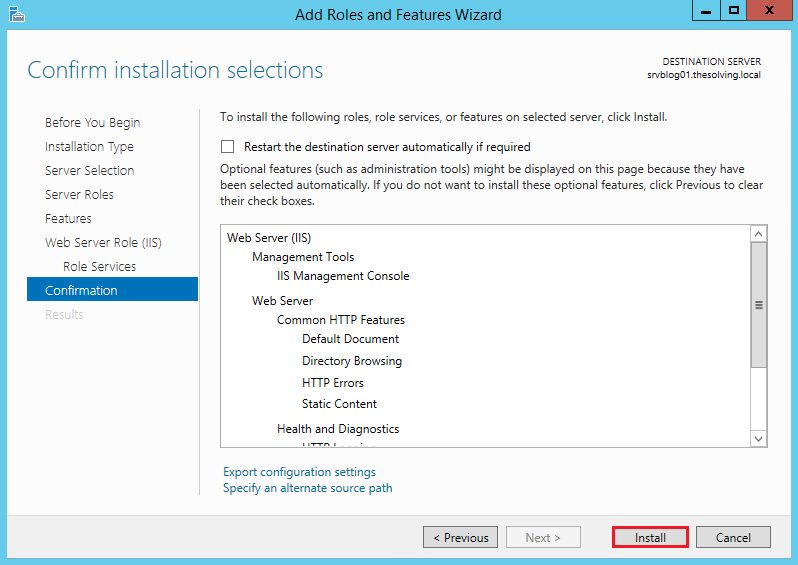
Click Install:
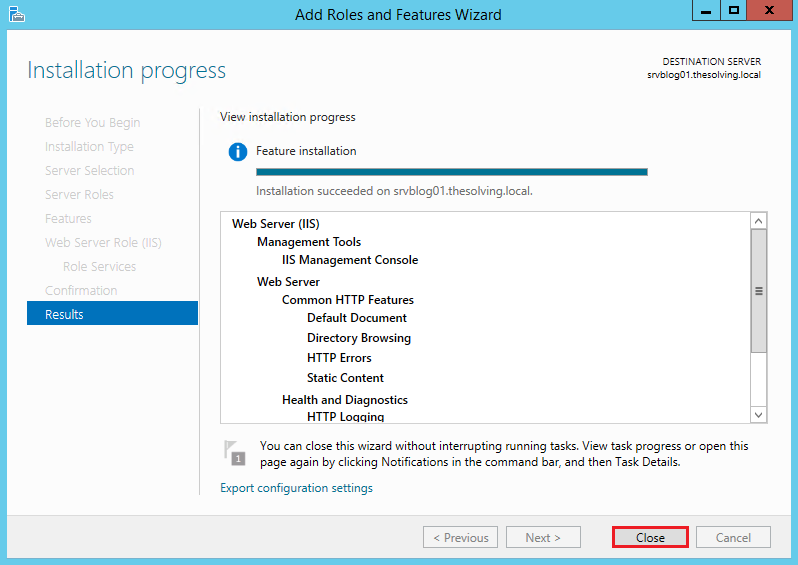
Installation completed!
Step two: Configure IIS
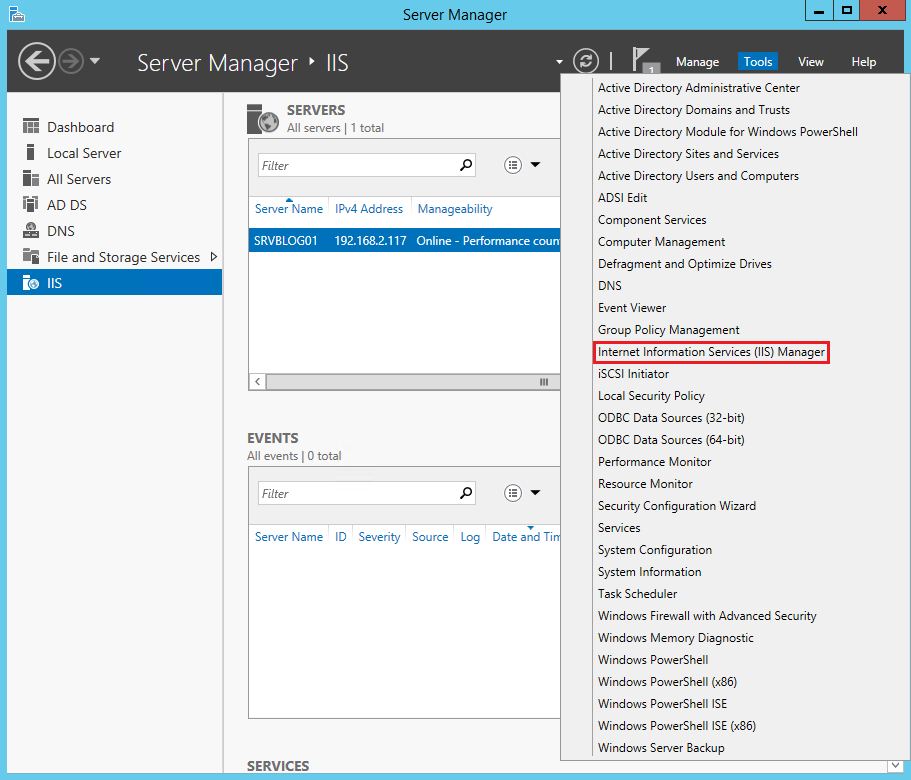
Go back to the Server Manager. Select Internet Information Services (IIS) Manager from the Tools menu:
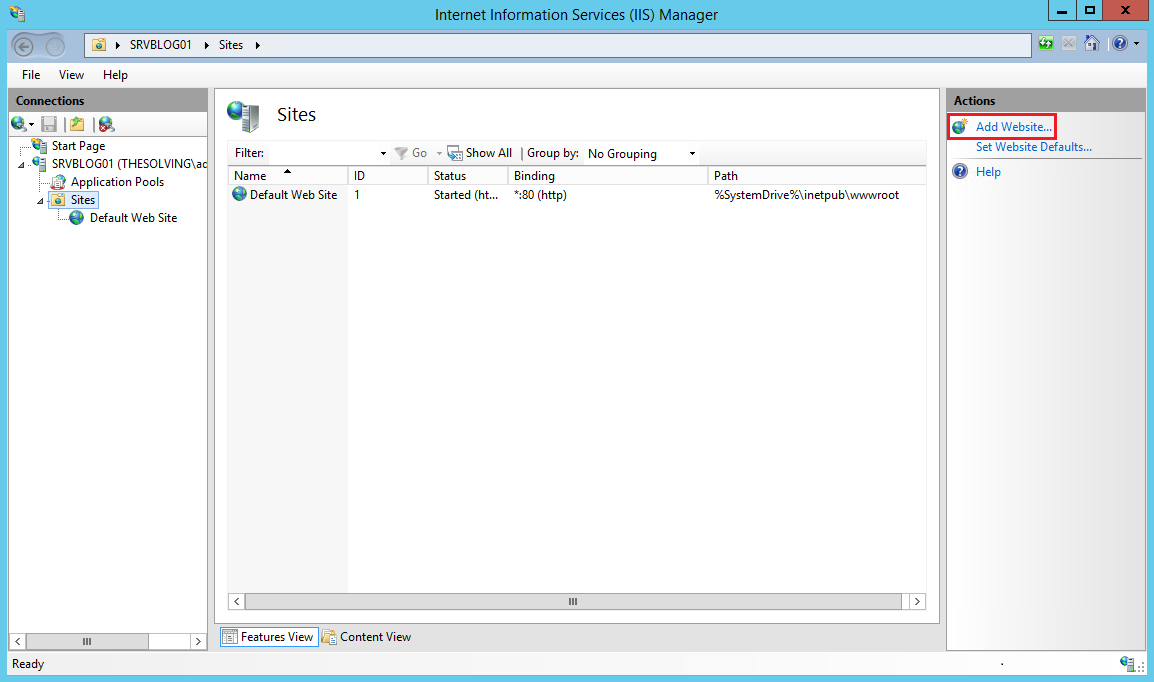
Click Add Website:
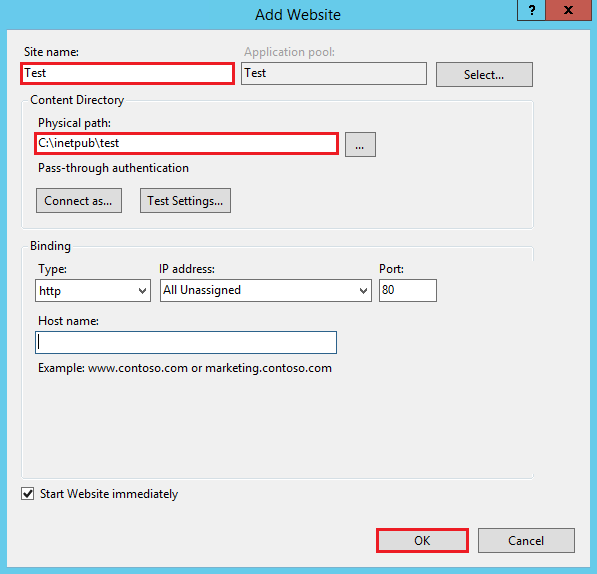
Specify at least the site name and path. Click Ok:
Your first site is ready to be accessed.
Read related articles
How to configure static routes to route traffic through a specific gateway
Learn how to configure static routes on Windows Server and Windows 11 using route add and PowerShell’s New-NetRoute, so traffic to specific destinations takes the gateway you choose.
How to reset NTFS permissions with ICACLS
Learn how to fix broken NTFS/ACL permissions on Windows Server using ICACLS: reset ACLs, handle access denied errors, take ownership, and back up permission trees safely.
Configuring and using Windows Deployment Services (WDS)
A 2026 guide to WDS: installation, PXE boot, boot/install images, and the limitations introduced with Windows 11 and Server 2025.