

 Italiano
 Español
Windows Server Update Services (WSUS) is the Microsoft component that allows centralized distribution of updates across Active Directory domains, optimizing bandwidth and maintaining full control over which patches are deployed and when.
This guide, updated for 2026, covers installation on Windows Server 2019, 2022, and 2025, configuration via PowerShell and GUI, client management through GPO, database maintenance, and best practices for sysadmins and MSPs.
Important note: Microsoft officially announced the deprecation of WSUS in September 2024. The service remains functional and supported, but will receive no new features. For fully cloud-managed environments (Azure AD / Entra ID + Intune), consider Windows Update for Business (WUfB) as an alternative requiring no on-premises infrastructure. WSUS remains the right choice for traditional on-premises Active Directory environments.
WSUS Prerequisites
Before starting the installation, verify that the following requirements are met:
| Requirement | Detail |
|---|---|
| Operating system | Windows Server 2019, 2022, or 2025 (domain member or standalone) |
| Server role | AD domain member server or Domain Controller (not recommended in production) |
| Account | Member of the Domain Admins or Local Administrators group |
| Dedicated volume | At least 100 GB free on a volume separate from C:\ for update content |
| Firewall ports | TCP 8530 (HTTP) or 8531 (HTTPS) open from clients to the WSUS server |
| Internet access | HTTPS to *.update.microsoft.com and *.windowsupdate.com from the WSUS server |
| SQL Server (optional) | SQL Server Express, Standard, or Enterprise – pre-installed if not using WID |
Architecture Decisions
Topology: Standalone, Upstream/Downstream, or Autonomous
In a single-site environment, a single WSUS server is sufficient. In multi-site or MSP environments with multiple clients, you can configure a hierarchy:
- Upstream server: synchronizes directly with Microsoft Update. Approvals defined here flow downstream.
- Downstream (replica) server: synchronizes from the upstream server and replicates its approvals. Ideal for remote sites with limited WAN bandwidth.
- Autonomous downstream server: synchronizes content from upstream but manages its own approvals. Ideal for MSPs requiring per-client granular control.
Backend: WID (Windows Internal Database) or SQL Server?
The choice of database has a direct impact on long-term performance.
| Criterion | WID | SQL Server |
|---|---|---|
| Supported clients | Up to ~500 recommended | Unlimited |
| Database maintenance | Limited (sqlcmd only) | Full (SSMS) |
| Performance with large datasets | Known progressive degradation | Stable |
| Recommended for | Environments < 500 clients | MSP, enterprise, > 500 clients |
Sizing Recommendations
| Resource | Minimum | Recommended |
|---|---|---|
| Disk (content) | 100 GB (metadata only) | 500 GB – 2 TB (depends on products) |
| RAM | 8 GB | 16 GB for > 500 clients |
| CPU | 2 cores | 4 cores (WSUS is I/O-bound, not CPU-bound) |
| Storage type | HDD | SSD – mandatory for acceptable performance |
1. Installing the WSUS Role
Installation via GUI (Server Manager)
Open Server Manager and click Add Roles and Features:
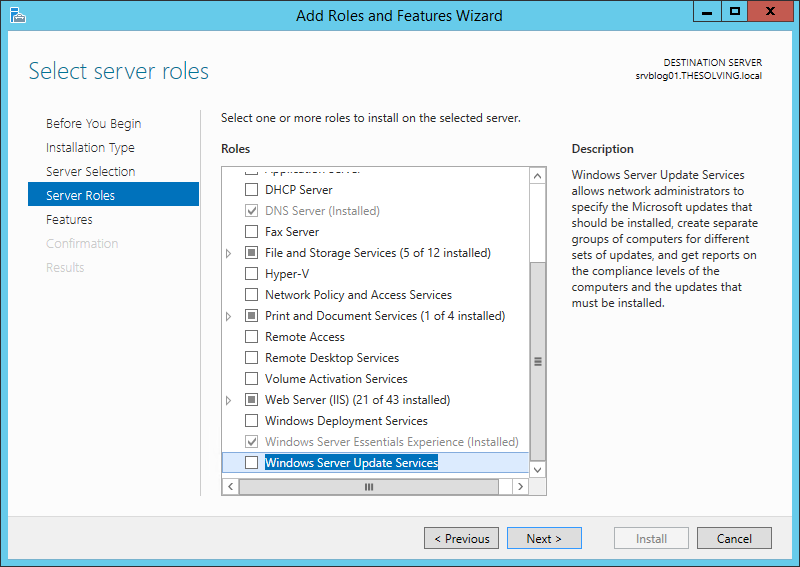
In the wizard, select the Windows Server Update Services role.
On the Role Services screen, select:
- WID Connectivity or SQL Server Connectivity (based on your architecture choice)
- WSUS Services
- Management Tools (included automatically)
On the Content location screen, specify the path to the dedicated volume:
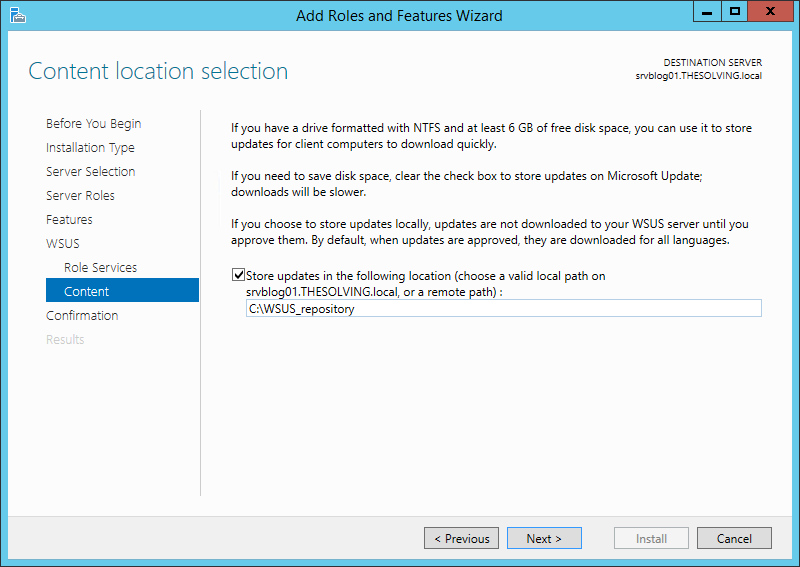
The system will take a few minutes to complete the installation. When done, a WSUS entry will appear in Server Manager.
Installation via PowerShell (recommended for MSPs and automation)
PowerShell allows you to script the installation and repeat it consistently across multiple servers.
With Windows Internal Database (WID):
# Install the WSUS role with WID backend
Install-WindowsFeature -Name UpdateServices, UpdateServices-WidDB `
    -IncludeManagementTools -Restart:$false

# Post-install configuration: content path
# Note: --% disables PowerShell parsing for the rest of the line,
# avoiding quote-handling issues when passing args to wsusutil.exe
& 'C:\Program Files\Update Services\Tools\WsusUtil.exe' postinstall --% CONTENT_DIR=D:\WSUS
With SQL Server (recommended for MSPs and > 500 clients):
# SQL Server must be pre-installed before running this script
Install-WindowsFeature -Name UpdateServices, UpdateServices-DB `
    -IncludeManagementTools

# Post-install configuration: connect to SQL instance
& 'C:\Program Files\Update Services\Tools\WsusUtil.exe' postinstall --% SQL_INSTANCE_NAME=SRVBLOG01\SQLEXPRESS CONTENT_DIR=D:\WSUS
After post-install, on Windows Server 2019/2022 verify that the .msu and .wim MIME types are present in IIS. They are required to support the Unified Update Platform (UUP) used by feature updates for Windows 10/11 and Server 2022/2025. If missing, add the MIME types via IIS Manager (MIME Types → Add…) or via PowerShell using Add-WebConfigurationProperty. On Windows Server 2025 they are included by default.
2. Initial WSUS Configuration
The initial configuration can be performed via the WSUS Configuration Wizard or via PowerShell. Both methods are described below.
Configuration via GUI (WSUS Configuration Wizard)
After installation, open the WSUS Console from Server Manager:
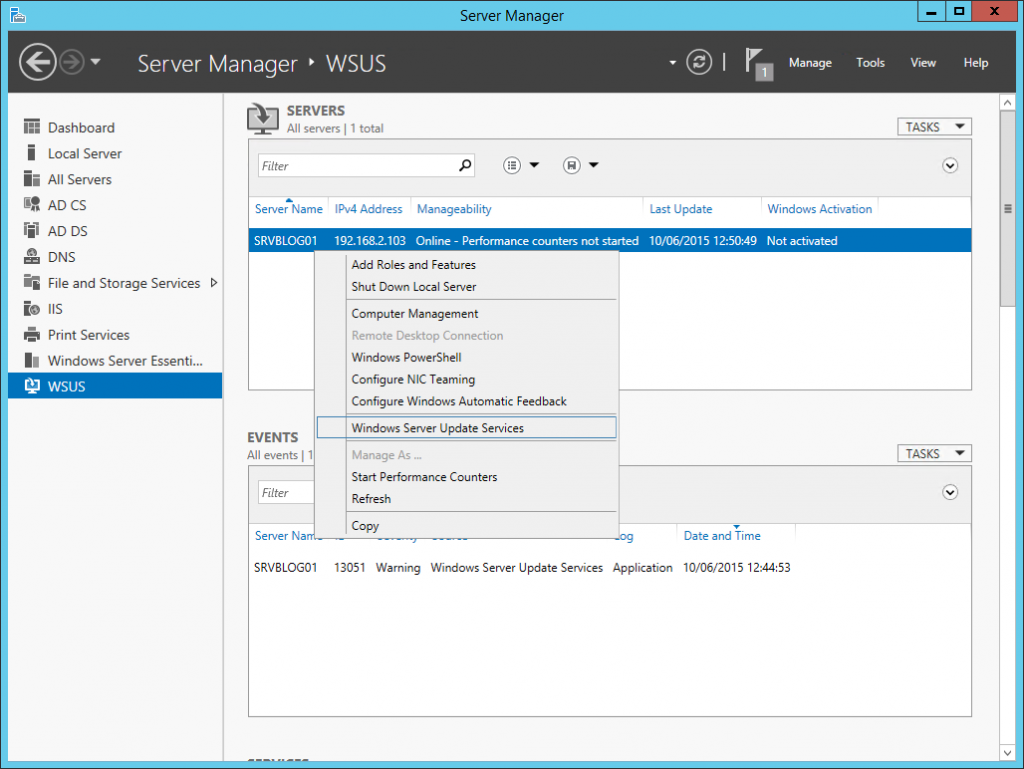
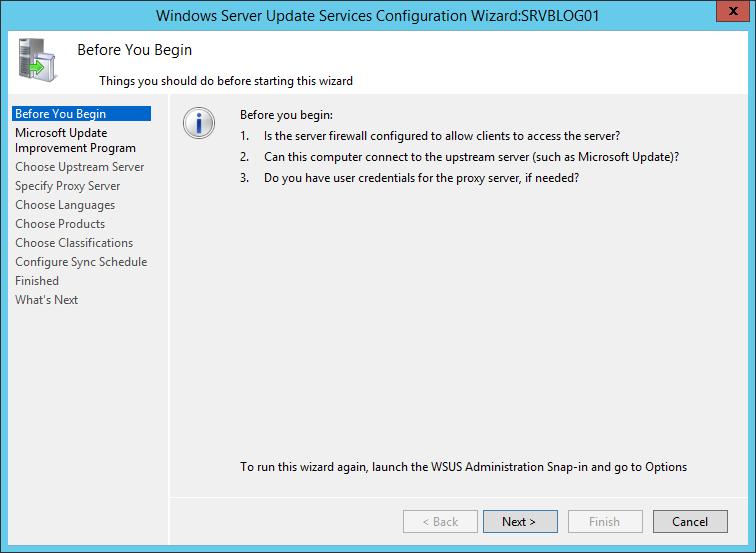
On first launch, the WSUS Configuration Wizard is presented. Click Next to start:
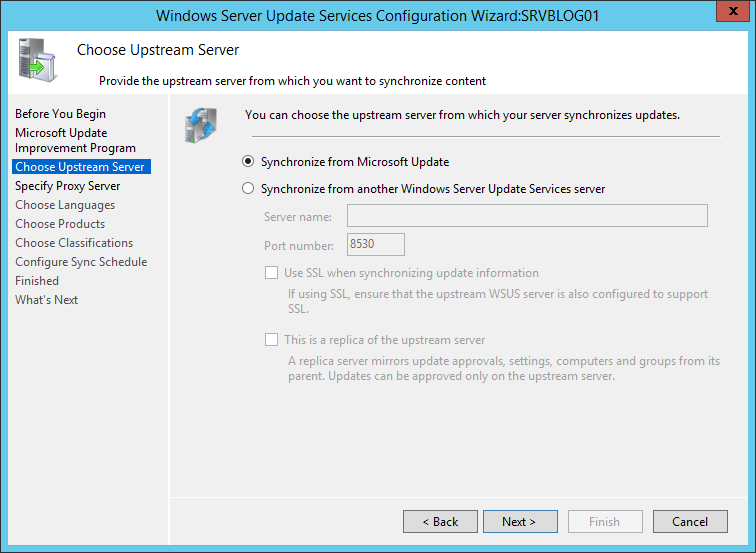
Select the upstream connection. For the first WSUS server, choose Synchronize from Microsoft Update:
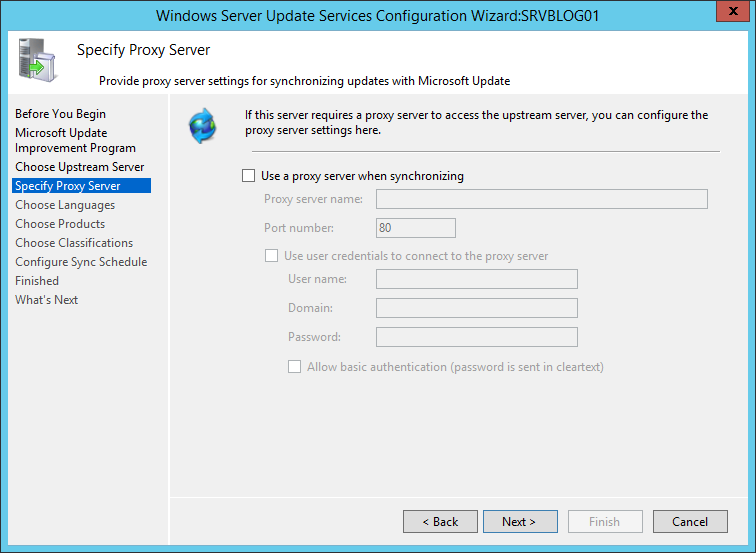
Configure proxy settings if present on your network:
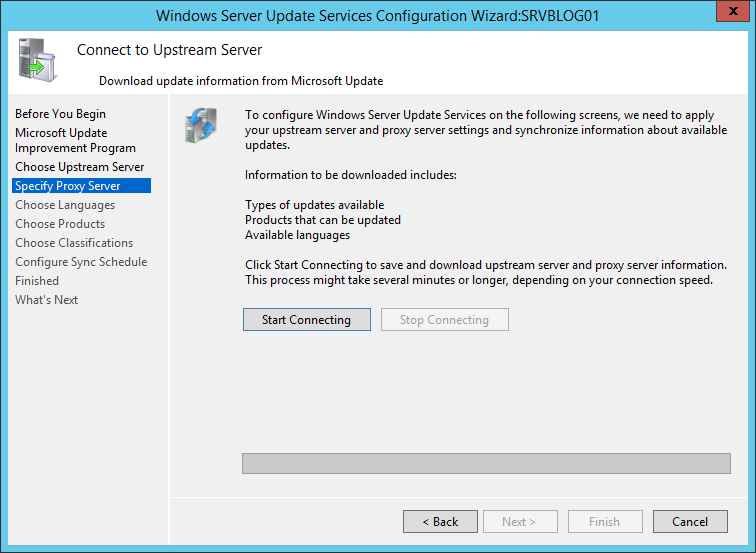
Click Start Connecting and wait for the initial metadata synchronization to complete (may take several minutes):
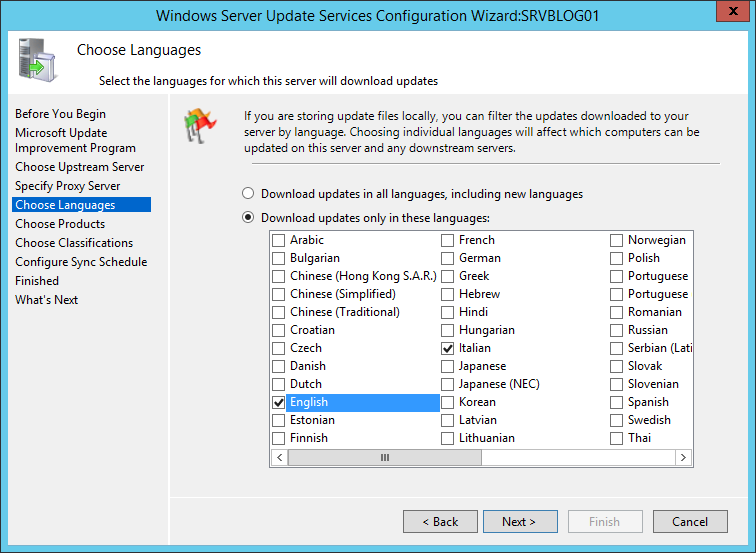
Select only the languages you need (typically English only, or English plus your local language):
Select only the products present in your environment. Do not enable everything.
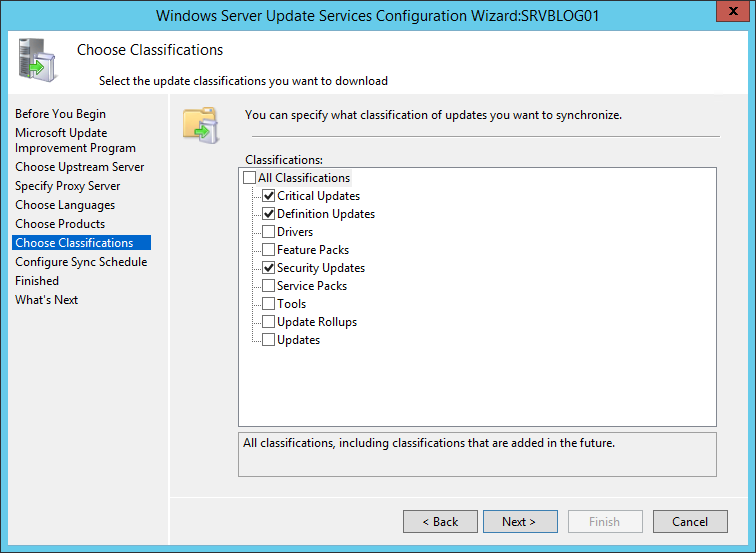
Select the update classifications:
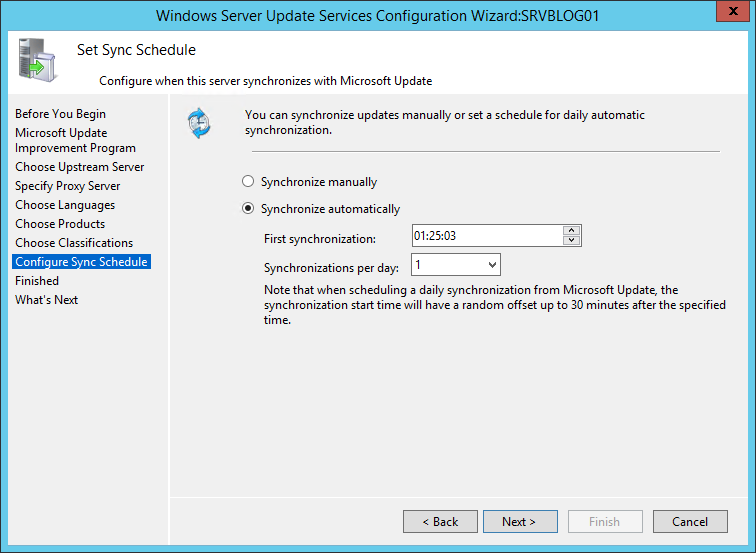
Configure the automatic synchronization schedule (recommended: once daily at 03:00):
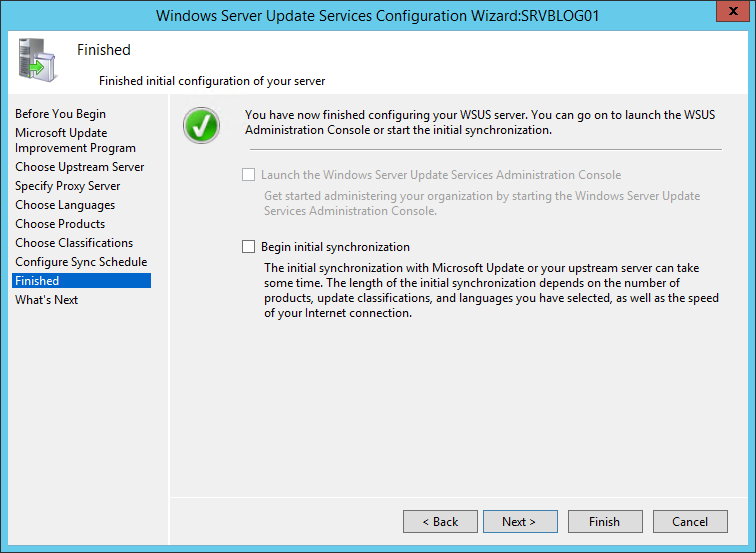
The configuration wizard is complete:
Configuration via PowerShell
# Get the WSUS server object
$wsus = Get-WsusServer -Name 'SRVBLOG01' -PortNumber 8530

# Configure the upstream source (Microsoft Update)
$wsusConfig = $wsus.GetConfiguration()
$wsusConfig.SyncFromMicrosoftUpdate = $true
$wsusConfig.Save()

# --- Initial metadata sync to populate products/classifications list ---
$sub = $wsus.GetSubscription()
$sub.StartSynchronization()

# Wait for sync completion with a proper loop (no hardcoded sleeps)
do {
    Start-Sleep -Seconds 30
    $status = $sub.GetSynchronizationStatus()
    Write-Host "Sync status: $status" -ForegroundColor Cyan
} while ($status -eq 'Running')

# Verify last sync result before continuing
$lastResult = $sub.GetLastSynchronizationInfo().Result
if ($lastResult -ne 'Succeeded') {
    throw "Initial synchronization failed with result: $lastResult"
}

# --- Enable only the products present in your environment ---
Get-WsusProduct | Where-Object {
    $_.Product.Title -in @(
        'Windows Server 2025',
        'Windows Server 2022',
        'Windows Server 2019',
        'Windows 11',
        'Windows 10',
        'Microsoft 365 Apps for Enterprise',
        'Microsoft Defender Antivirus'
    )
} | Set-WsusProduct

# --- Classification selection ---
Get-WsusClassification | Where-Object {
    $_.Classification.Title -in @(
        'Critical Updates',
        'Security Updates',
        'Definition Updates',
        'Update Rollups',
        'Service Packs'
    )
} | Set-WsusClassification

# --- Schedule daily sync at 03:00 ---
$sub.SynchronizeAutomatically = $true
$sub.SynchronizeAutomaticallyTimeOfDay = [TimeSpan]'03:00:00'
$sub.NumberOfSynchronizationsPerDay = 1
$sub.Save()
3. Configuring Clients via Group Policy
Group Policy is the standard method for directing Windows clients to the WSUS server.
Note: in Windows 10/11 and Windows Server 2016+, the GPO path for Windows Update was reorganized compared to earlier versions.
Configuration via GUI (Group Policy Management Editor)
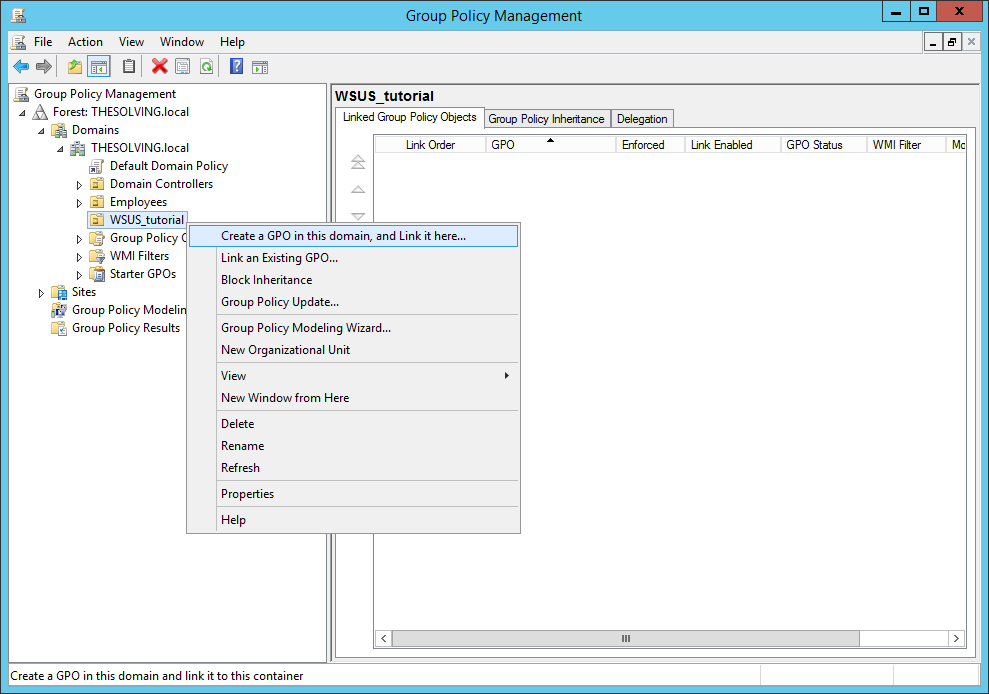
Open Group Policy Management, create a new GPO and link it to the OU containing the computers to be managed by WSUS:
In the Group Policy Management Editor, navigate to Computer Configuration > Administrative Templates > Windows Components > Windows Update.
On Windows 10/11 and Server 2016+, you will find two subfolders: Manage end user experience and Manage updates offered from Windows Update (the relevant policies are distributed between them as described below).
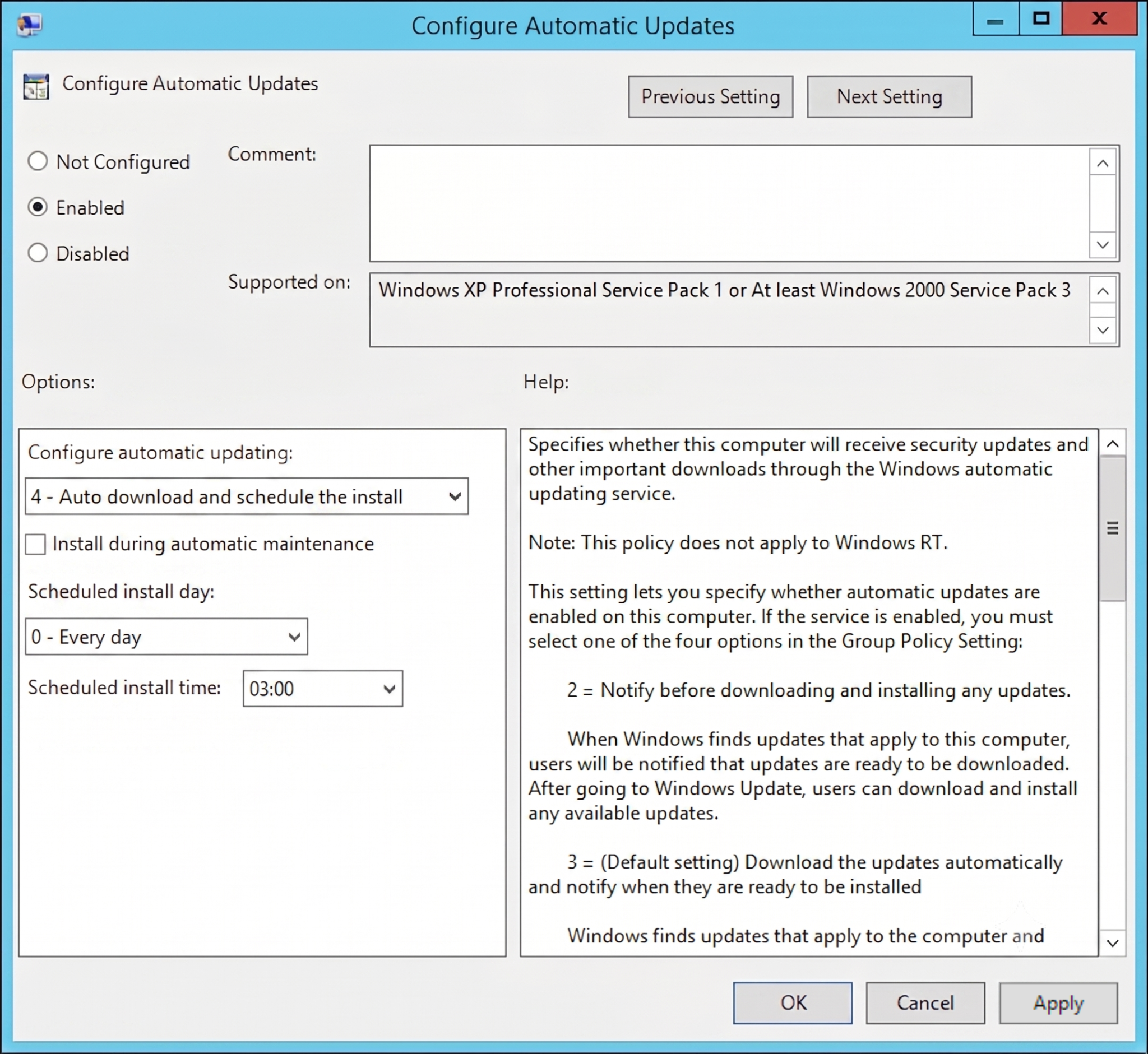
Open Configure Automatic Updates and configure it as follows:
- State: Enabled
- Option: 4 – Auto download and schedule the install
- Scheduled install day: Every day
- Scheduled install time: 03:00
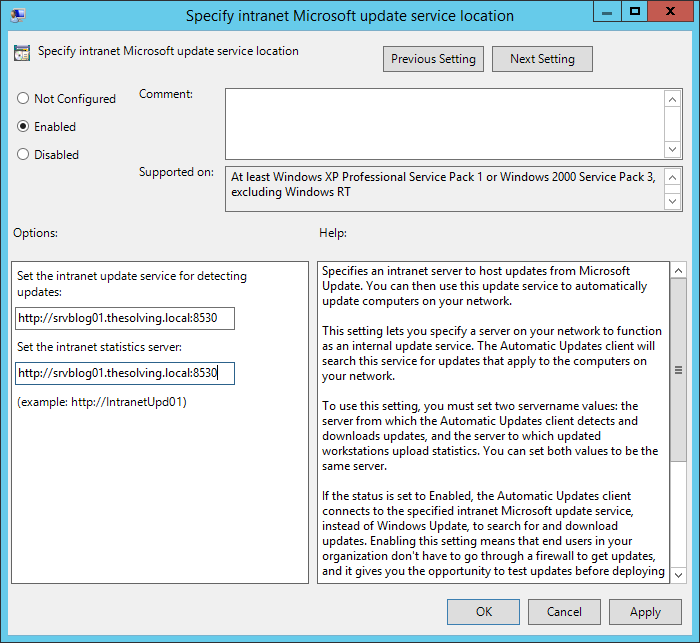
Open Specify intranet Microsoft update service location and enter the WSUS server address with port 8530:
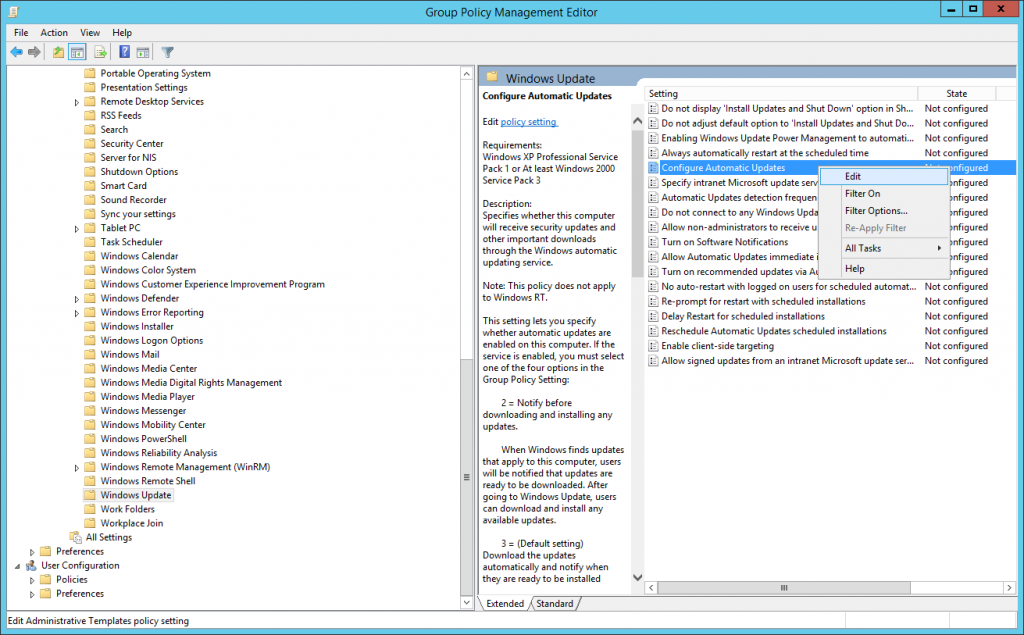
Critical setting for Windows 10/11: Enable the policy Do not connect to any Windows Update Internet locations (set it to Enabled).
Without this setting, Windows 10/11 and Server 2016+ perform a dual-scan against Microsoft Update, partially bypassing WSUS. This is the most common cause of WSUS malfunctions in modern environments.
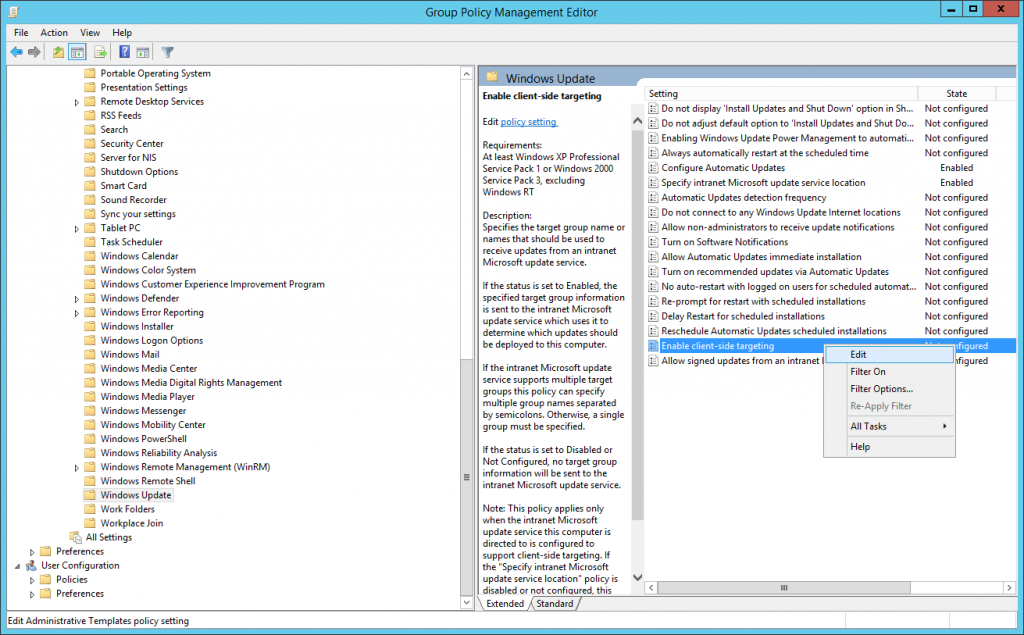
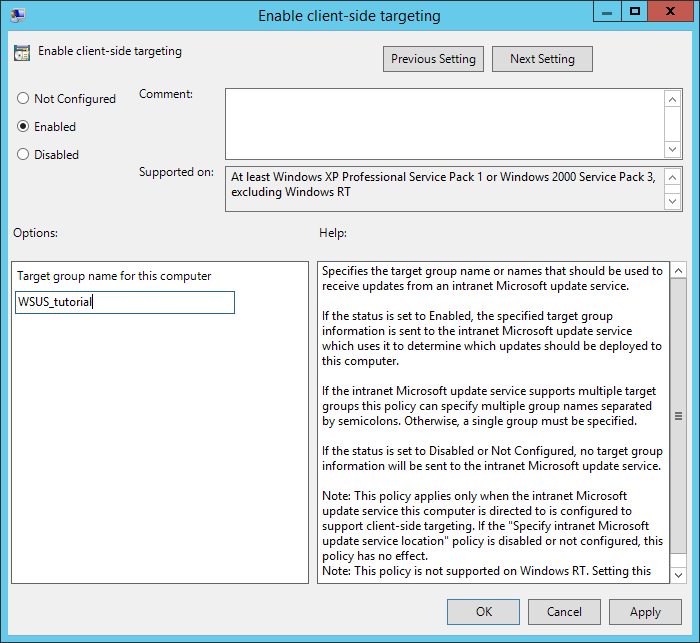
Open Enable client-side targeting and specify the name of the WSUS group the computers belong to:
Configuration via PowerShell
# Create and link the GPO to the OU
$gpoName = 'WSUS-Client-Configuration'
$ou      = 'OU=WSUS_tutorial,DC=THESOLVING,DC=local'
$wsusUrl = 'http://SRVBLOG01:8530'

New-GPO -Name $gpoName | New-GPLink -Target $ou

# Set registry values via GPO
$basePath = 'HKLM\Software\Policies\Microsoft\Windows\WindowsUpdate'

Set-GPRegistryValue -Name $gpoName -Key $basePath `
    -ValueName 'WUServer' -Type String -Value $wsusUrl
Set-GPRegistryValue -Name $gpoName -Key $basePath `
    -ValueName 'WUStatusServer' -Type String -Value $wsusUrl
# Disable dual-scan - critical for Windows 10/11 and Server 2016+
Set-GPRegistryValue -Name $gpoName -Key $basePath `
    -ValueName 'DisableDualScan' -Type DWord -Value 1
Set-GPRegistryValue -Name $gpoName -Key "$basePath\AU" `
    -ValueName 'UseWUServer' -Type DWord -Value 1
Set-GPRegistryValue -Name $gpoName -Key "$basePath\AU" `
    -ValueName 'AUOptions' -Type DWord -Value 4
4. Computer Groups and Approval Rules
Computer groups in WSUS allow granular control over when and which updates are deployed. A phased deployment strategy reduces the risk of a problematic patch impacting all systems simultaneously.
Recommended group structure for MSPs
Open WSUS Options and click Computers.
Select Use Group Policy to assign computers to groups.
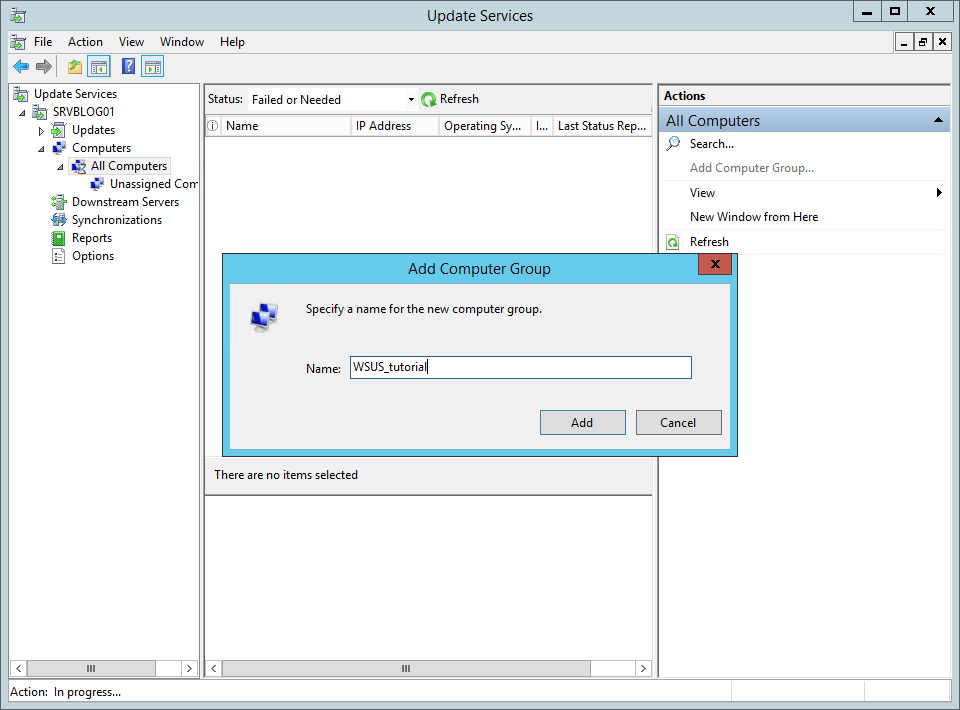
From the WSUS panel, create a new Computer Group using the Add Computer Group dialog:
| Group | Systems | Approval |
| Pilot / Test Lab | 5–10% of systems, test machines | Immediately after Patch Tuesday |
| Workstations | All Windows 10/11 clients | 7 days after Pilot validation |
| Servers – Non-Critical | File servers, print servers | 7 days after Pilot validation |
| Servers – Critical | Domain Controllers, Exchange, SQL | 14 days after Pilot validation |
| Unassigned | Default group | No updates approved – use as an alert for unclassified machines |
PowerShell: create groups and configure auto-approval for Pilot
$wsus = Get-WsusServer -Name 'SRVBLOG01' -PortNumber 8530

# Create computer groups (idempotent: skip if already present)
$groups = @('Pilot', 'Workstations', 'Servers-NonCritical', 'Servers-Critical')
foreach ($g in $groups) {
    if (-not ($wsus.GetComputerTargetGroups() | Where-Object Name -eq $g)) {
        $wsus.CreateComputerTargetGroup($g) | Out-Null
    }
}

# Auto-approval rule for Critical and Security Updates on the Pilot group
$approvalRule = $wsus.CreateInstallApprovalRule('AutoApprove-Pilot')

# Build the ComputerTargetGroupCollection
# (the setter requires a typed Collection, not a single object or generic array)
$pilot = $wsus.GetComputerTargetGroups() | Where-Object { $_.Name -eq 'Pilot' }
$groupCollection = New-Object Microsoft.UpdateServices.Administration.ComputerTargetGroupCollection
$groupCollection.Add($pilot) | Out-Null
$approvalRule.SetComputerTargetGroups($groupCollection)

# Build the UpdateClassificationCollection (same reason)
$classifications = $wsus.GetUpdateClassifications() | Where-Object {
    $_.Title -in @('Critical Updates', 'Security Updates')
}
$classificationCollection = New-Object Microsoft.UpdateServices.Administration.UpdateClassificationCollection
foreach ($c in $classifications) { $classificationCollection.Add($c) | Out-Null }
$approvalRule.SetUpdateClassifications($classificationCollection)

$approvalRule.Enabled = $true
$approvalRule.Save()
5. WSUS Maintenance (Critical)
Server Cleanup Wizard via PowerShell
$wsus = Get-WsusServer -Name 'SRVBLOG01' -PortNumber 8530

$cleanupScope = New-Object Microsoft.UpdateServices.Administration.CleanupScope
$cleanupScope.DeclineExpiredUpdates       = $true
$cleanupScope.DeclineSupersededUpdates    = $true
$cleanupScope.CleanupObsoleteUpdates      = $true
$cleanupScope.CleanupUnneededContentFiles = $true
$cleanupScope.CleanupObsoleteComputers    = $true
$cleanupScope.CompressUpdates             = $true

$cleanupManager = $wsus.GetCleanupManager()
$result = $cleanupManager.PerformCleanup($cleanupScope)
Write-Host "Disk space freed: $([math]::Round($result.DiskSpaceFreed/1GB, 2)) GB"
Database maintenance (WID)
The WSUS database accumulates severe index fragmentation over time. On WID, use sqlcmd to run the monthly reindex:
# Save the SQL file as C:\Scripts\WSUS-DBMaintenance.sql
# Then schedule monthly execution via Task Scheduler

sqlcmd -S np:\\.\pipe\MICROSOFT##WID\tsql\query `
    -E -i 'C:\Scripts\WSUS-DBMaintenance.sql' `
    -o 'D:\Logs\wsus-db-maintenance.log'

# Note: the WID named pipe is the same on all WSUS-supported Windows Server
# versions from 2012 onwards (2012, 2016, 2019, 2022, 2025).
# The legacy pipe MSSQL$MICROSOFT##SSEE was used only on Server 2008/2008 R2
# and earlier - it does NOT apply to modern WSUS deployments.
Contents of WSUS-DBMaintenance.sql:
USE SUSDB;
-- Rebuild all indexes on all tables
EXEC sp_msforeachtable 'ALTER INDEX ALL ON ? REBUILD';
-- Update statistics
EXEC sp_msforeachtable 'UPDATE STATISTICS ?';
sp_msforeachtable is an undocumented stored procedure but is widely used in production environments. For environments with stricter SQL policies, an explicit cursor over sys.tables can be used as an alternative.
WSUS Limitations and Modern Alternatives
WSUS is a mature and reliable tool for traditional Active Directory environments, but has important limitations to consider in 2026:
- Deprecated: Microsoft announced deprecation in 2024 and no new features are planned
- No third-party app patching: Adobe, Chrome, 7-Zip, Java, and any non-Microsoft application cannot be managed with WSUS
- No support for Azure AD / Entra ID devices: Intune-managed devices cannot be managed by WSUS
- Very large cumulative updates: Cumulative Updates for Windows 10/11 and Server 2019/2022 often reach 500 MB – 3 GB each, putting strain on WID-based WSUS databases
Before consulting the comparison table, a note on Microsoft Configuration Manager: Microsoft Configuration Manager (formerly known as MECM/SCCM) is Microsoft’s on-premises solution for advanced endpoint management. It supports hybrid environments via Cloud Management Gateway (CMG) and third-party application patching via System Center Updates Publisher (SCUP).
Patch management solutions comparison
| Solution | On-premises | Cloud/Hybrid | Third-party patching | Recommended scope |
| WSUS | Yes | No | No | Existing on-prem AD environments, offline / air-gapped networks |
| Windows Autopatch | No | Yes | No | Enterprise / E3+E5, fully managed Windows + M365 Apps update orchestration |
| WUfB + Intune | No | Yes | No | Cloud-managed endpoints (Entra ID joined / hybrid joined) |
| Azure Update Manager | No | Yes | Limited (via custom scripts) | Server fleets (Azure VMs, Arc-enabled servers) |
| Microsoft Configuration Manager (formerly MECM/SCCM) | Yes | Yes (CMG) | Yes (via SCUP / Patch My PC) | Enterprise on-prem / hybrid with deep customization needs |
| NinjaOne / Datto RMM / Atera | Yes | Yes | Yes | MSP / heterogeneous environments with cross-platform patching |
As of late 2024, Microsoft has consolidated its recommendations: Windows Autopatch and Intune for client update management, Azure Update Manager for server update management. These tools do not replace WSUS in offline or air-gapped scenarios, where WSUS remains the only viable Microsoft option.
WSUS Security
CVE-2025-59287 – Critical RCE (CVSS 9.8)
In October 2025, Microsoft disclosed CVE-2025-59287, a critical unsafe-deserialization vulnerability in the WSUS Server Role. It allows a remote, unauthenticated attacker to execute arbitrary code with SYSTEM privileges on any server with the WSUS role enabled.
The October 2025 Patch Tuesday update did not fully address the flaw. Microsoft released an out-of-band emergency patch on October 23, 2025. CISA added CVE-2025-59287 to its Known Exploited Vulnerabilities catalog within 24 hours; public proof-of-concept exploits and active exploitation in the wild (including infostealer deployment) were reported the same week.
Affected: Windows Server 2012, 2012 R2, 2016, 2019, 2022, 2025 – any server with the WSUS Server Role enabled. The role is not enabled by default; only WSUS servers are vulnerable.
Required action
Patch immediately. Apply the out-of-band update for your Windows Server version. Reference: MSRC update guide – CVE-2025-59287.
Verify exposure. WSUS should never be reachable from the public internet. Block inbound TCP 8530/8531 at the perimeter and restrict internal access to the management VLAN and client subnets that genuinely need it.
If you cannot patch immediately, disable the WSUS role on affected servers or block inbound 8530/8531 entirely until the patch can be applied.
Troubleshooting
Clients not reporting to WSUS
# Force client re-registration (run on the client)
# On Windows 10/11 and Server 2016+, use UsoClient instead of wuauclt
UsoClient StartScan

# Verify the GPO is applied correctly
gpresult /R | Select-String 'WSUS'
reg query 'HKLM\SOFTWARE\Policies\Microsoft\Windows\WindowsUpdate' /v WUServer

# View the Windows Update log
Get-WindowsUpdateLog -LogPath 'C:\Temp\WindowsUpdate.log'
WSUS console slow or timing out
Almost always caused by database fragmentation. Run the database maintenance described in Step 5. If performance does not improve within 24 hours, consider migrating from WID to SQL Server.
Synchronization fails – HTTP 400 or SSL/TLS errors
# Check WSUS service logs
# PowerShell 7+ and Server 2022/2025 (recommended)
Get-WinEvent -ProviderName 'Windows Server Update Services' -MaxEvents 50 |
    Format-List TimeCreated, Id, Message

# PowerShell 5.1 / Server 2019 and earlier
# Get-EventLog -LogName Application -Source 'Windows Server Update Services' `
#     -Newest 50 | Format-List

# Only for PowerShell 5.1 / .NET Framework (Server 2016/2019)
# On PowerShell 7+ and Server 2022/2025, TLS 1.2 is enabled by default - not needed
# If you are on Server 2016/2019 with PS5.1, uncomment the following line:
# [Net.ServicePointManager]::SecurityProtocol = [Net.SecurityProtocolType]::Tls12

# Registry fix for TLS 1.2 on Server 2012 R2 (if still present in the environment)
Set-ItemProperty `
    -Path 'HKLM:\SYSTEM\CurrentControlSet\Control\SecurityProviders\SCHANNEL\Protocols\TLS 1.2\Client' `
    -Name 'Enabled' -Value 1 -Type DWord
Updates approved but not installing on clients
Check these points in order:
- Deadline not set: approvals without a deadline may not install automatically in all scenarios
- Windows Update service disabled: wuauserv must be in Running state on the client
- Pending reboot: many updates require a prior reboot before new updates can be installed
- Dual-scan active: verify that the DisableDualScan policy is applied (see Step 3)
Feature updates (Windows 10/11, Server 2022/2025) not downloading on clients
Symptom: Cumulative Updates install correctly, but feature updates (e.g. 23H2 → 24H2) stay stuck at “downloading 0%” on clients. The cause is almost always: missing .msu and .wim MIME types in the WSUS IIS site, required by the Unified Update Platform (UUP) protocol.
# Add the required MIME types via PowerShell (on the WSUS server)
Import-Module WebAdministration

Add-WebConfigurationProperty -PSPath 'IIS:\Sites\WSUS Administration' `
    -Filter 'system.webServer/staticContent' -Name '.' `
    -Value @{ fileExtension='.msu'; mimeType='application/octet-stream' }

Add-WebConfigurationProperty -PSPath 'IIS:\Sites\WSUS Administration' `
    -Filter 'system.webServer/staticContent' -Name '.' `
    -Value @{ fileExtension='.wim'; mimeType='application/octet-stream' }

iisreset
WSUS in 2026: still viable, with a clear horizon
WSUS remains a valid and cost-effective patch management solution for on-premises Active Directory environments in 2026, despite the deprecation announced by Microsoft. With proper sizing, a SQL Server backend for larger deployments, structured computer groups, automatic approval rules, and monthly database maintenance, WSUS can reliably manage from tens to thousands of endpoints. With the critical CVE-2025-59287 patched and network access properly restricted, WSUS remains a defensible choice through the Windows Server 2025 lifecycle (mainstream support until 2029, extended until 2034).
For organizations moving toward cloud-managed endpoints, or MSPs managing heterogeneous environments with third-party application patching requirements, evaluating Windows Update for Business with Intune or a modern RMM platform as the primary patch management layer is strongly recommended.
Read related articles
Configuring and using Windows Deployment Services (WDS)
A 2026 guide to WDS: installation, PXE boot, boot/install images, and the limitations introduced with Windows 11 and Server 2025.
Sysprep in 2026: practical guide for sysadmins and MSPs
What Sysprep is, when to use it, and how to properly generalize a Windows image before distribution or cloning.
A Guide to PowerShell – part 3
Welcome to part 3 of 3 of The Solving A guide to PowerShell. Check also Part 1 and Part 2.