

 Italiano
 Español
Installing IIS (Internet Information Services) on a desktop machine may sound weird but it’s very useful for development purposes.
You can test your website locally before the final deploy and check any modification in a few seconds.
We’ll show you how to install IIS 8 on a Windows 8.1 operating systems and how to deploy your first website.
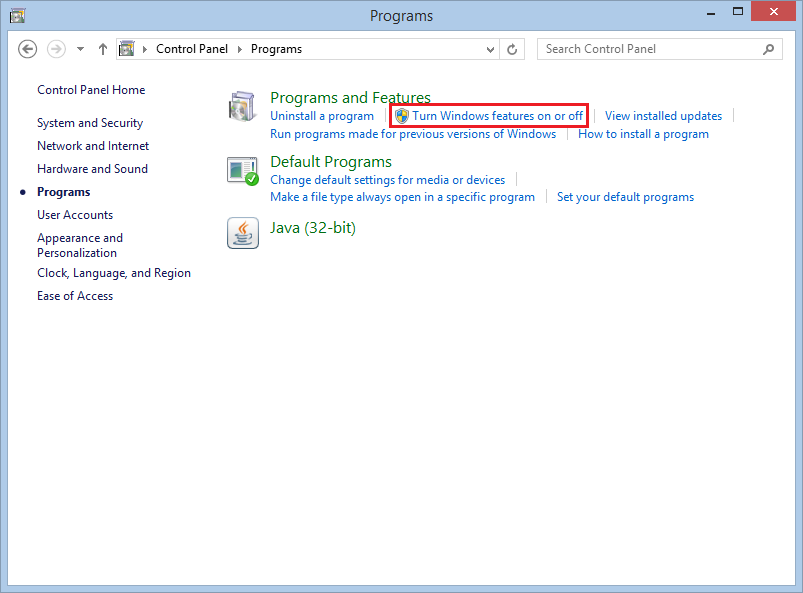
First of all, open your Control Panel and go to the Programs section. Click on Turn Windows features on or off:
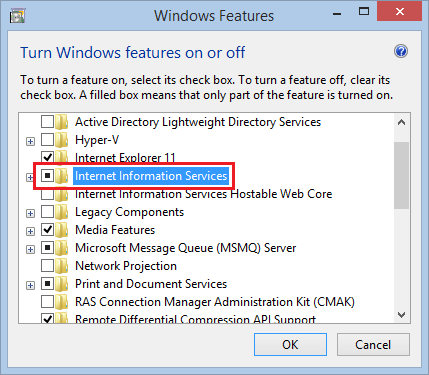
Click on the square near Internet Information Services, a black square will appear like in the screenshot below:
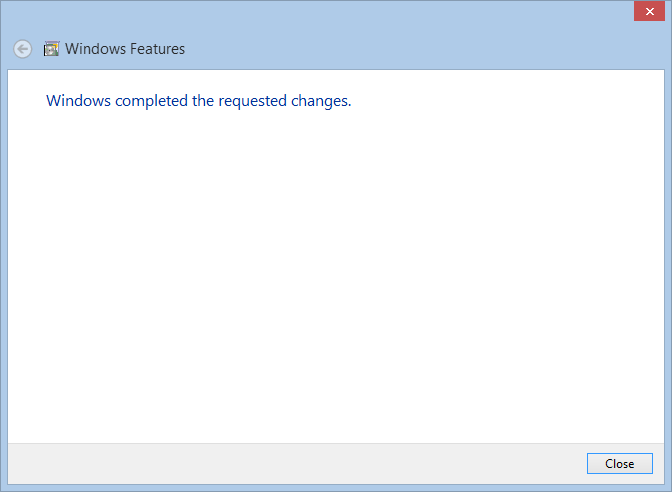
After a couple of minutes the installation will be completed:
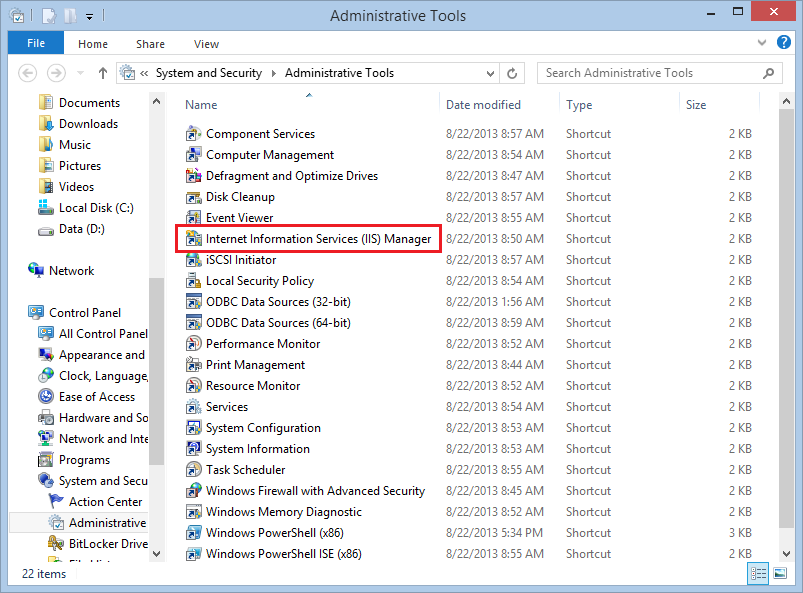
Go back to the Control Panel and open the Administrative Tools. Launch the Internet Information Services (IIS) Manager:
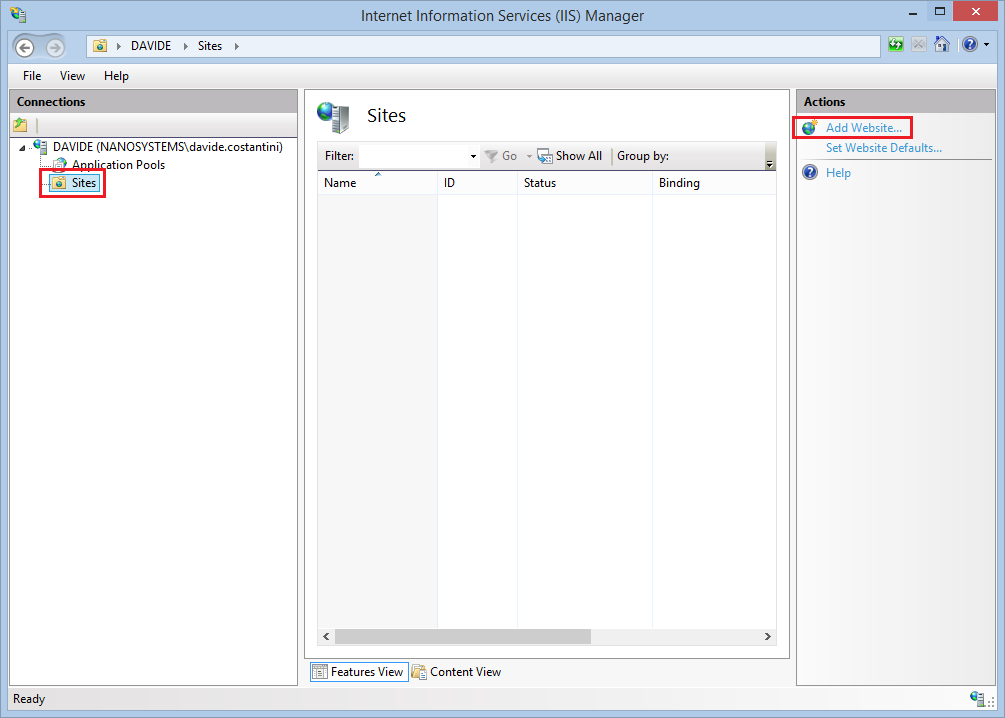
Click on Add Website:
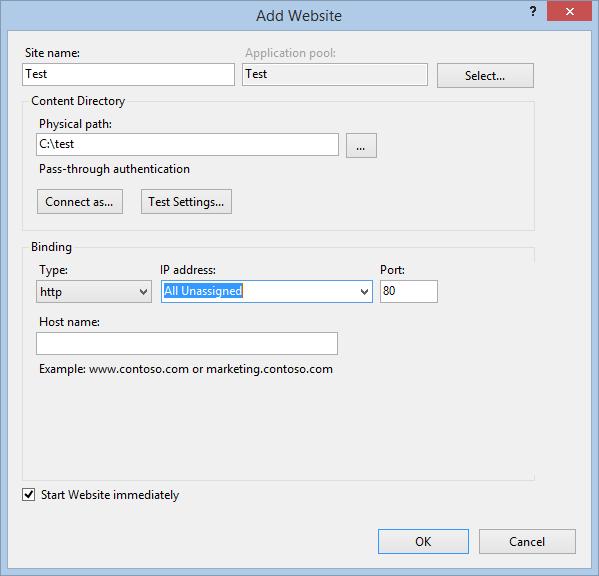
Specify Path and File Name, then click Ok. Your website is now accessible at the address localhost (or 127.0.0.1):
You’re ready to enjoy your test website.
Read related articles
How to configure static routes to route traffic through a specific gateway
Learn how to configure static routes on Windows Server and Windows 11 using route add and PowerShell’s New-NetRoute, so traffic to specific destinations takes the gateway you choose.
How to reset NTFS permissions with ICACLS
Learn how to fix broken NTFS/ACL permissions on Windows Server using ICACLS: reset ACLs, handle access denied errors, take ownership, and back up permission trees safely.
Configuring and using Windows Deployment Services (WDS)
A 2026 guide to WDS: installation, PXE boot, boot/install images, and the limitations introduced with Windows 11 and Server 2025.