

XAMPP – acronym for Cross-Platform, Apache, MySQL, PHP and Perl – is a widely adopted Apache distribution used to locally host and test websites.
It’s available as a unique installation package for Windows and other platforms. You can download the package from the official site.
XAMPP is a powerful tool in the hands of a web developer.
The installation procedure is quite simple, just double-click on the installer and follow these steps.
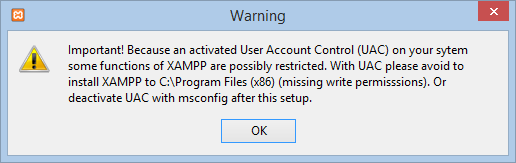
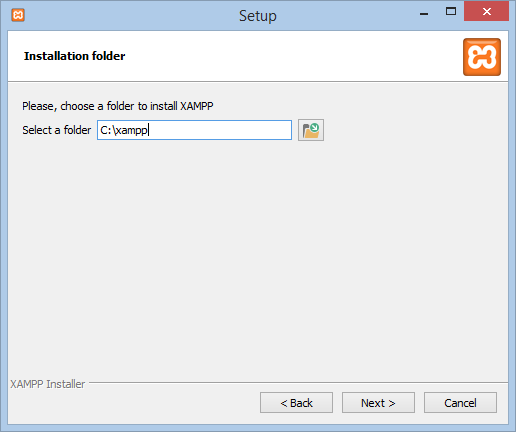
If you have UAC enabled – and we hope so – remember to install XAMPP inside the folder C:\xampp. Anyway the installer suggest to do so:
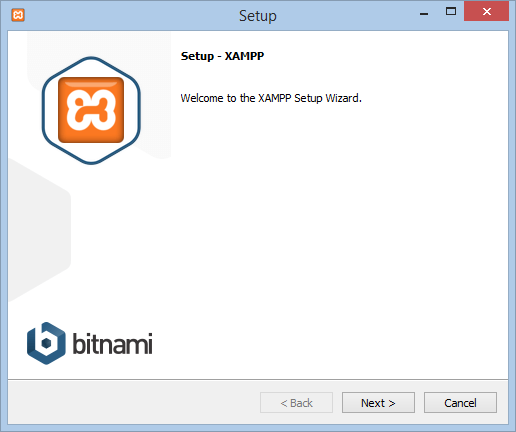
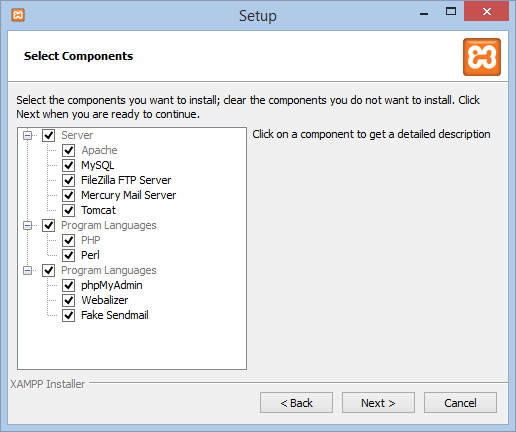
The installation wizard is really dummy-proof:
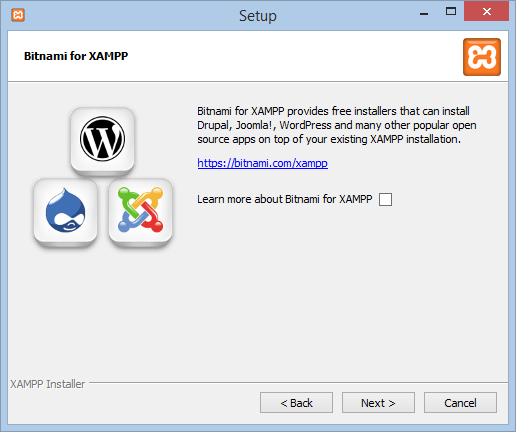
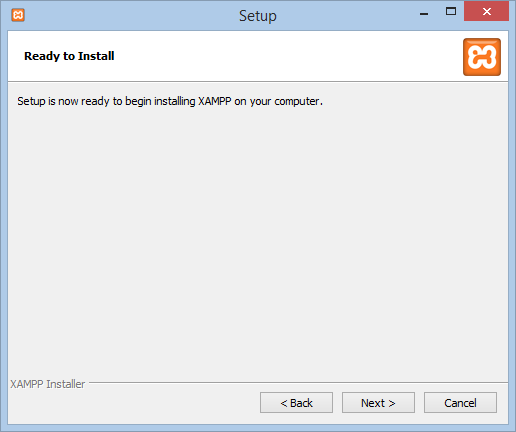
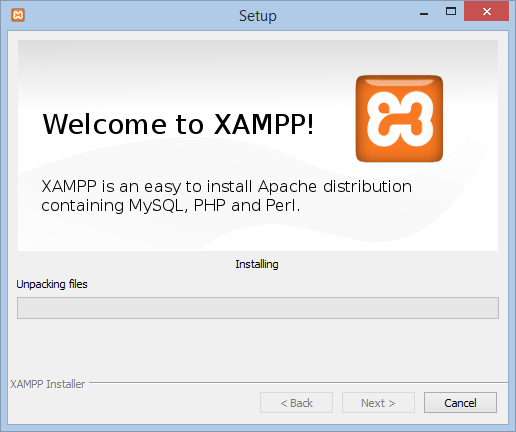
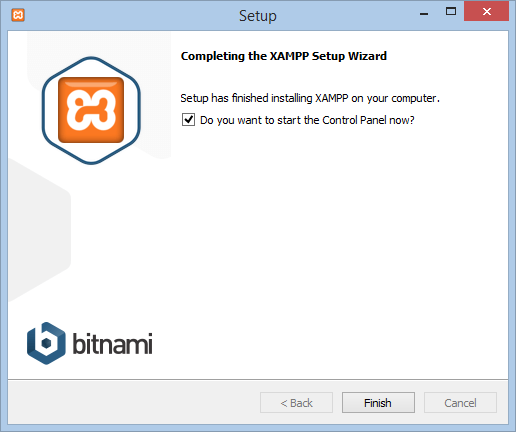
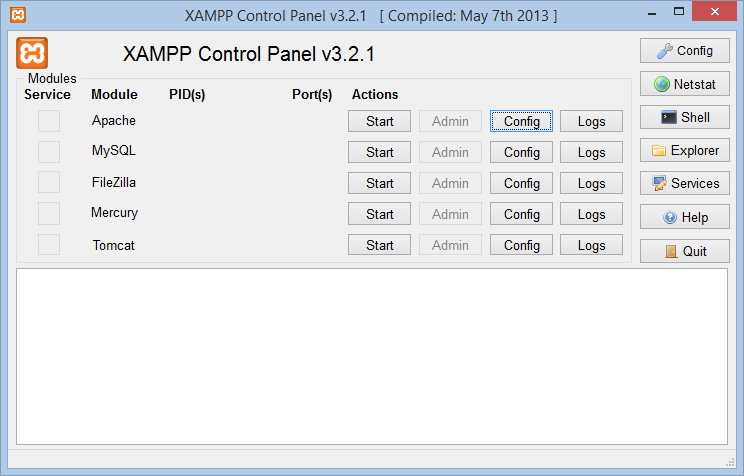
After the completion of the installation you’ll be able to launch the XAMPP Control Panel. From this interface you can enable and disable the various services:
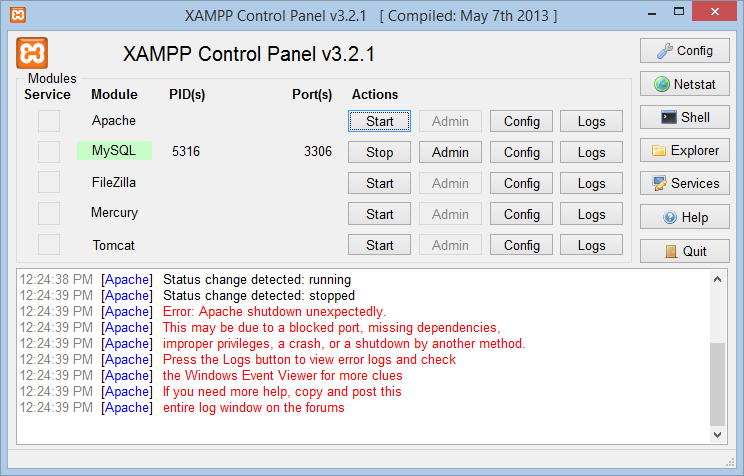
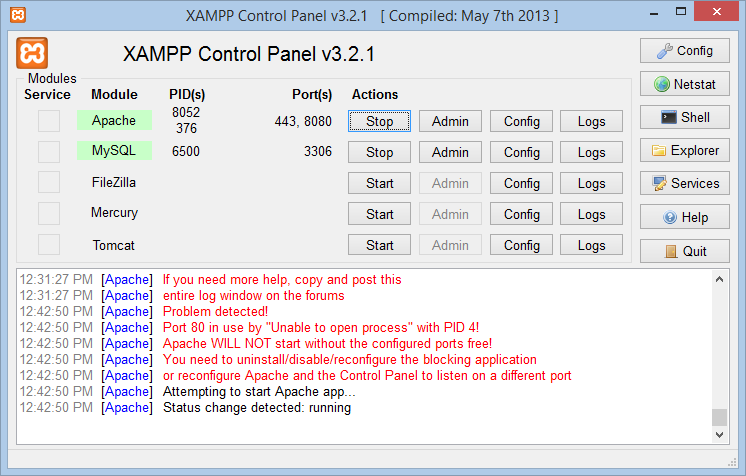
In order to host a website – for example, a WordPress CMS – you need to run Apache and MySQL. On Windows 8 and higher Apache won’t run on port 80 because the system is already using it. An error will pop-up:
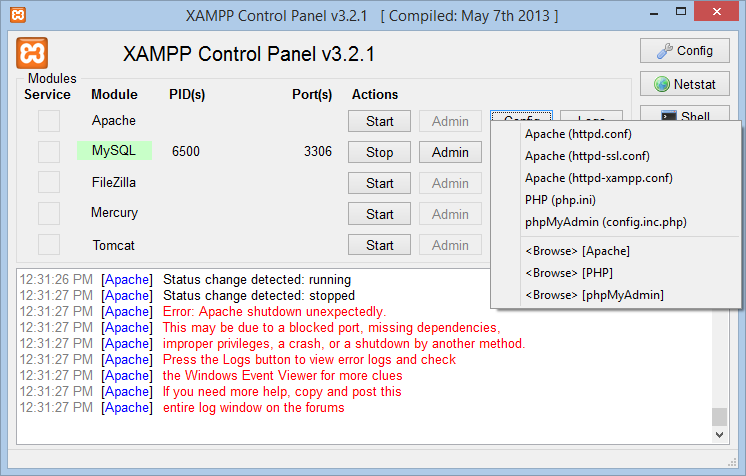
Click on the Config button and select Apache (httpd.conf):
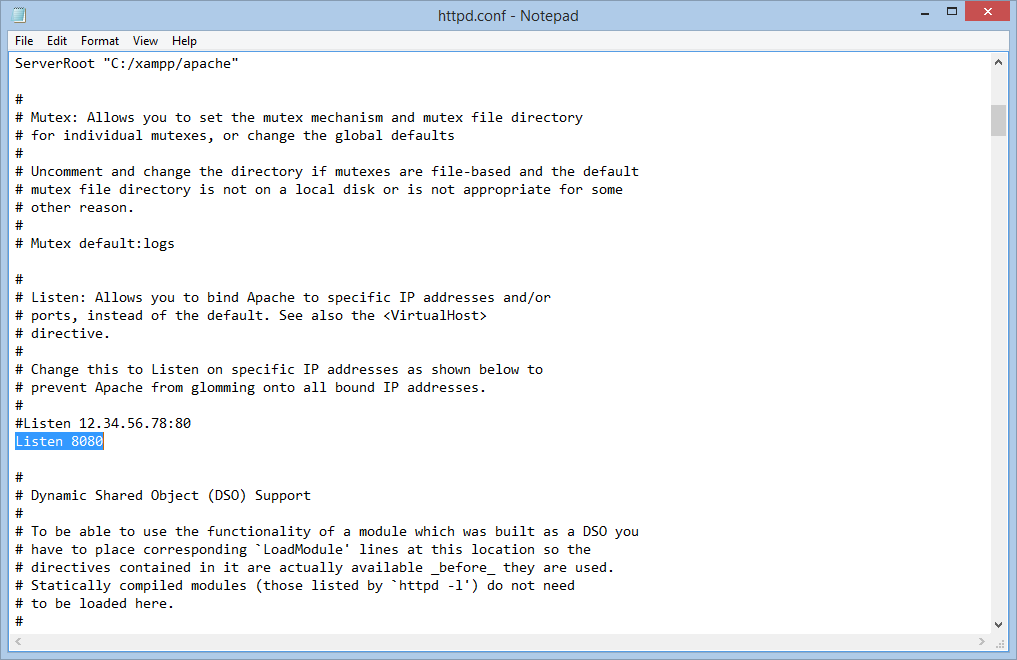
Look for the Listen: 80 row and change the value with 8080. Save and go back to the XAMPP Control Panel:
Start the Apache service:
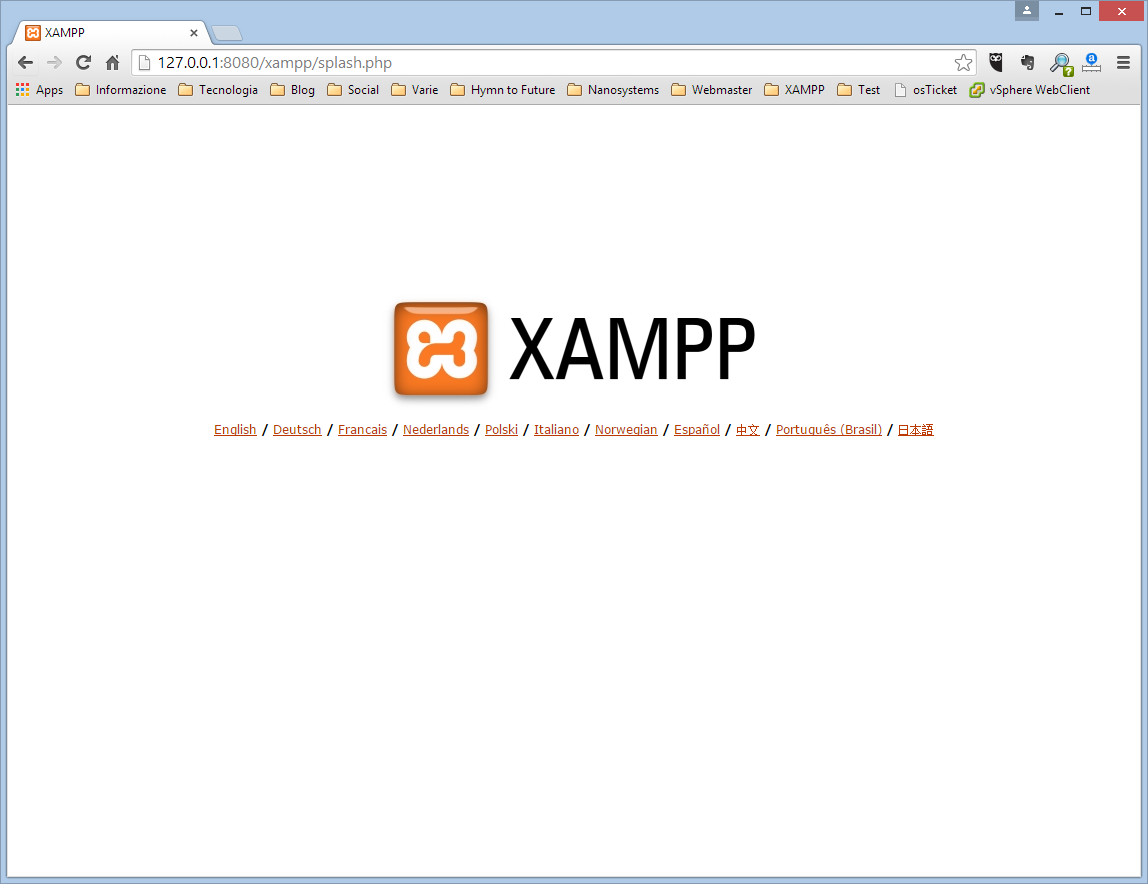
Open your browser and specify the address 127.0.0.1:8080/xampp or localhost:8080/xampp, you’ll be able to access the XAMPP web interface:
In order to deploy a brand new website, put it inside the path C:\xampp\htdocs\website_name
Read related articles
Configuring and using Windows Deployment Services (WDS)
A 2026 guide to WDS: installation, PXE boot, boot/install images, and the limitations introduced with Windows 11 and Server 2025.
How to install and configure Windows Server Update Services (WSUS)
How to install and configure WSUS in 2026: client groups, approval rules, database maintenance, and the critical CVE to patch.
Sysprep in 2026: practical guide for sysadmins and MSPs
What Sysprep is, when to use it, and how to properly generalize a Windows image before distribution or cloning.