

 Italiano
 Español
A month ago we saw how to perform a System Image backup on Windows 8.1. A quite interesting tool that may save your day after a hardware failure.
It’s time to see how you can restore your machine with your System Image Backup.
Boot your system with a Windows 8.1 DVD or USB drive:
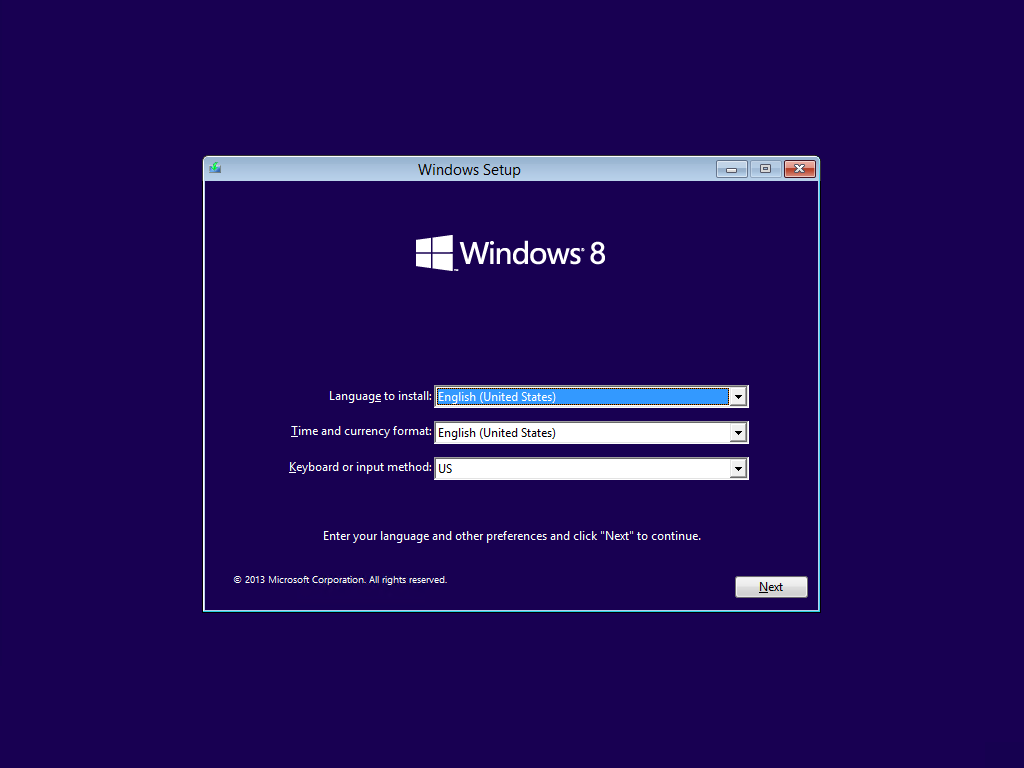
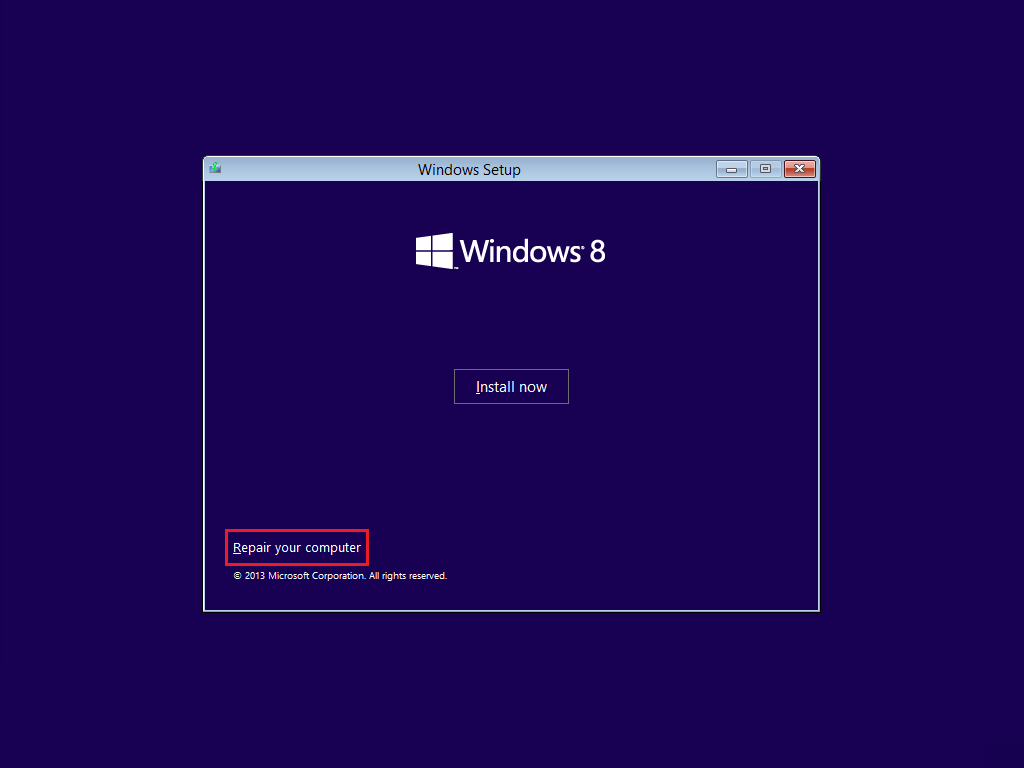
Ignore the Install Now button. Click on Repair your computer:
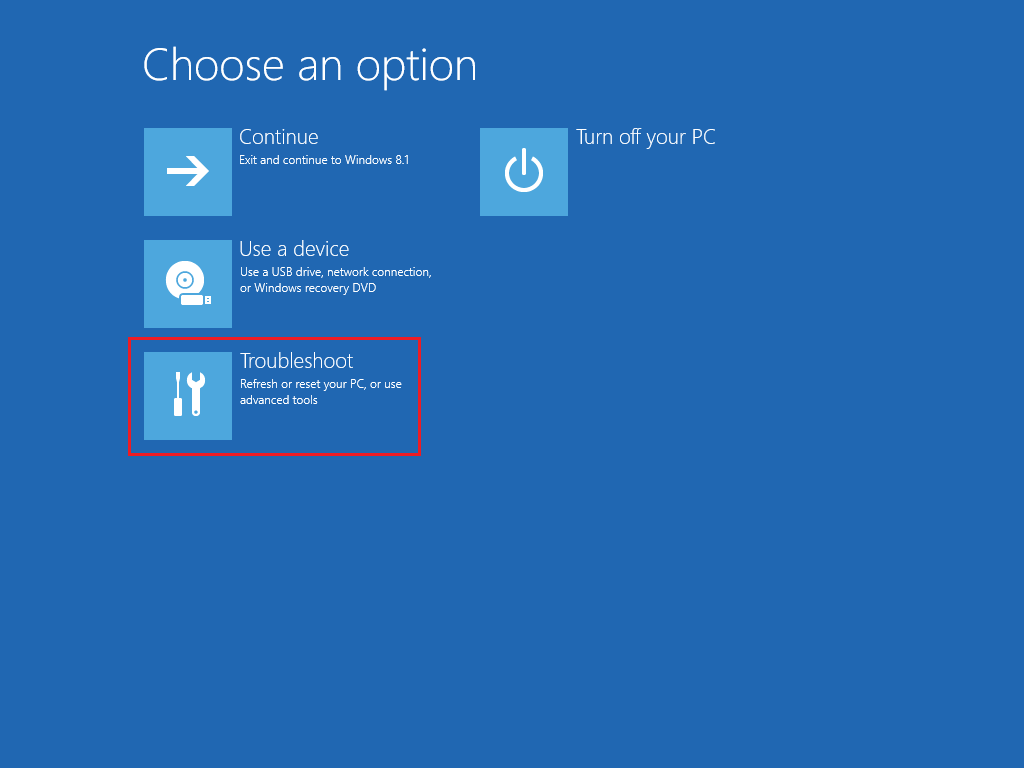
Click on Troubleshoot:
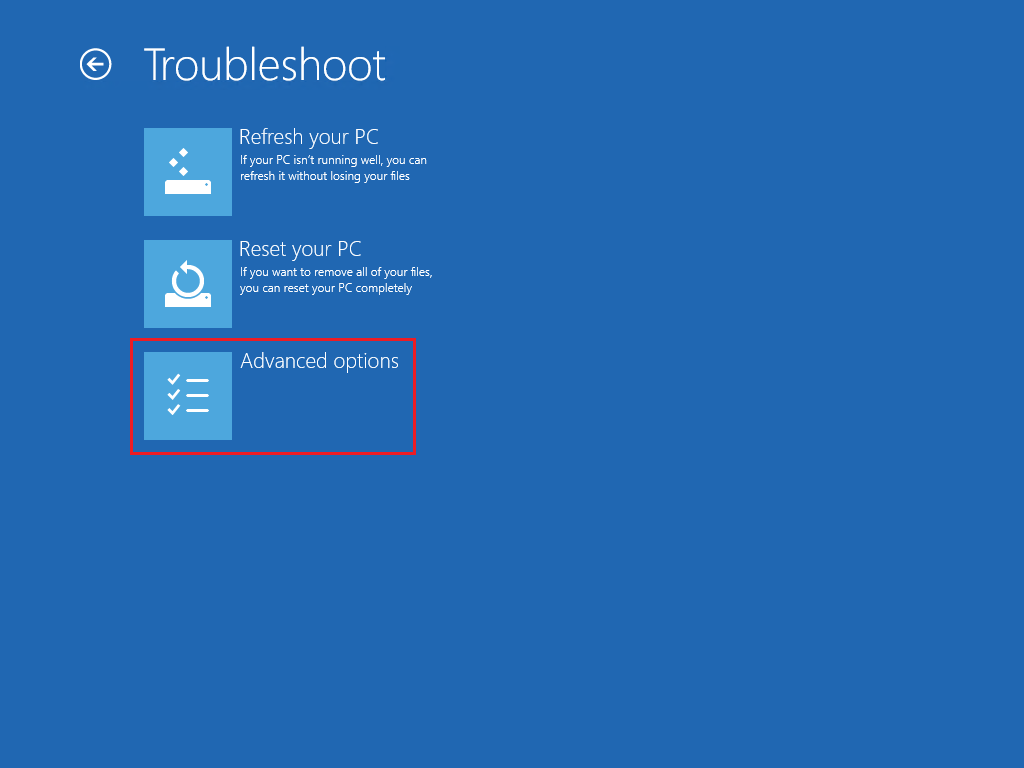
Click on Advanced Options:
Finally! Click on System Image Recovery:
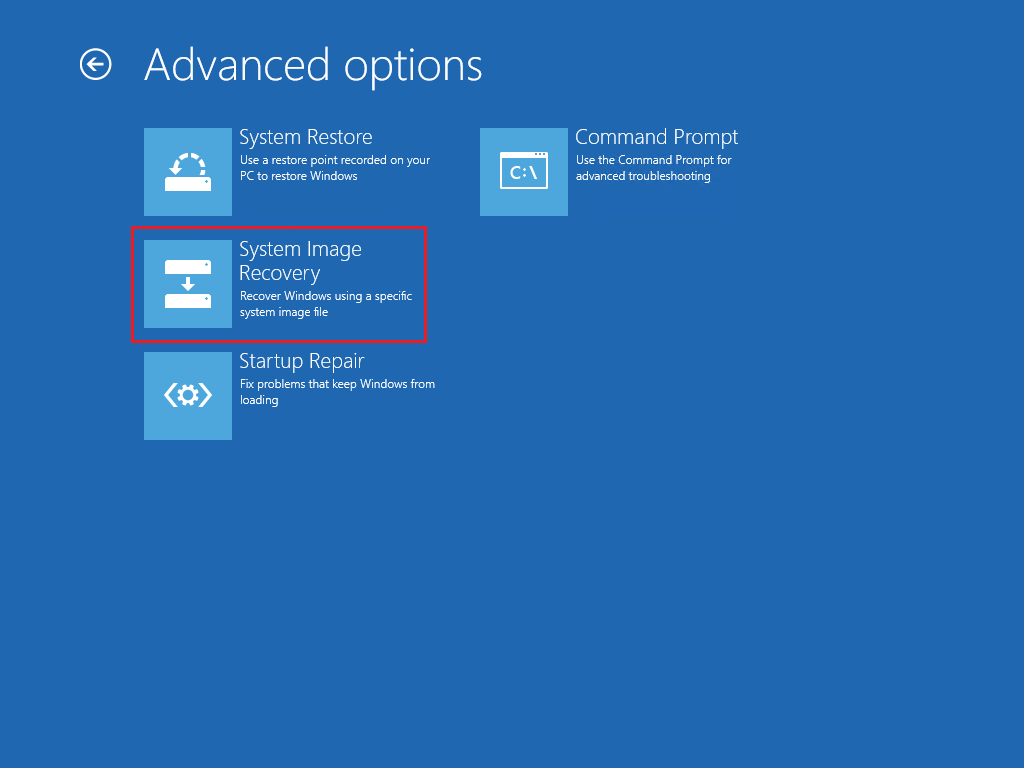
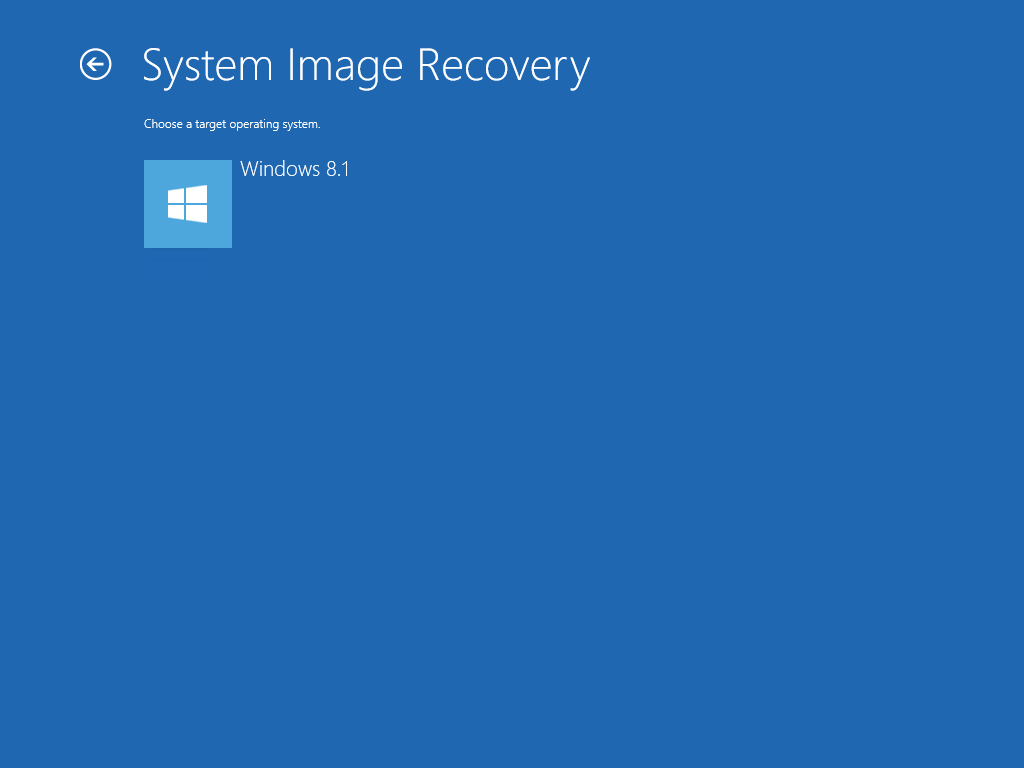
Select the target operating system:
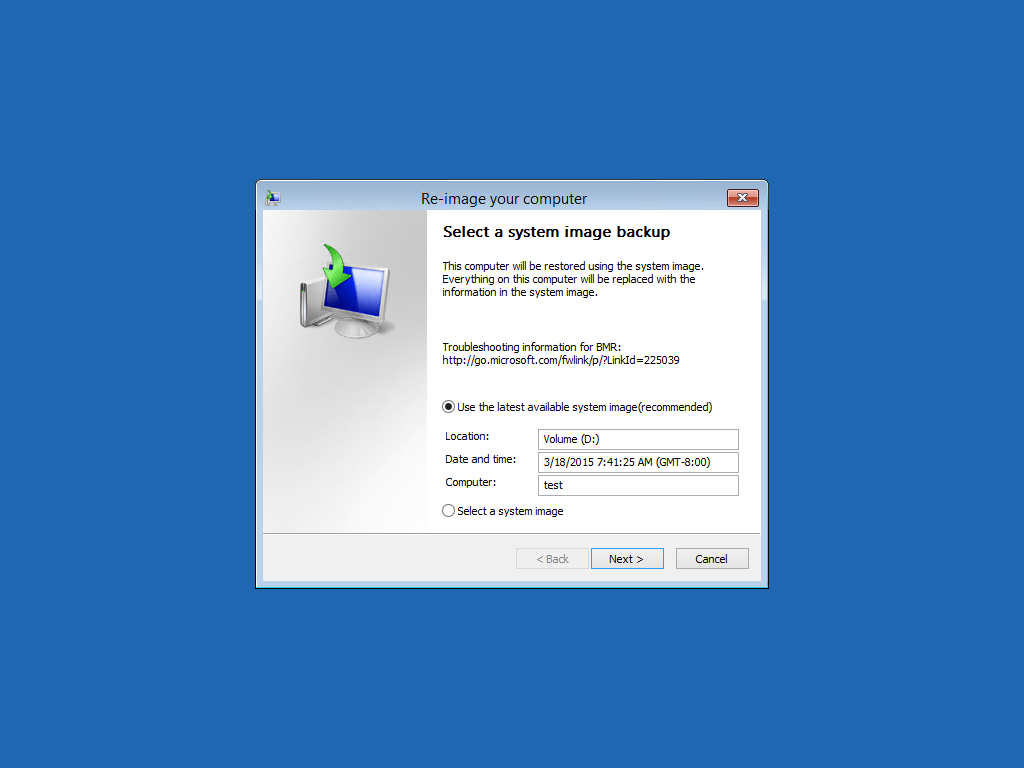
If the recovery procedure is able to detect a System Image Backup on your local disks it will automatically configure the path, like in our example. To select a System Image Backup on a network drive you need to check Select a system image (you can also install network adapter drivers):
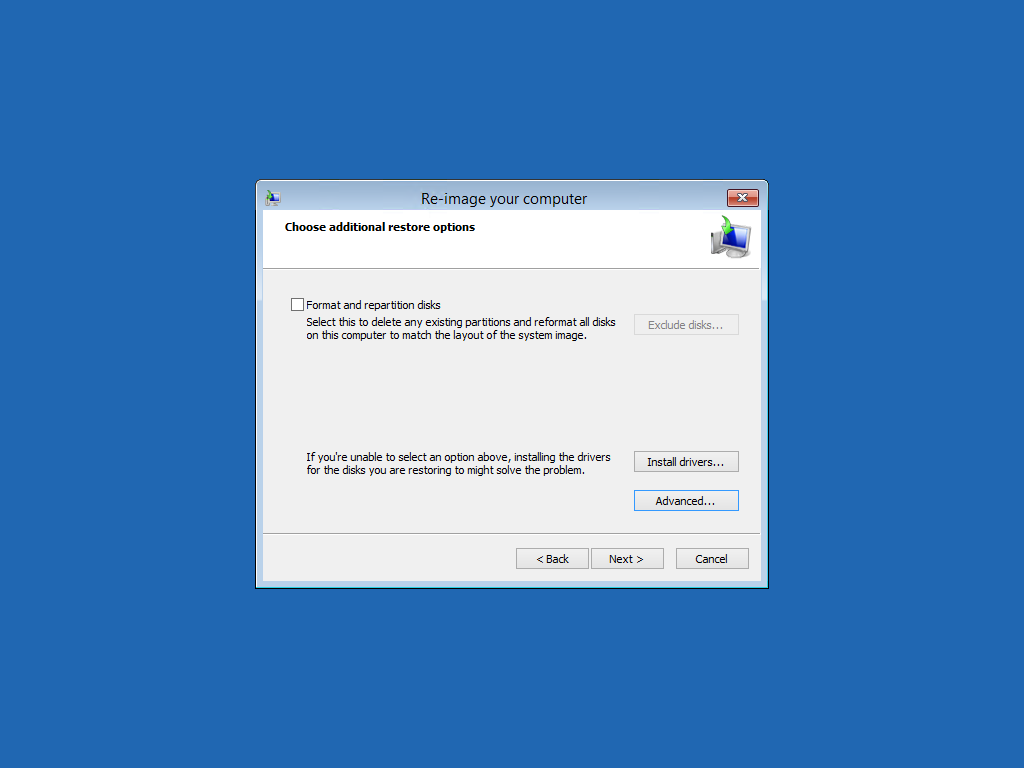
Check Format and Repartition disks if you need to do so:
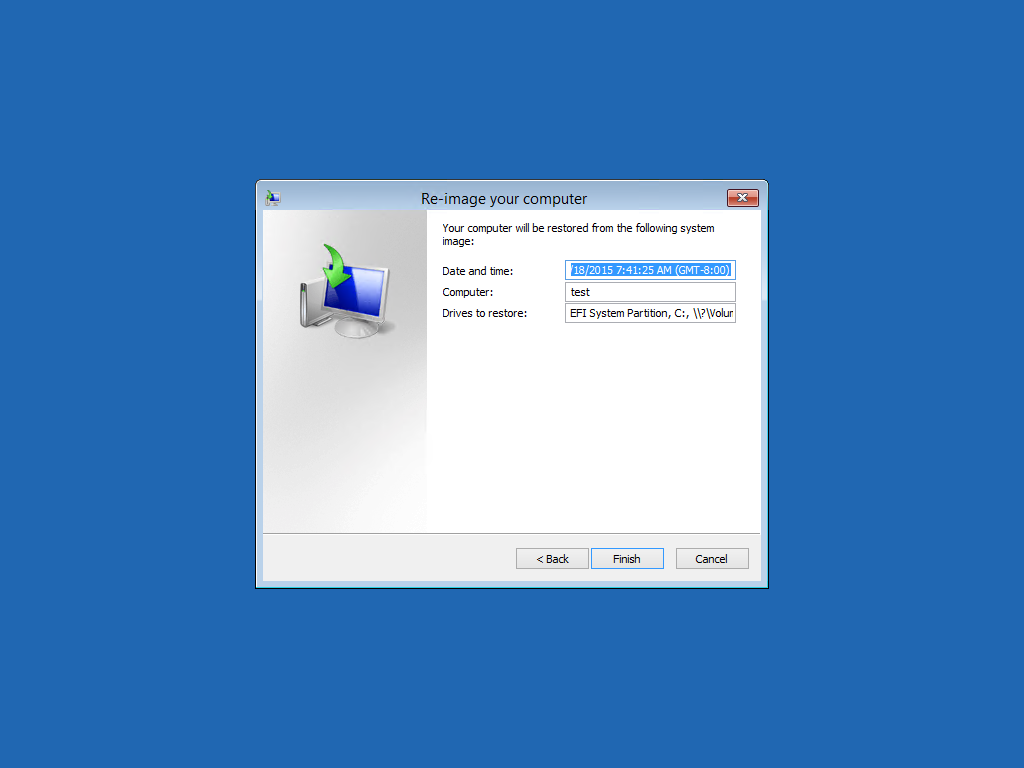
Click on Finish and the recovery job will start:
Read related articles
Configuring and using Windows Deployment Services (WDS)
A 2026 guide to WDS: installation, PXE boot, boot/install images, and the limitations introduced with Windows 11 and Server 2025.
How to install and configure Windows Server Update Services (WSUS)
How to install and configure WSUS in 2026: client groups, approval rules, database maintenance, and the critical CVE to patch.
Sysprep in 2026: practical guide for sysadmins and MSPs
What Sysprep is, when to use it, and how to properly generalize a Windows image before distribution or cloning.