

 Italiano
 Español
We’ve already seen how to restrict software on Windows Server 2012 // R2 using GPOs. There’s another way available since Windows Server 2012, thanks to a feature called AppLocker.
We still use GPOs – AppLocker is a subset of GPOs – to enforce software restriction but it’s easier and more powerful.
AppLocker can manage execution permissions of:
- Executables: files with .exe extension
- Windows installers: Windows installer packages with .msi and .msp extensions
- Scripts: files with .ps1, .bat, .cmd, .cbs and .js extensions
- Packaged Apps: Windows Store apps
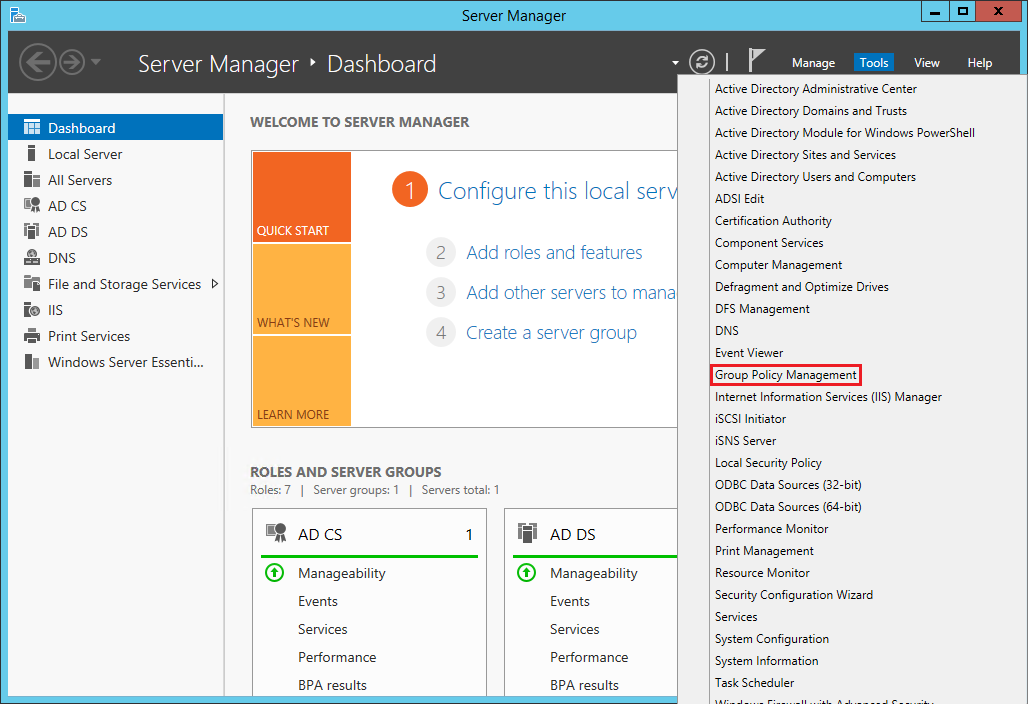
Open the Server Manager and launch the Group Policy Management:
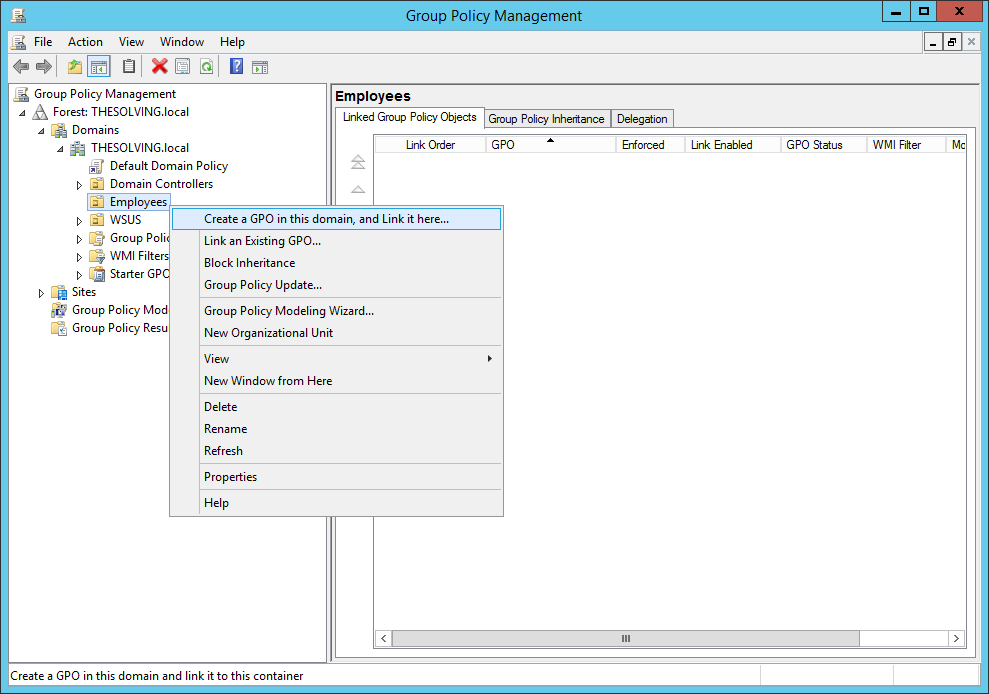
Create a new GPO:
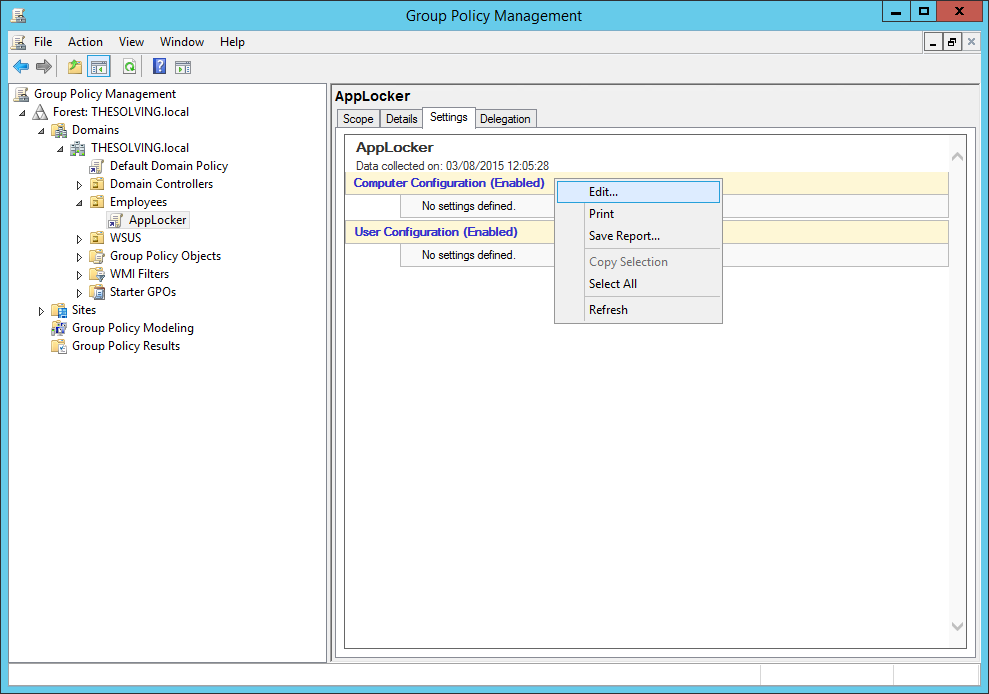
Edit the policy:
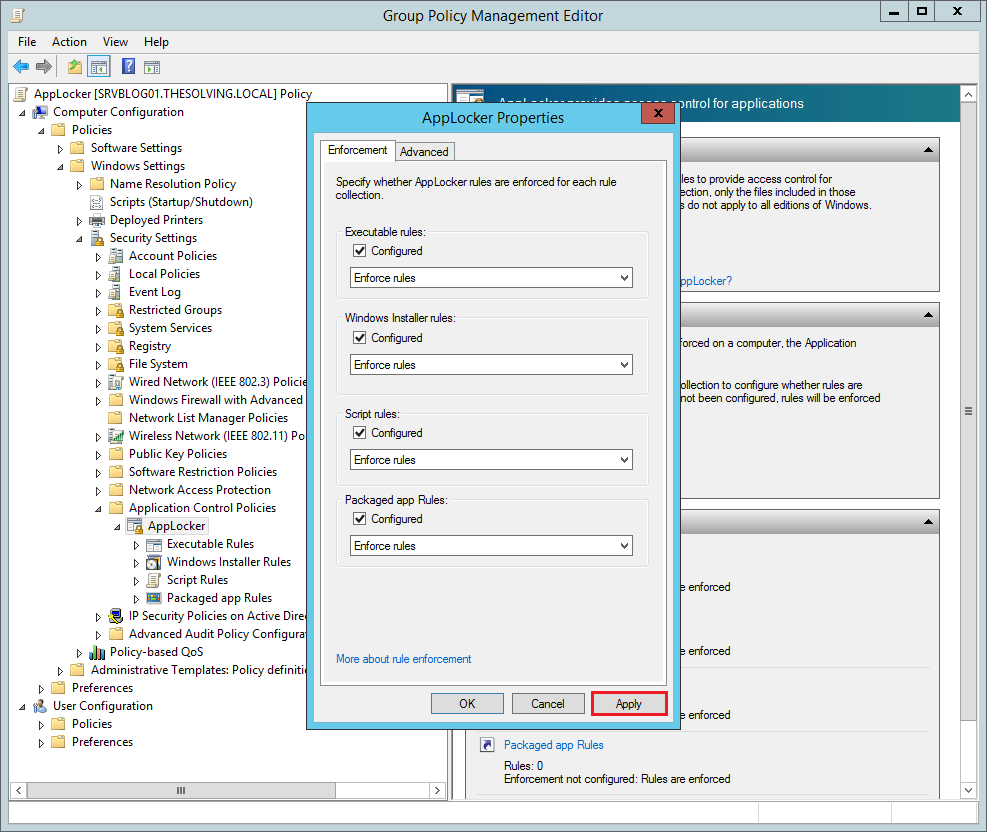
You will find the AppLocker settings inside the path Computer Configuration\Policies\Windows Settings\Security Settings\Application Control Policies\AppLocker. Click Configure rule enforcement:
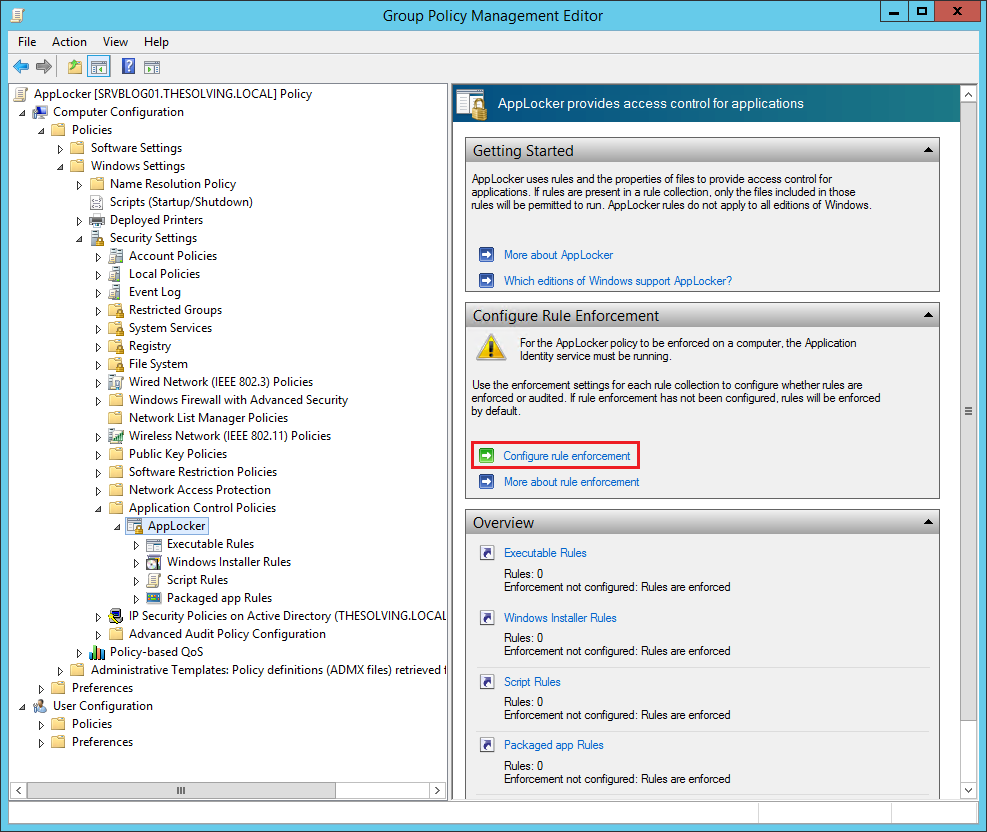
Check all the rules if you want to enforce them. By default AppLocker blocks all executables, installer packages and scripts, except for those specified in Allow rules:
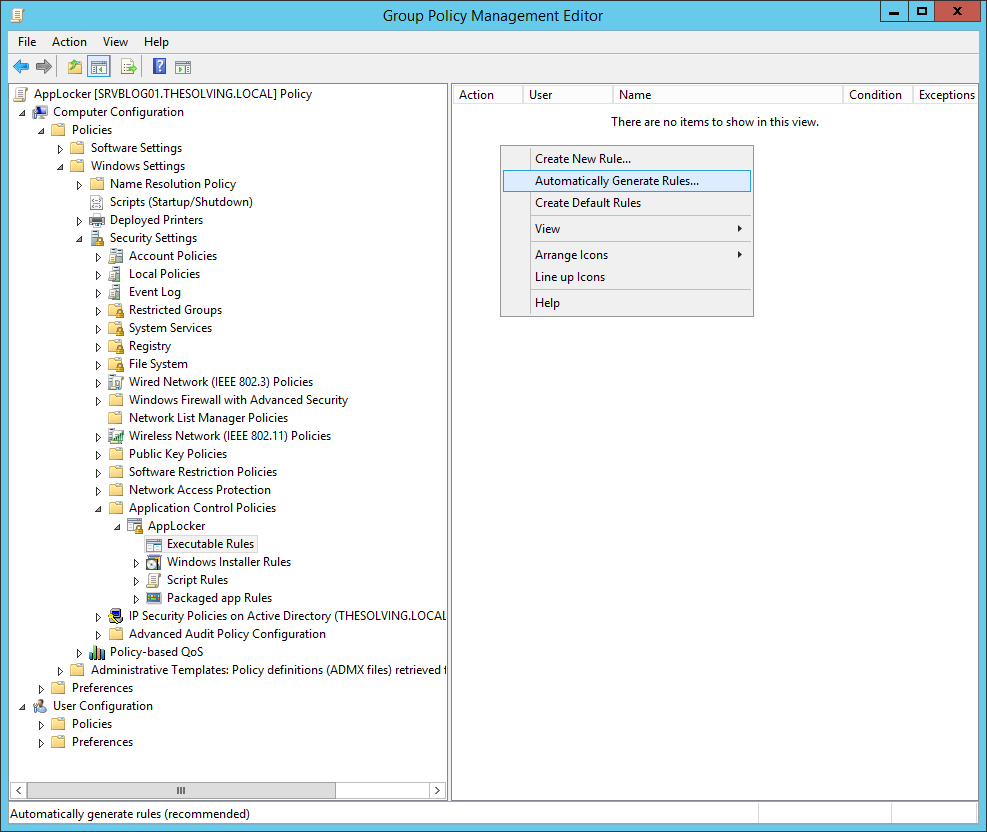
AppLocker differs from software restriction policies for the ability to automatically create rules. Right-click in the white box and select Automatically Generate Rules, a wizard will appear:
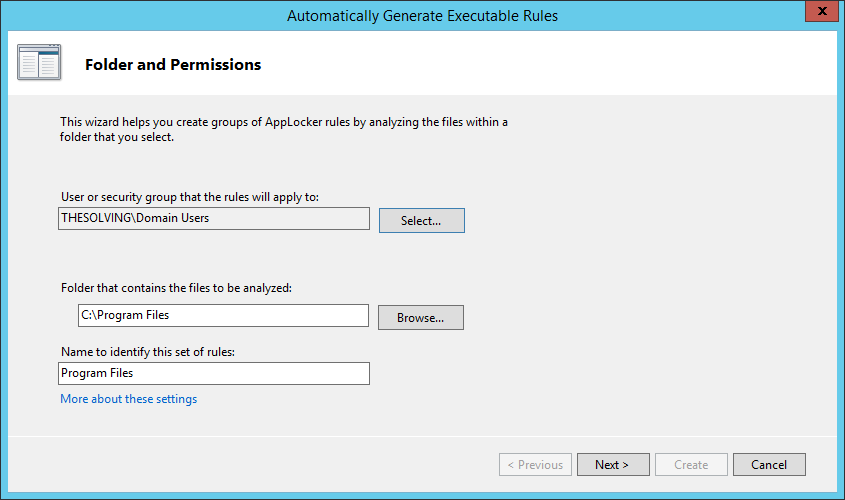
Specify the users that will be affected and select the path that will be analyzed to automatically create “Allow execute” rules:
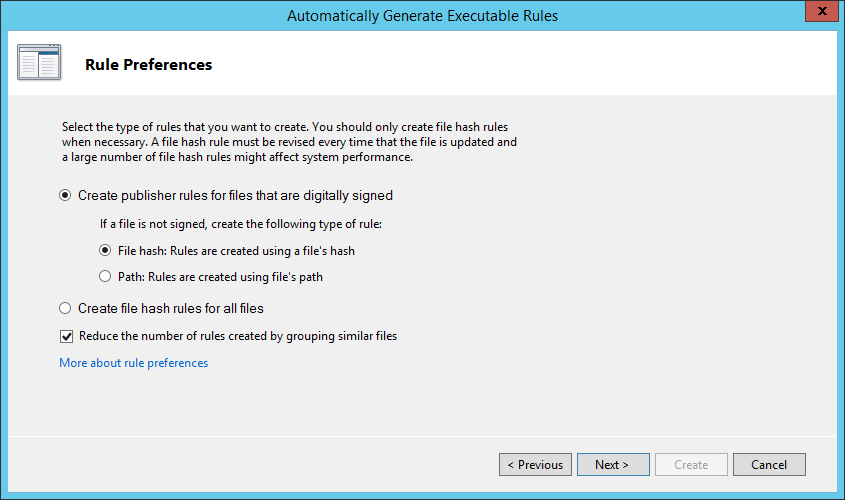
You can choose to allow or not-allow the execution of unsigned executables. It’s better to create the rules based on the executable hash rather than the file path, it’s more reliable:
Click Create:
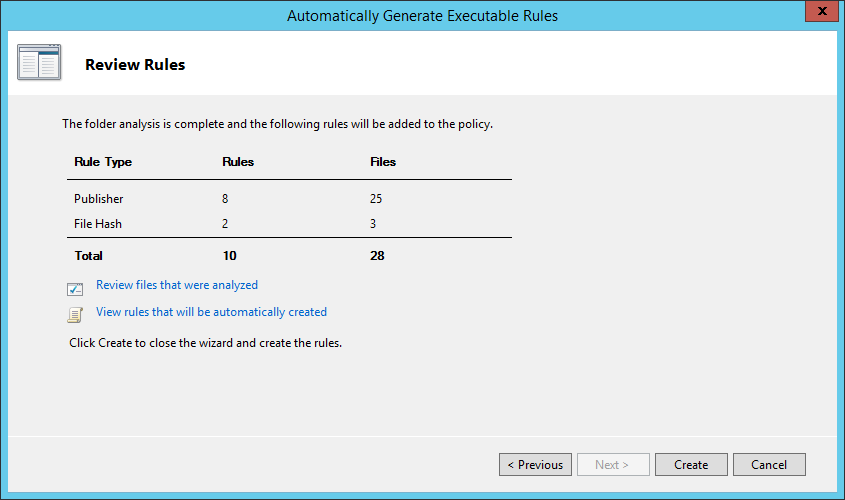
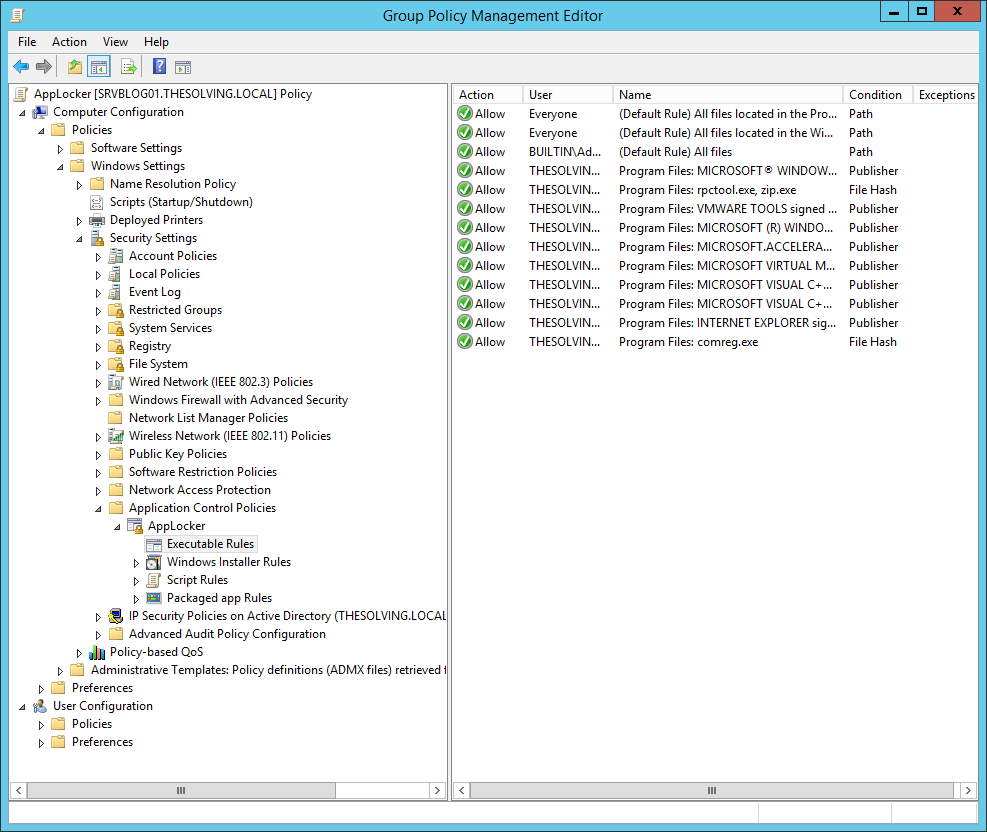
The new rules will appear:
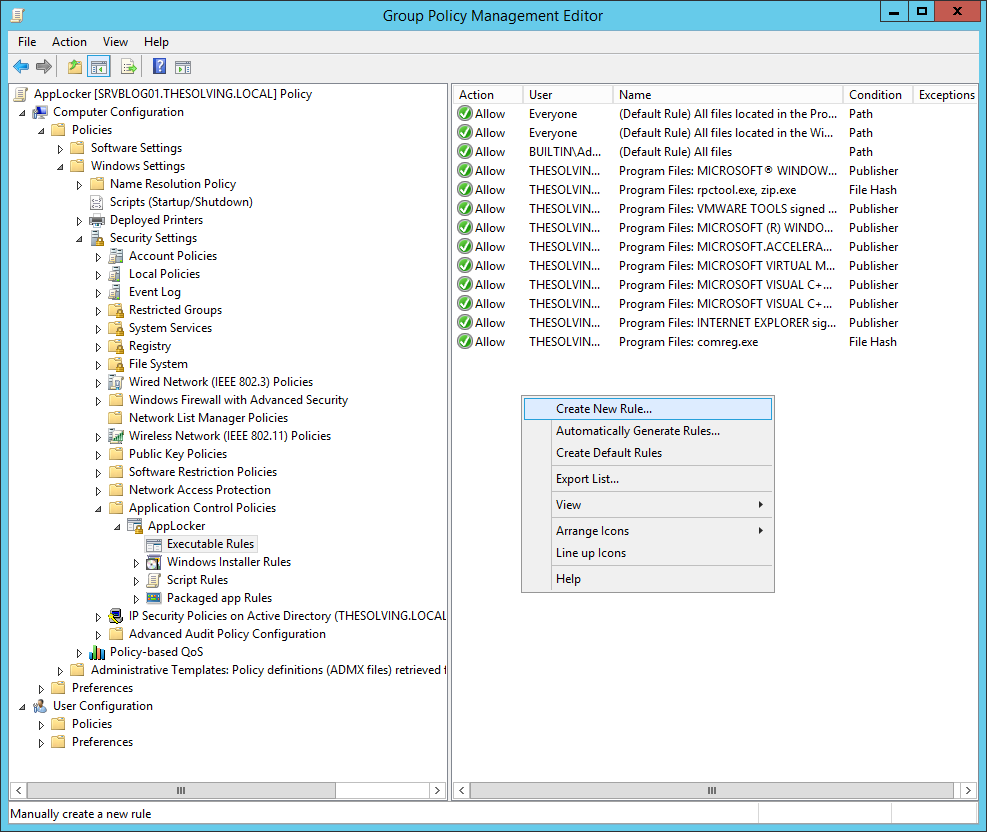
We can also manually create other rules. Right-click on the background and choose Create New Rule:
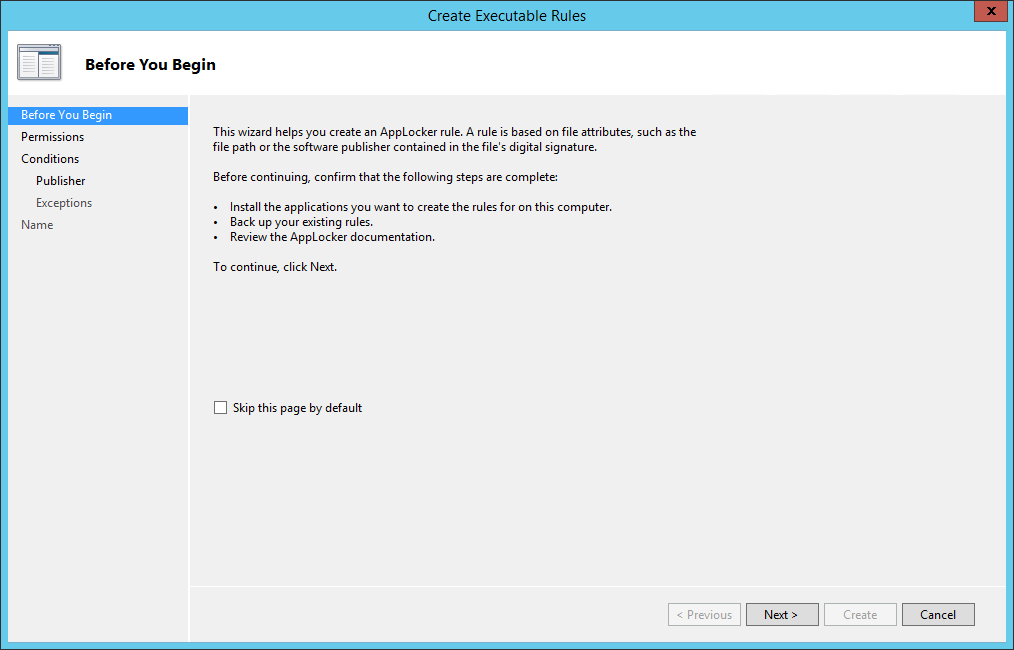
Click Next:
Specify the users who will be affected by the rule and the rule type (Allow or Deny execution):
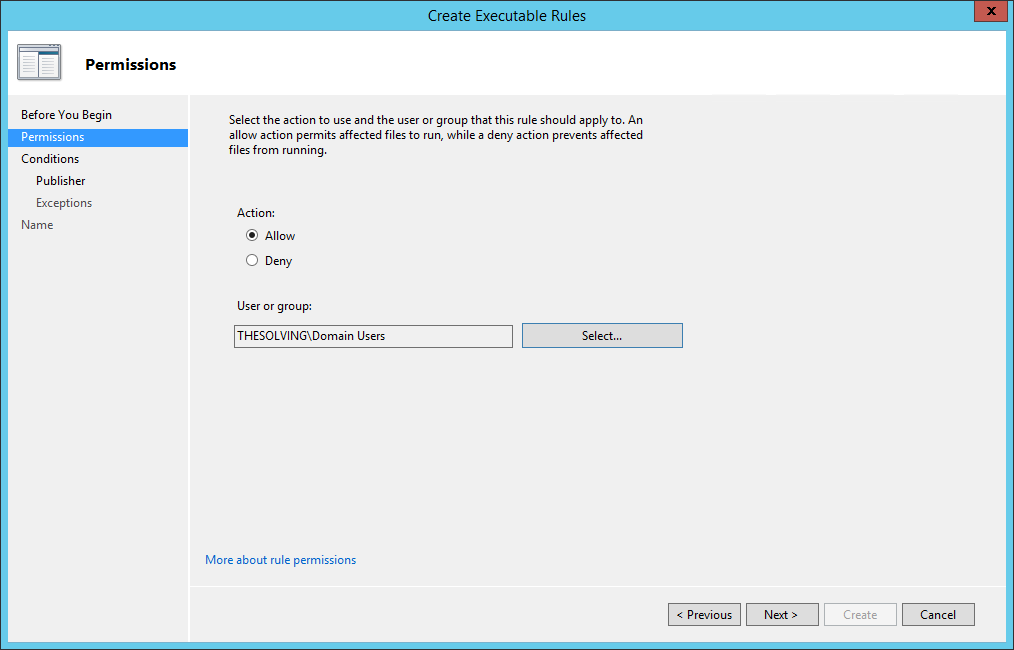
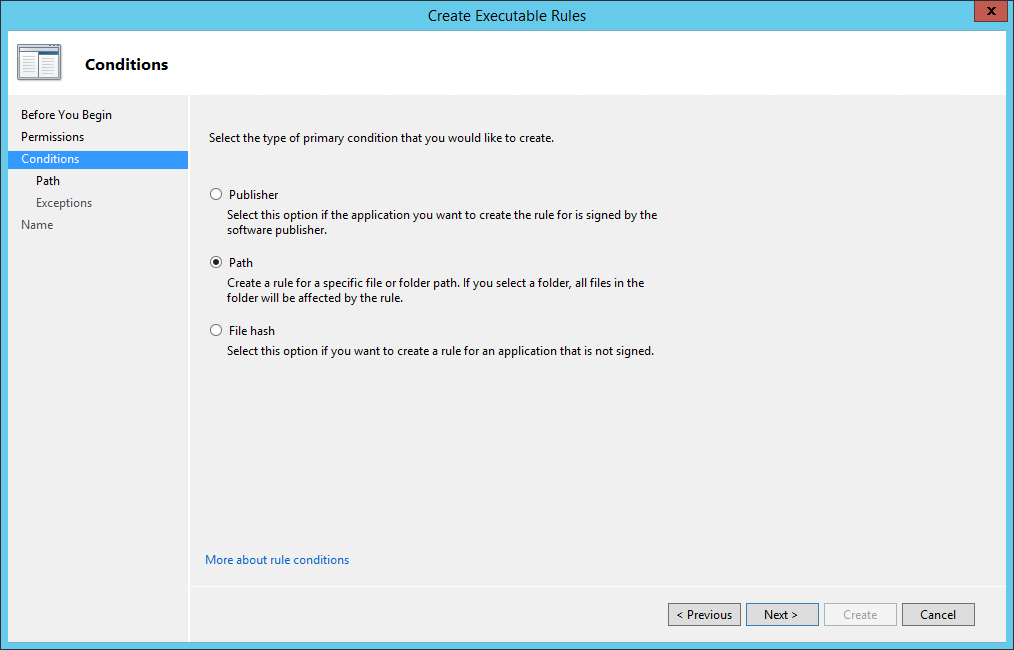
There are three ways to specify which applications will be affected by the rule:
- Publisher: identify the applications signed by a specific publisher;
- Path: identify specific files and paths;
- File Hash: identifiy applications based on their digital fingerprint.
In our example we chose Path:
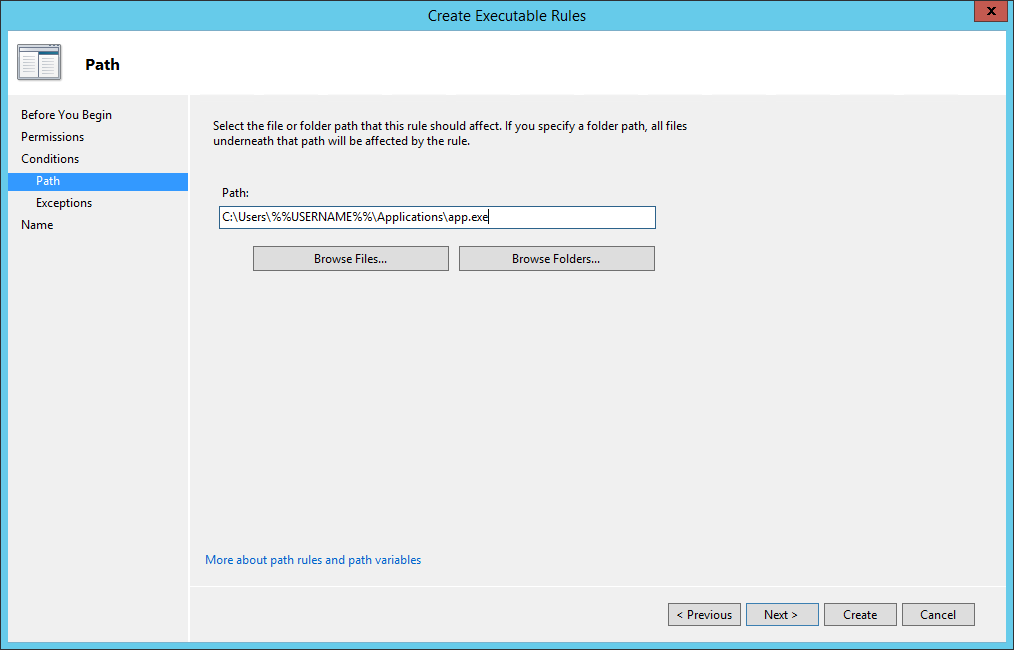
Specify the Path:
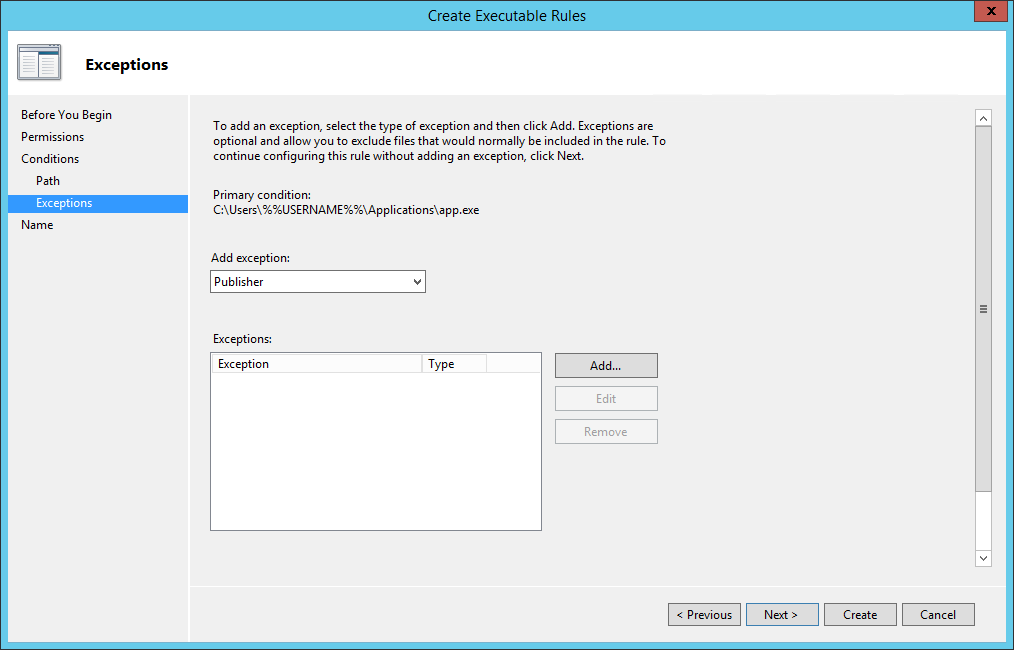
You can add exceptions if you need them:
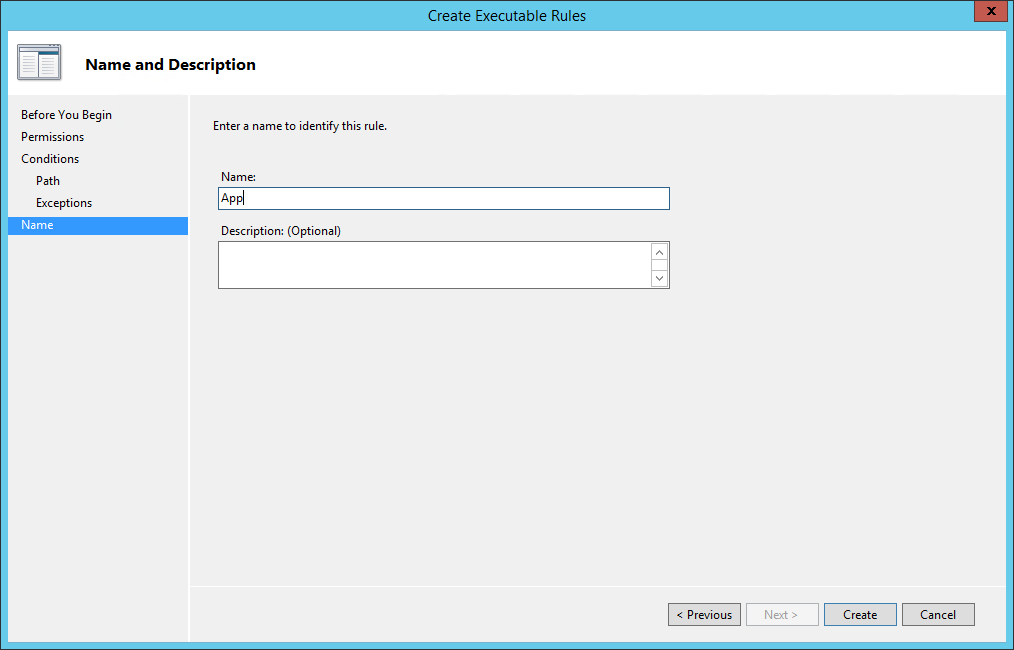
Name your new rule and click Create:
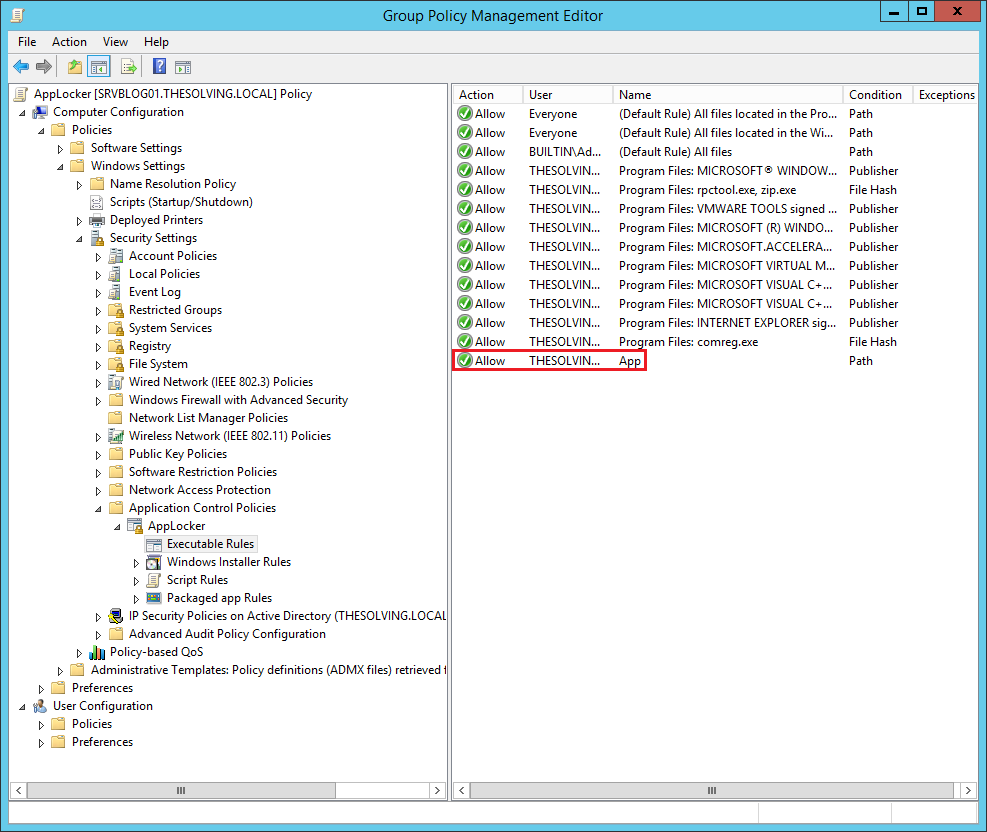
The rule will appear:
Read related articles
Configuring and using Windows Deployment Services (WDS)
A 2026 guide to WDS: installation, PXE boot, boot/install images, and the limitations introduced with Windows 11 and Server 2025.
How to install and configure Windows Server Update Services (WSUS)
How to install and configure WSUS in 2026: client groups, approval rules, database maintenance, and the critical CVE to patch.
Sysprep in 2026: practical guide for sysadmins and MSPs
What Sysprep is, when to use it, and how to properly generalize a Windows image before distribution or cloning.