

 Italiano
 Español
Active Directory is the directory service developed by Microsoft for its Windows operating systems.
It’s a very powerful tool that allows to manage access permissions, domains, shared folders, shared printes, proxy servers and much more in a centralized way.
We are going to show you how to create an Active Directory Domain on a Windows Server 2012 R2.
First of all, you need to install the Active Directory Domain Services role. Open the Server Manager and follow these steps:
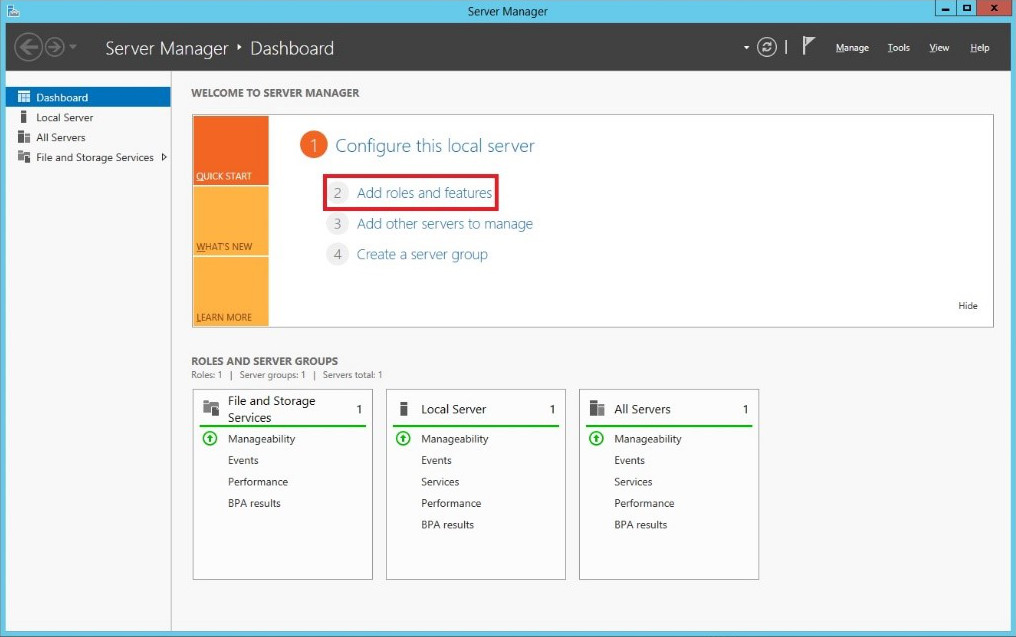
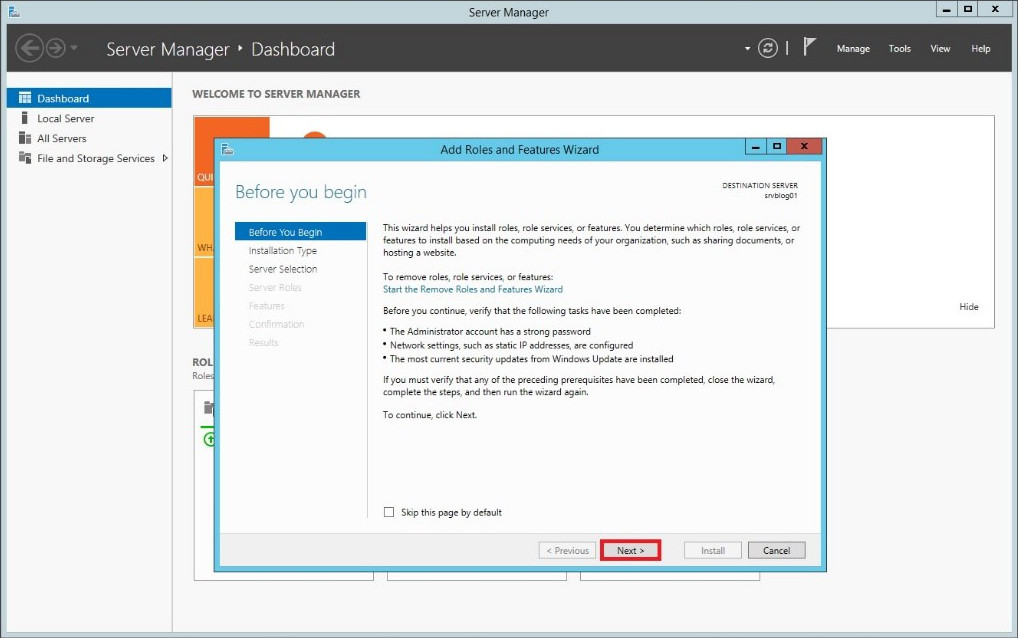
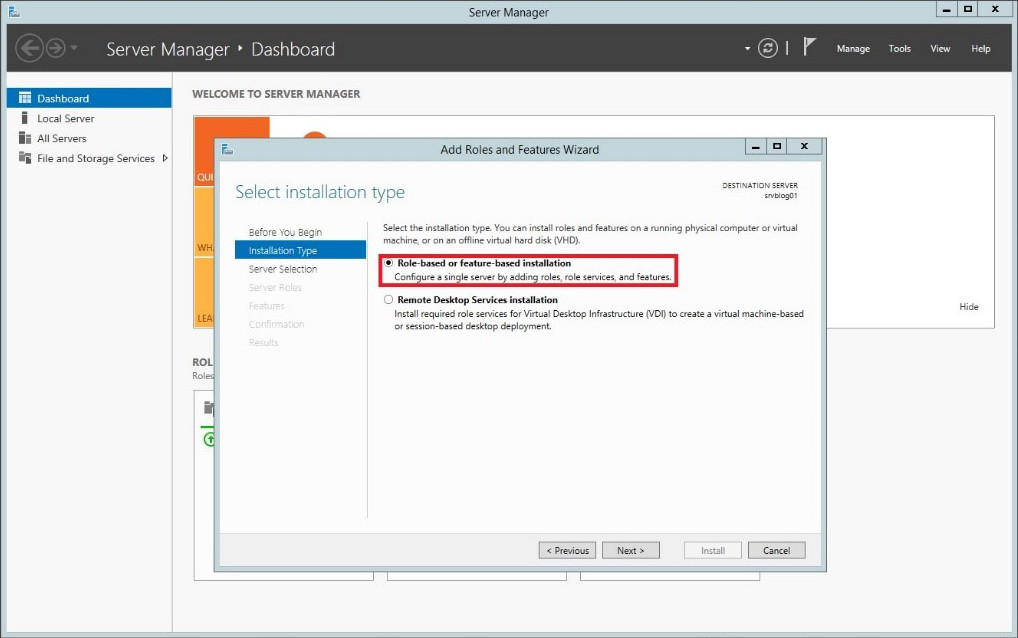

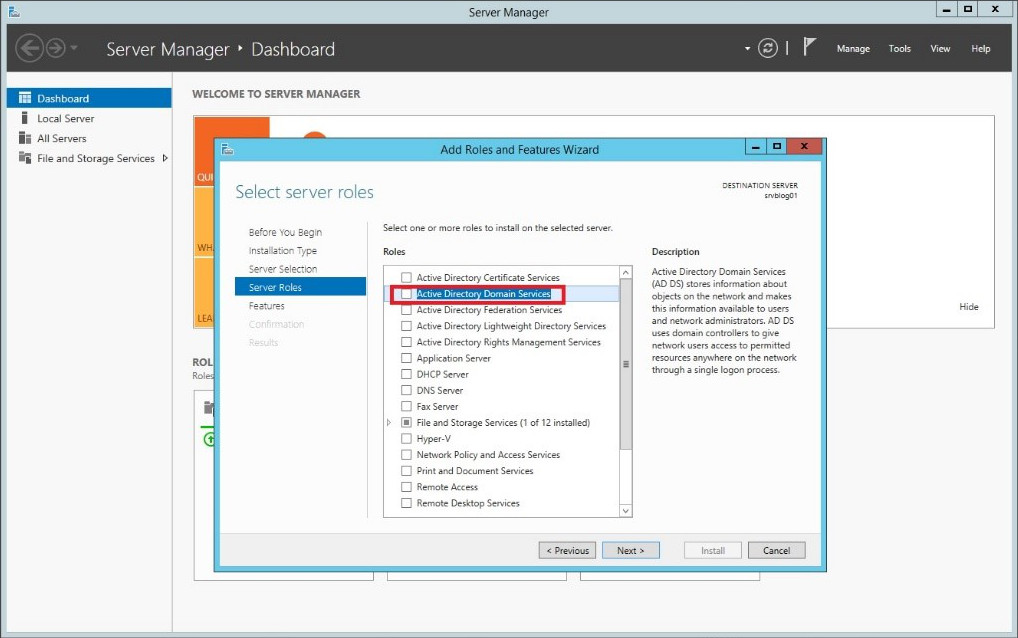
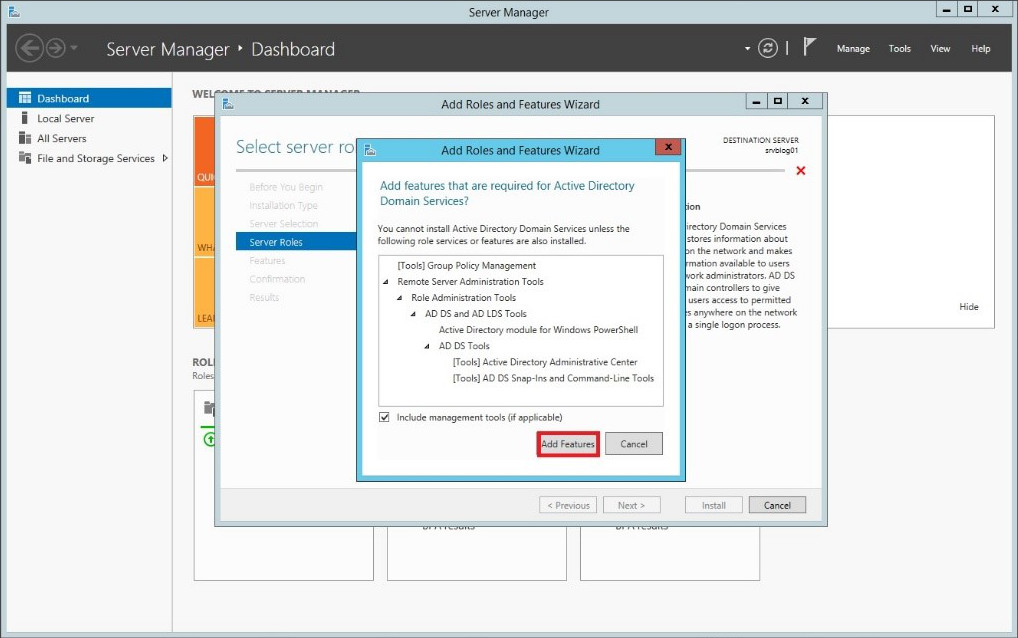
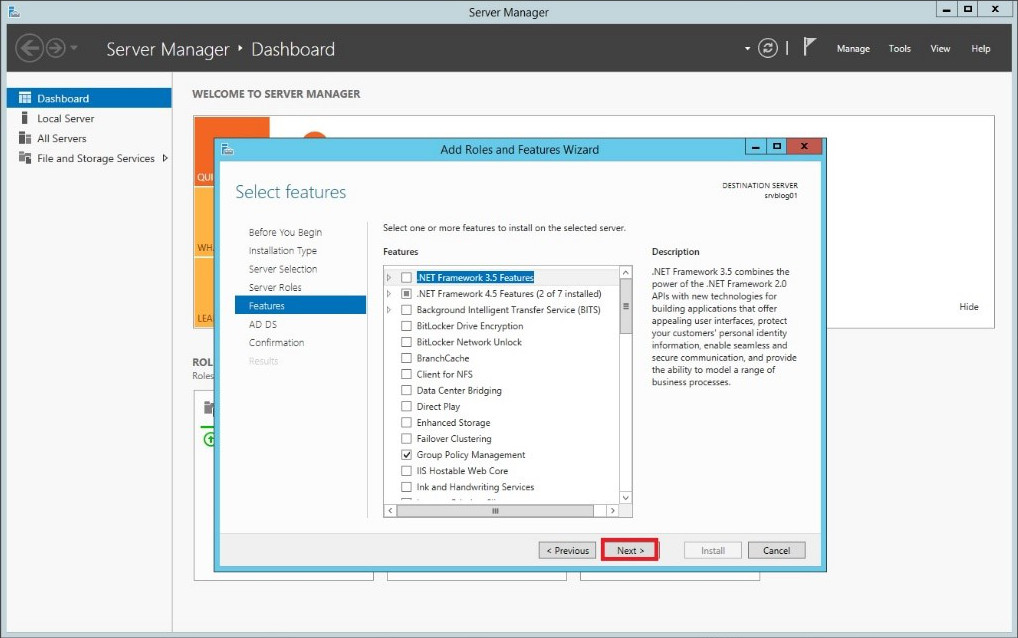
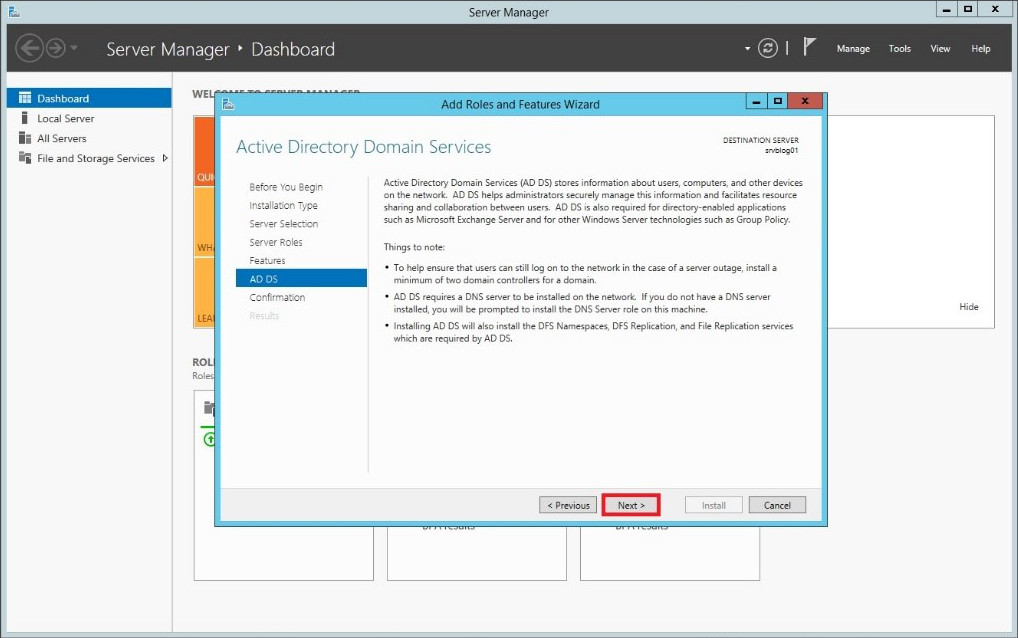
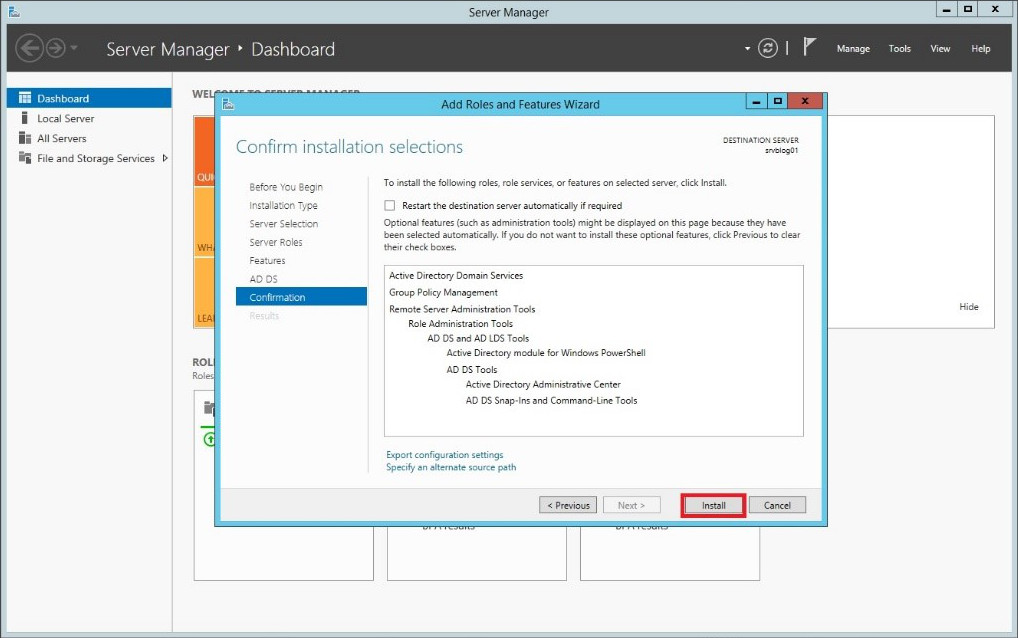
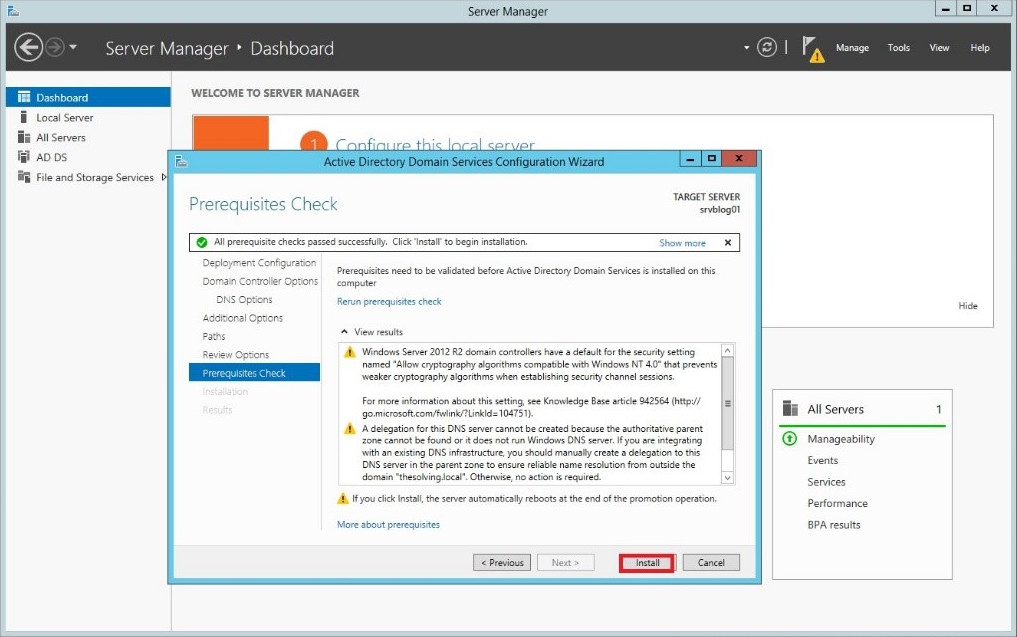
Finally.. Active Directory Domain Services are installed on the server.. a lot of steps for such a simple installation. After the completion reboot your system:
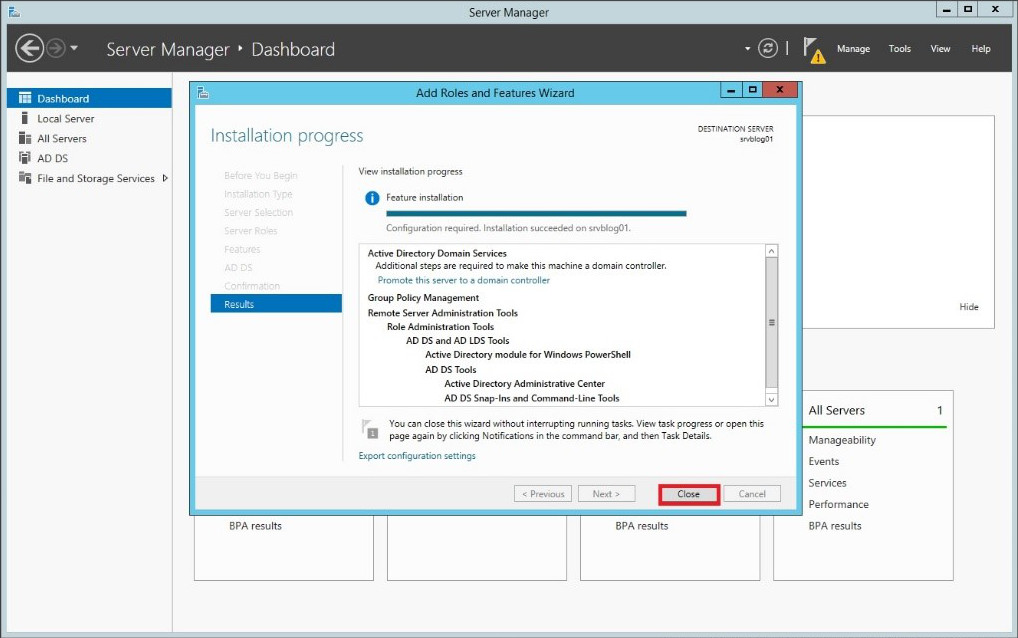
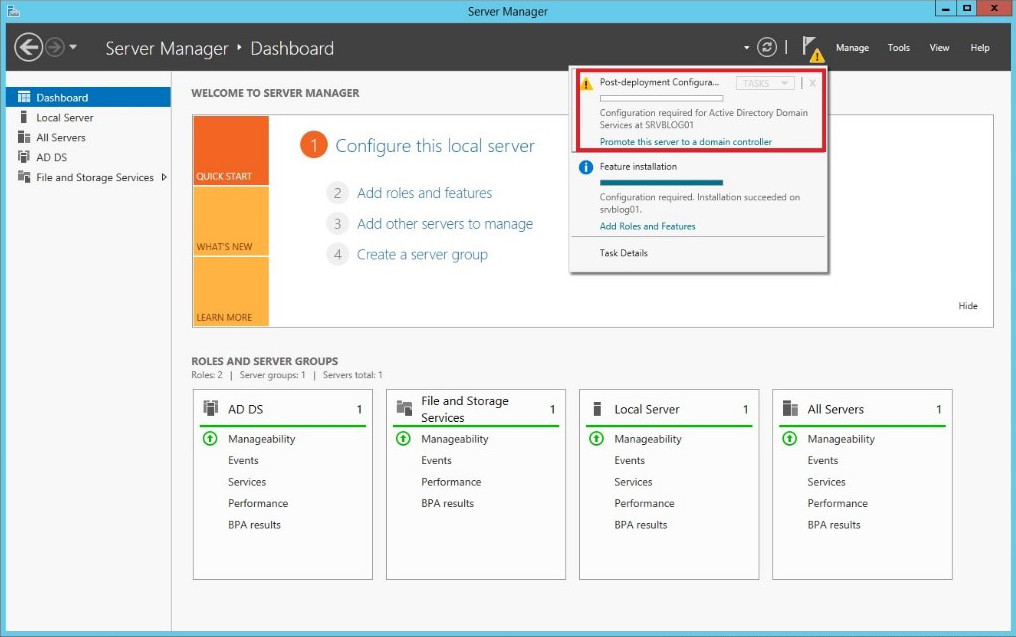
It’s time to configure Active Directory Domain Services:
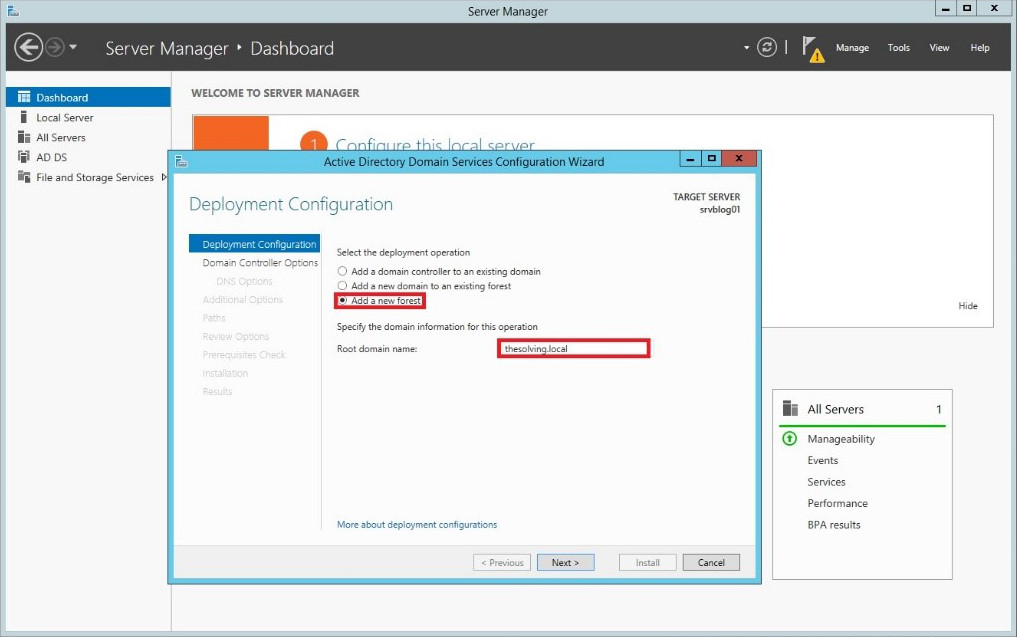
To create a new domain select Add a new forest and specify a name. Use .local after the domain name:
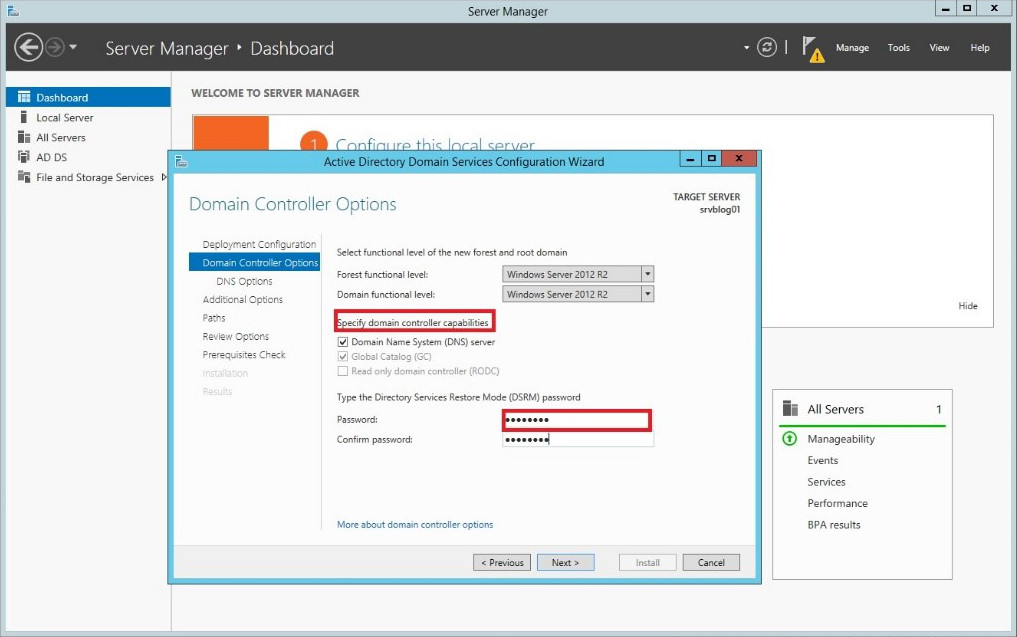
Select the domain features and specify a restore password:
Skip the DNS delegation configuration:
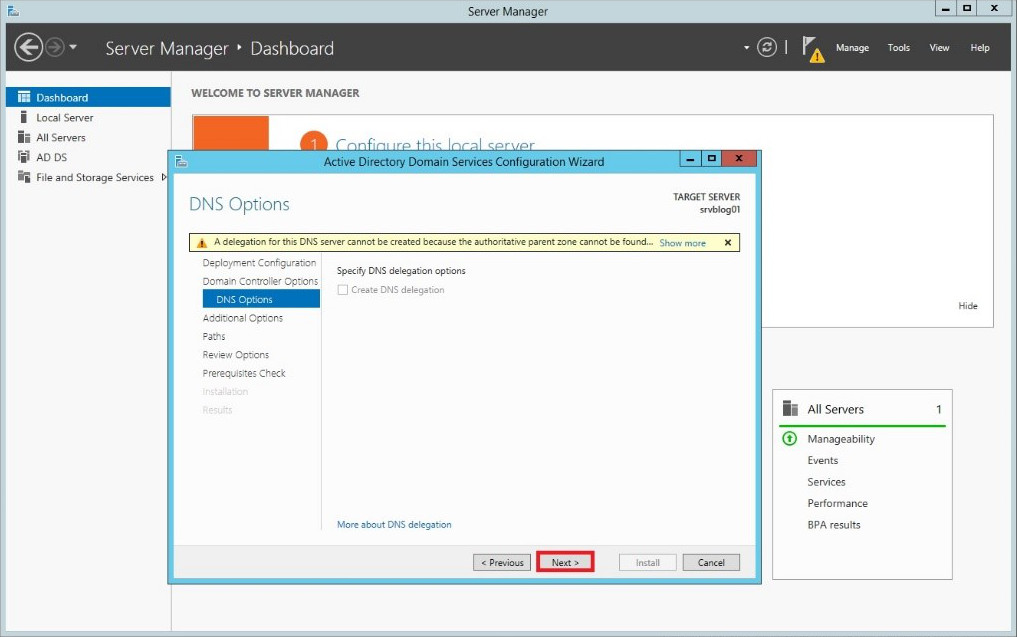
Verify the NETBIOS domain name to be sure it’s all ok:
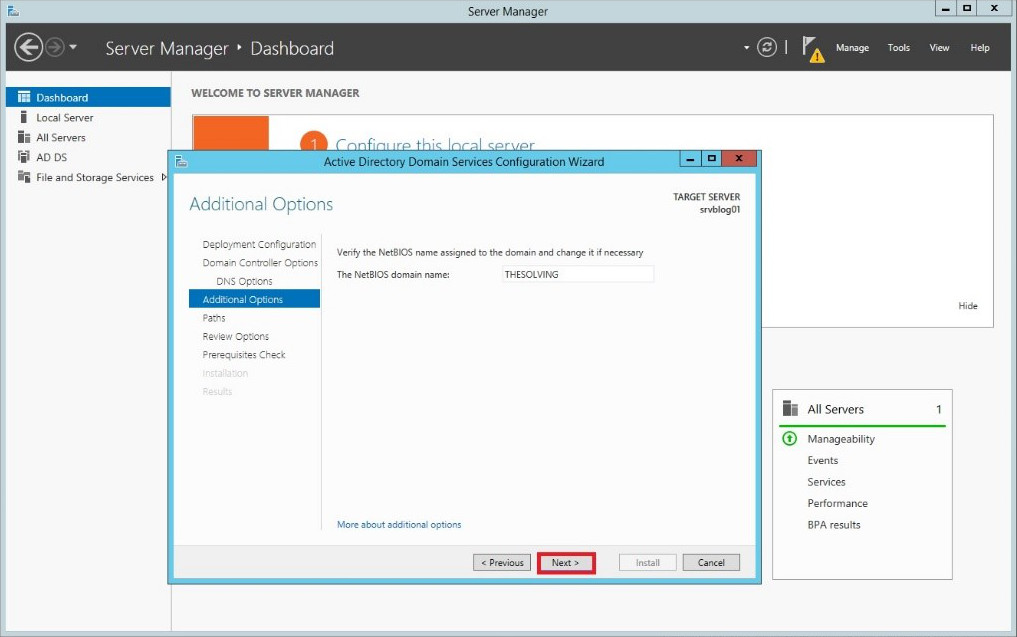
You can modify Active Directory Domain Services file paths.. but you don’t need to:
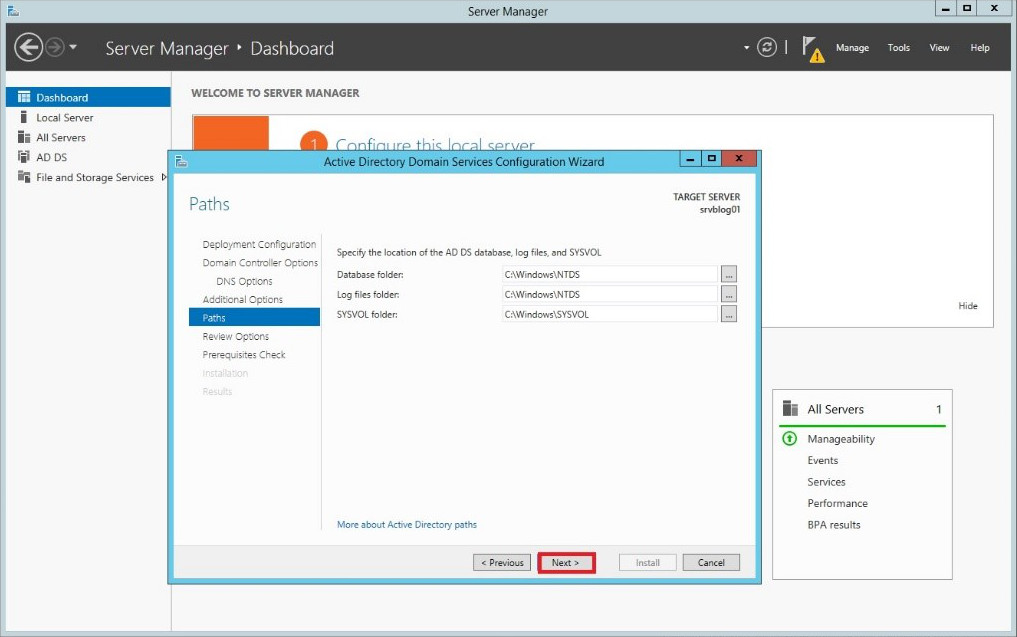
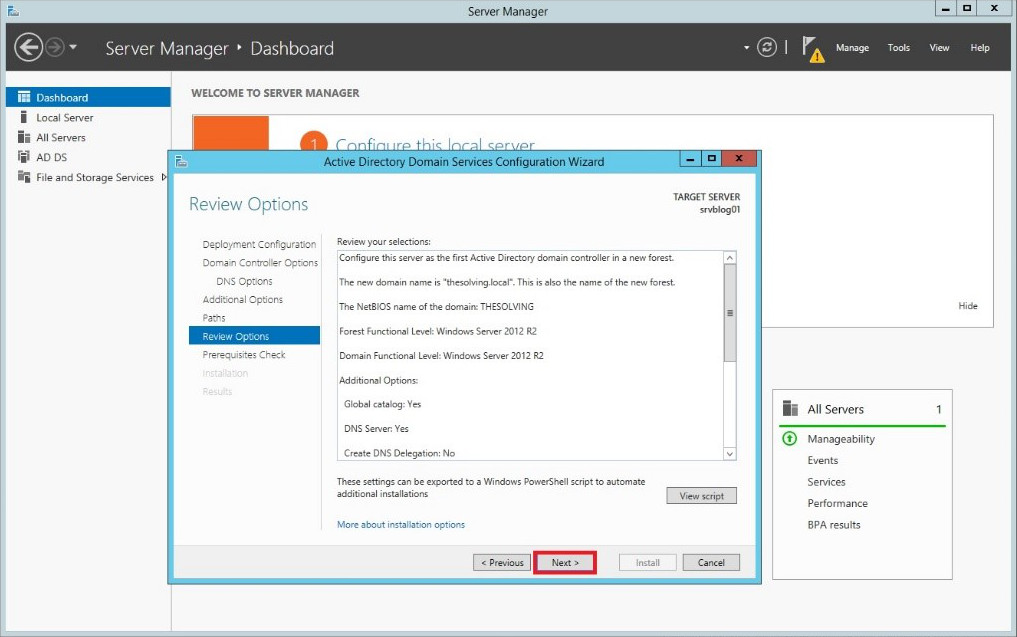
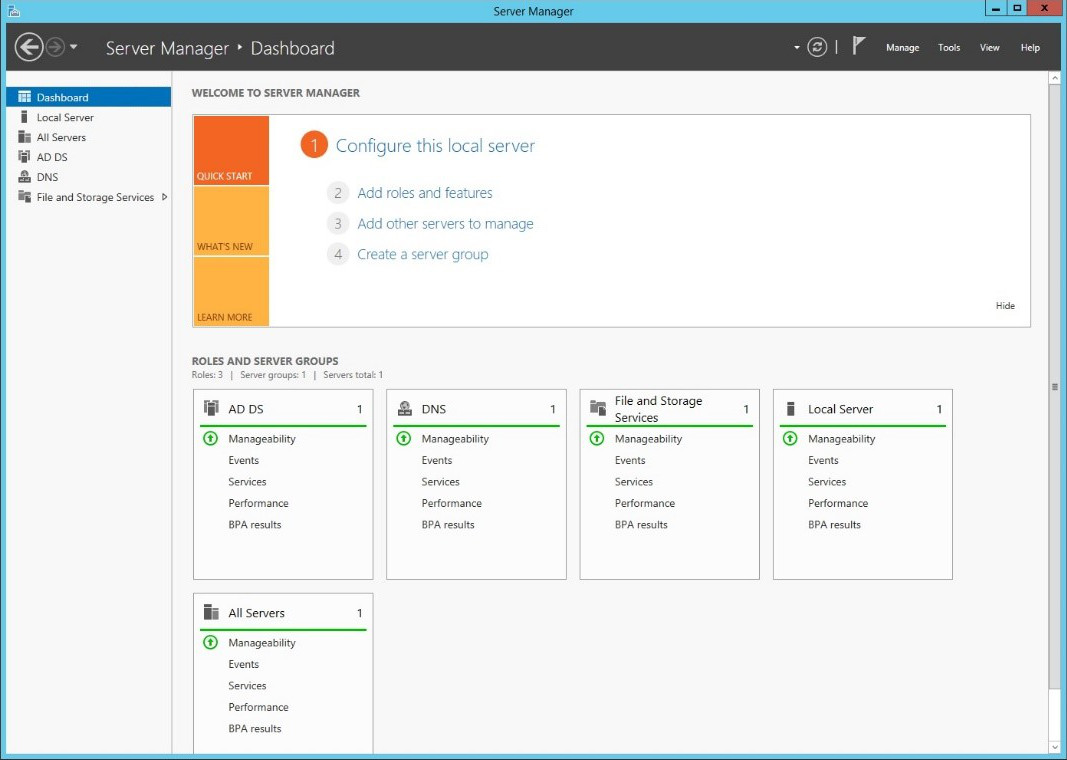
The configuration is finished. Complete the procedure and enjoy your new Active Directory Domain:
Read related articles
How to configure static routes to route traffic through a specific gateway
Learn how to configure static routes on Windows Server and Windows 11 using route add and PowerShell’s New-NetRoute, so traffic to specific destinations takes the gateway you choose.
How to reset NTFS permissions with ICACLS
Learn how to fix broken NTFS/ACL permissions on Windows Server using ICACLS: reset ACLs, handle access denied errors, take ownership, and back up permission trees safely.
Configuring and using Windows Deployment Services (WDS)
A 2026 guide to WDS: installation, PXE boot, boot/install images, and the limitations introduced with Windows 11 and Server 2025.