

 Italiano
 Español
This is a very basic tutorial to create a simple virtual machine running on a VMware ESX(i)/vSphere host.
As prerequisites, you need an ESX(i) server and an installed vSphere Client. They must be of the same version (for example, vSphere Client 5.5 won’t work with ESXi 6).
In this post we’ll see how to create a virtual machine for a Windows Server 2012 operating system.
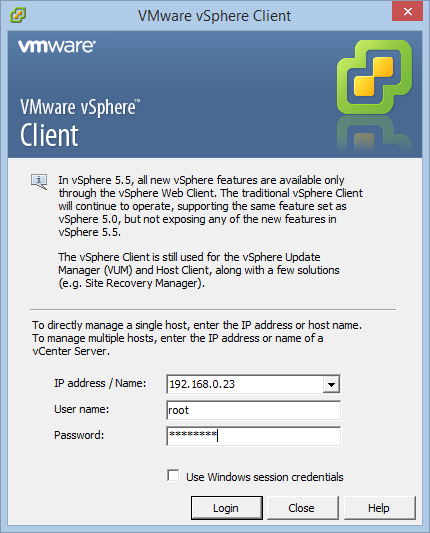
Launch the vSphere Client and specify IP and access credentials of the ESX(i) server:
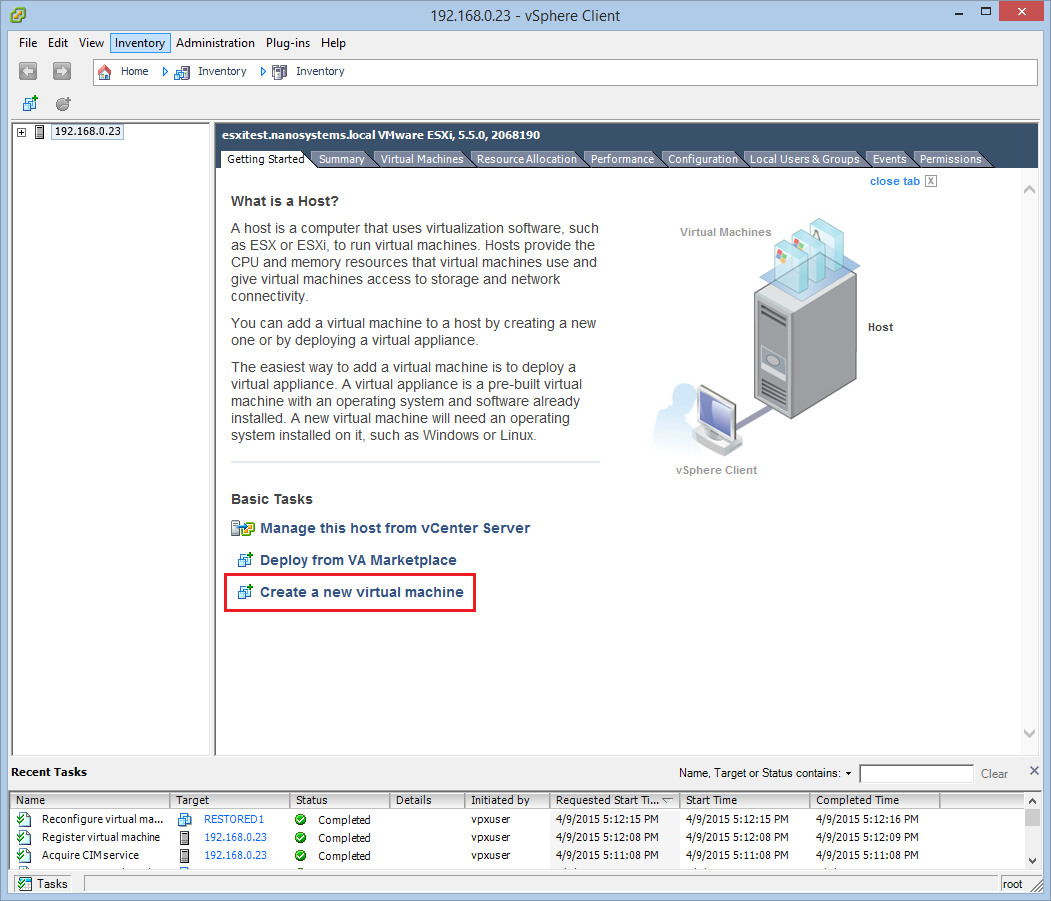
Click Create a new virtual machine:
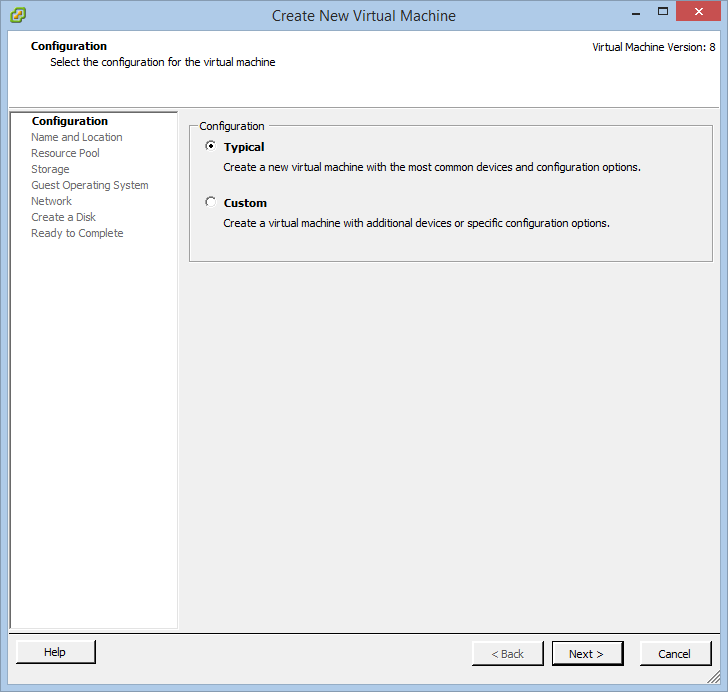
Select Typical:
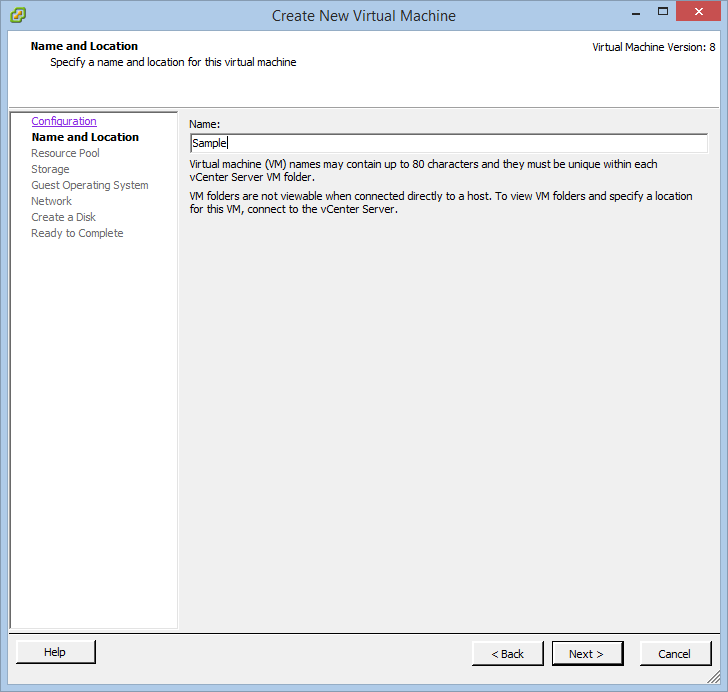
Name the new virtual machine:
Select the resourse pool:
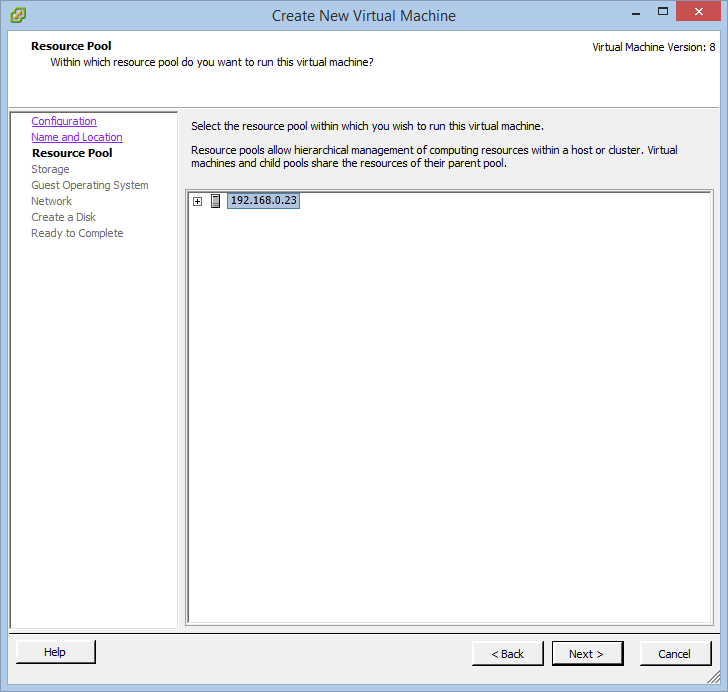
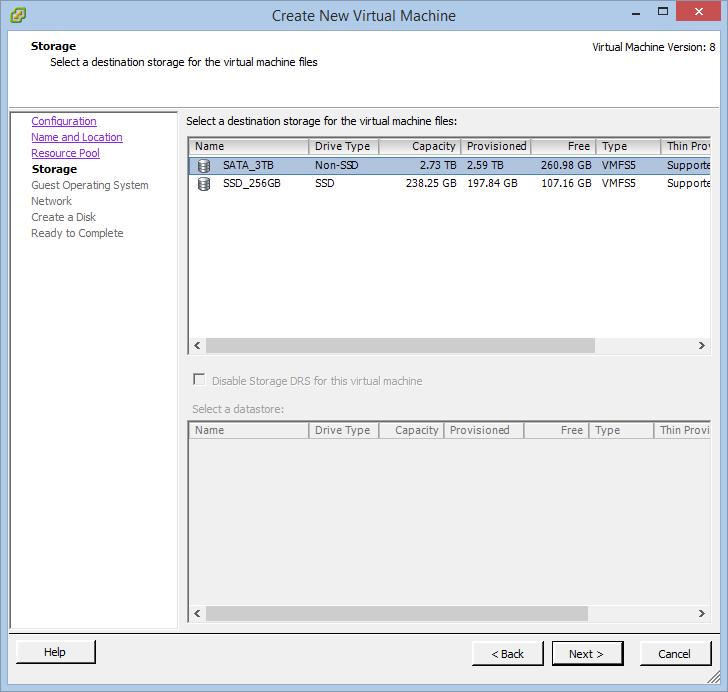
You can select on which datastore you want to maintain the VM files:
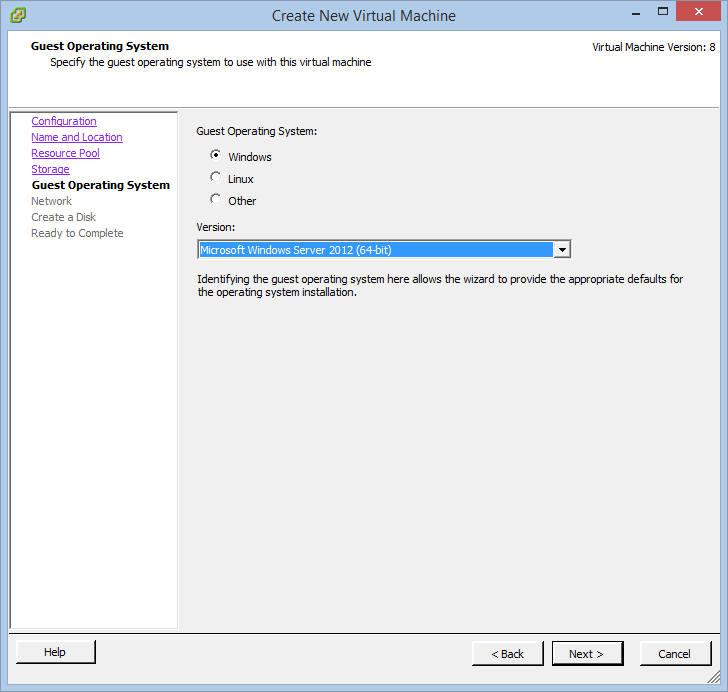
Select the operating system that will be installed on the VM:
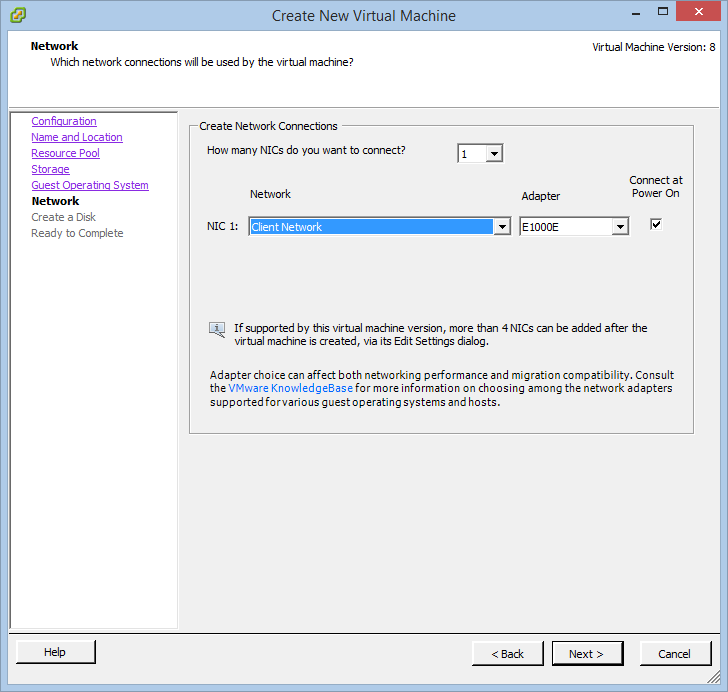
Leave the default configuration:
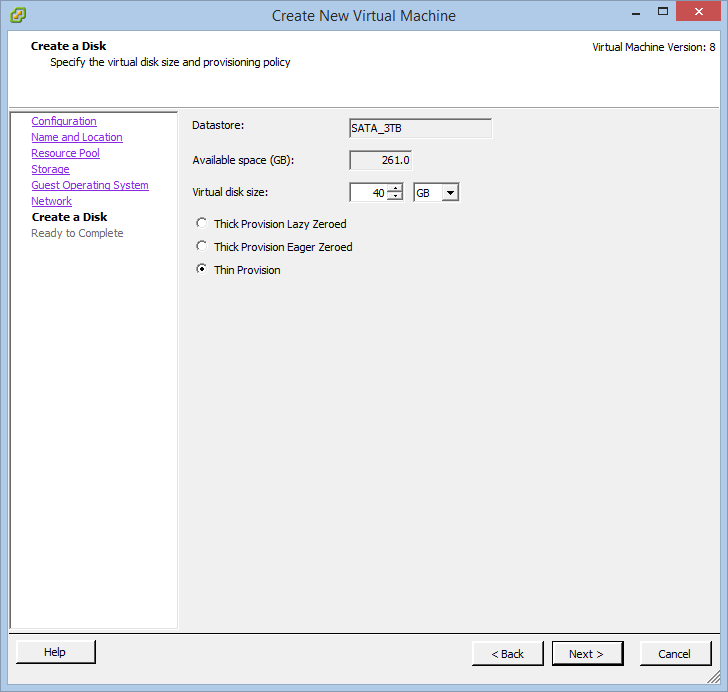
Check Thin Provisioning (the virtual disk files will occupy only the space needed for the data saved into the vdisk):
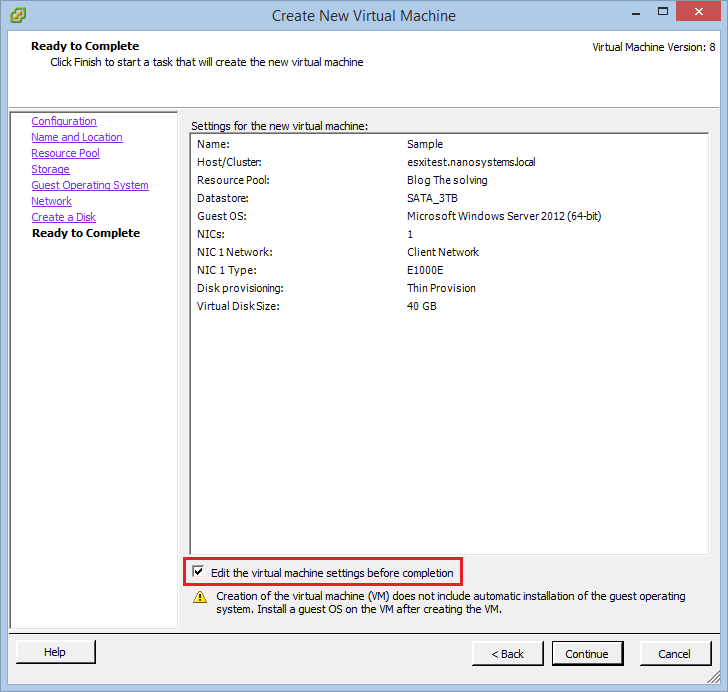
Check Edit the virtual machine settings before completion and click Continue:
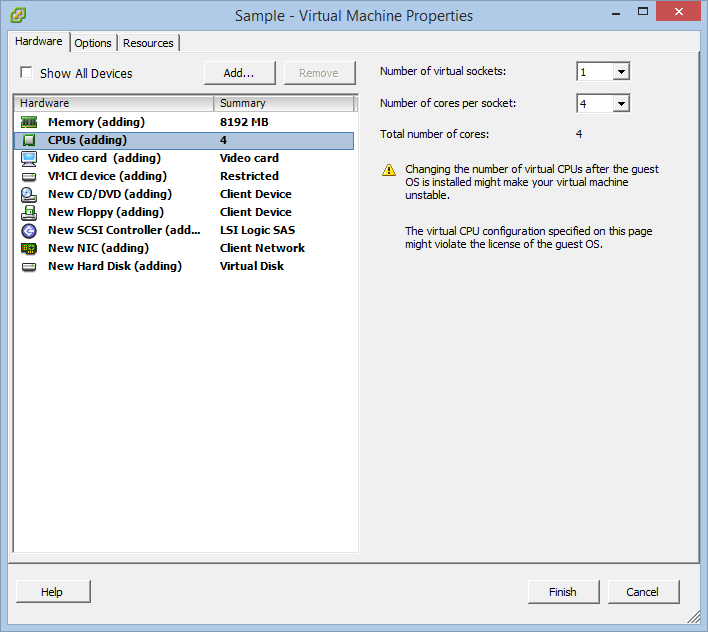
Now you can customize the hardware specs of the virtual machine. Click Finish to create the VM:
Read related articles
VMware vSphere Client in 2026: how to access and manage vCenter
There is no VMware vSphere Client to download in 2026. Access vCenter through the built-in HTML5 client at https:///ui, manage standalone ESXi hosts via the Host Client, and automate with VCF PowerCLI. This guide covers the free ESXi Hypervisor, VCF 9, support timelines, and migration paths for MSPs.
Install VMware ESXi on a Hyper-V
It is possible to use nested virtualization to run VMware ESXi as a Virtual Machine in Hyper-V. To some, this
How to install and configure VMware PowerCLI version 10
VMware PowerCLI is a collection of Windows Powershell modules which are used to manage and maintain a VMware virtual environment.